
Each team can keep its own information about its patients, in fields called handover categories. Its team owner or an administrator sets them up. On the patient profile, each team's fields sit under the team's name, below the Clinical summary. Under each field, CAREFUL shows who last changed it and when.
You can update a team's information only if you are in that team and the patient is in it too. On the patient profile, this applies to administrators as well. On the team's patient list, an administrator who is not in the team can still update its text fields.
You can read the information of every team on the record, including teams you are not in. A lock beside a team's name means you cannot change its fields. On a computer, point at the team's name to see why: You are no longer a member of this team, or The patient must be admitted to a team to edit this information.
A team's information stays on the record after the patient leaves that team, but nobody can change it then. A team with a referral for the patient that it has not yet accepted can read the information but not change it.
A field holds either text or a form. CAREFUL sends no notification about a change. Each change goes on the patient's Log tab.
Update a text field
Use your team's fields for what it needs at handover, such as jobs outstanding, the plan for tonight or what the family has been told. Each team keeps its own fields. Your entry never replaces another team's.
- Open the patient profile.
- On the Profile tab, find your team's name below the Clinical summary.
- Select the field's text, or Edit under it. If the field is empty, select Click to Add details.
- Change the text. To add the date and time, select Date/time: CAREFUL puts them where your cursor is.
- Select Save. To leave the field as it was, select Cancel.
Tip: Selecting anywhere outside the box also saves your change, instead of doing what you selected.
Fill in a form
Some teams use a form instead of free text, for information they record the same way for every patient. The patient profile shows the answers last submitted.
- Open the patient profile.
- On the Profile tab, select the form under your team's name. If nothing has been entered yet, it shows Data not available. Click here to create a new form.
- Fill in the form in the window that opens.
- Submit the form with the button at the bottom of the window. To confirm: the button's label; each form sets its own
Tip: Some forms keep every version submitted. The patient profile then shows them one at a time: use the arrows to move between them.
Update it from the team's patient list
If your team has handover categories, you can show them on its patient list and update a text field there without opening each patient profile. This suits a run through the list before handover.
- Select Teams in the menu on the left, then the team. On a phone, select the menu button at the bottom of the screen first.
- Show the handover categories: see Show or hide handover categories and actions on a team's patient list.
- In the patient's row, select the field's text, or Edit.
- Change the text, then select Save.
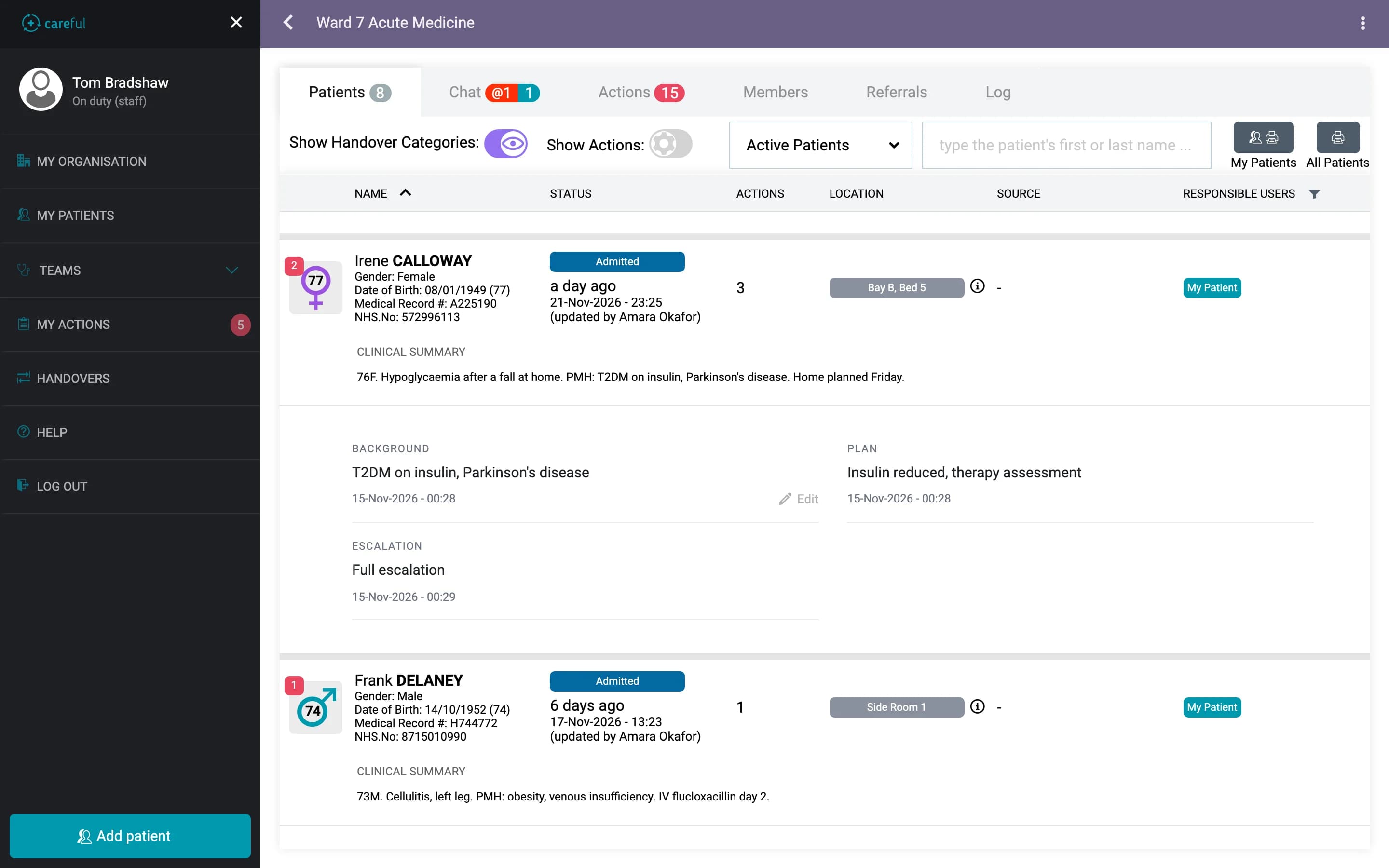 A team's patient list with Show Handover Categories on: the team's fields under each patient, with Edit beside them
Tip: The list shows a form's answers, but you change a form from the patient profile.