
A risk flag marks a patient red, amber or green, with a reason if you give one. The flag shows beside the patient's name in patient lists and at the top of the patient profile. Colleagues can see it at a glance.
You can change the risk flag of any patient in one of your teams. Administrators can change it for any patient record in the organisation. You cannot change it on a read-only record, while your team has a referral for the patient that it has not yet accepted.
A patient has one flag at a time. A new flag replaces the old one. CAREFUL gives the colours no fixed meaning: your organisation or team decides what each one stands for. See What do the risk flag colours mean?
CAREFUL notifies the colleagues responsible for the patient who are on duty, if they use the CAREFUL phone app. It does not notify you about your own change. Every change, with its reason, goes on the patient's Log tab.
Set or change the risk flag
Flag a patient for whatever your team has agreed to mark, such as a risk of falls, an infection-control precaution or a safeguarding concern. The reason tells colleagues why, without their opening the notes.
- Open the patient profile.
- On the Profile tab, select Risk flag. Update risk flag for opens, with the patient's flag and reason under Current risk flag.
- Under New risk flag, select Red, Amber or Green. The current colour is already selected. To change only the reason, leave it.
- In Reason, say why. The box starts with the current reason: change it, or delete it if it no longer applies.
- Select Submit.
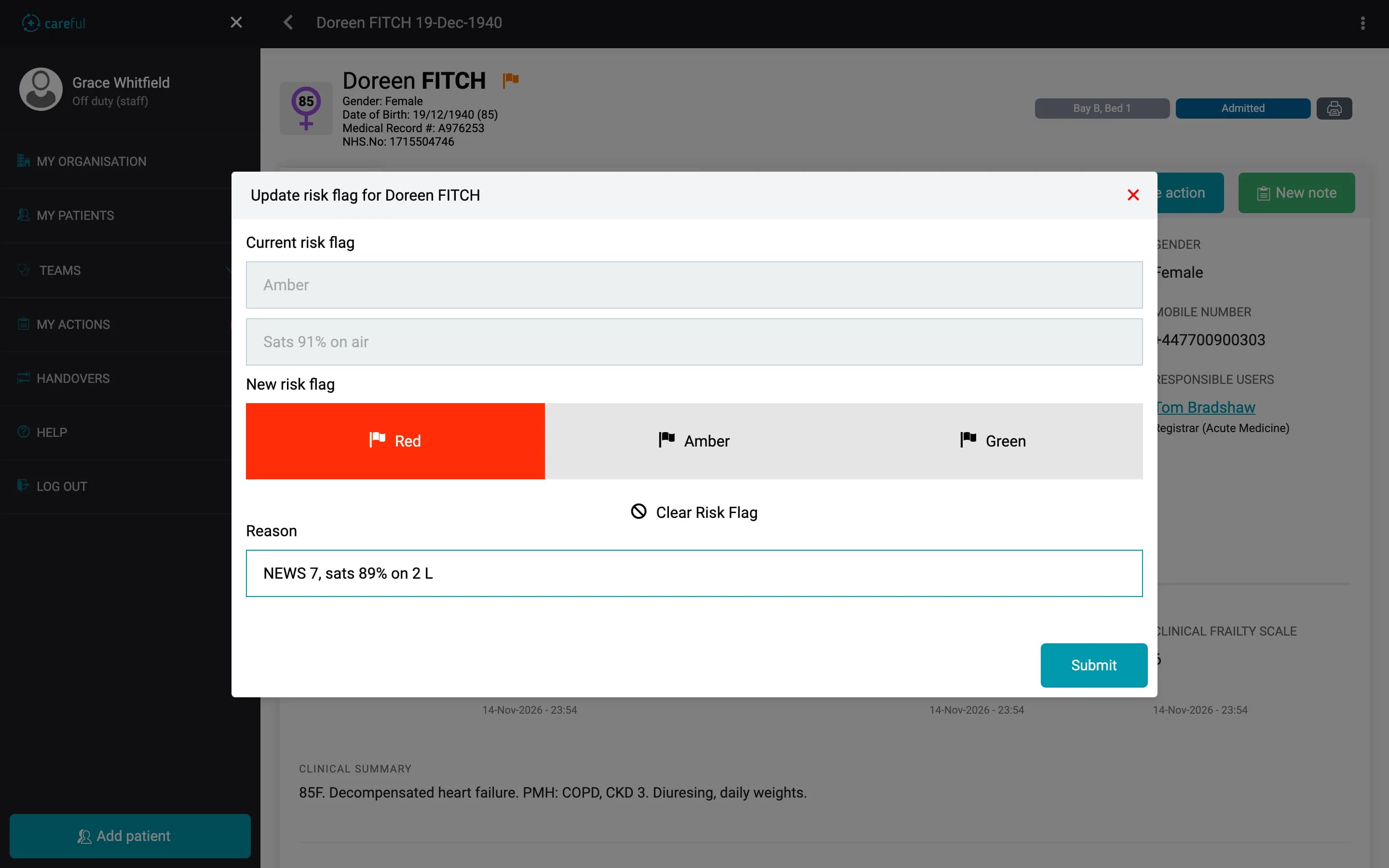 Changing an amber flag to red: the current flag and reason at the top, Red selected and a new reason typed
Tip: On a computer, point at a flag in a patient list to see its reason. On a phone, the reason shows after the colour under Risk flag on the Profile tab.
Clear the risk flag
Clear the flag when the reason for it no longer applies. The patient then shows no flag in any list or at the top of the patient profile.
- Open the patient profile.
- On the Profile tab, select Risk flag.
- Select Clear Risk Flag. CAREFUL clears the reason too.
- Select Submit.
Tip: The Log tab keeps each earlier flag and its reason as a Risk flag changed entry.