
The details of a location tell you more about the place than its name: its floor, care level, type, capacity and code. They come from your organisation's list of locations. Your organisation's administrators keep the list.
You can view the details wherever you can open the patient profile. On a computer, you can also view them from My Patients and team patient lists. On a phone, those lists show the location without the info icon.
You can view the details on a read-only record too, while your team has a referral for the patient that it has not yet accepted.
A location shows only the details your administrators entered for it. A location you typed in yourself has no details. Neither has a location that your administrators have since removed from the list: the patient's location shows (Deleted) after its name.
View the details of a patient's location
Check the details when the name alone does not tell you enough. You might need the floor before you go to see the patient, or the care level and capacity of a bay before a bed meeting.
- Open the patient profile.
- On the Profile tab, under Current Location, select the info icon beside the location. On the web, pointing at the icon shows View location details.
- Read the details: any of Floor, Care Level, Description, Location Type, Physical Type, Capacity and Code.
- Select anywhere to close the details. They show Tap anywhere to close.
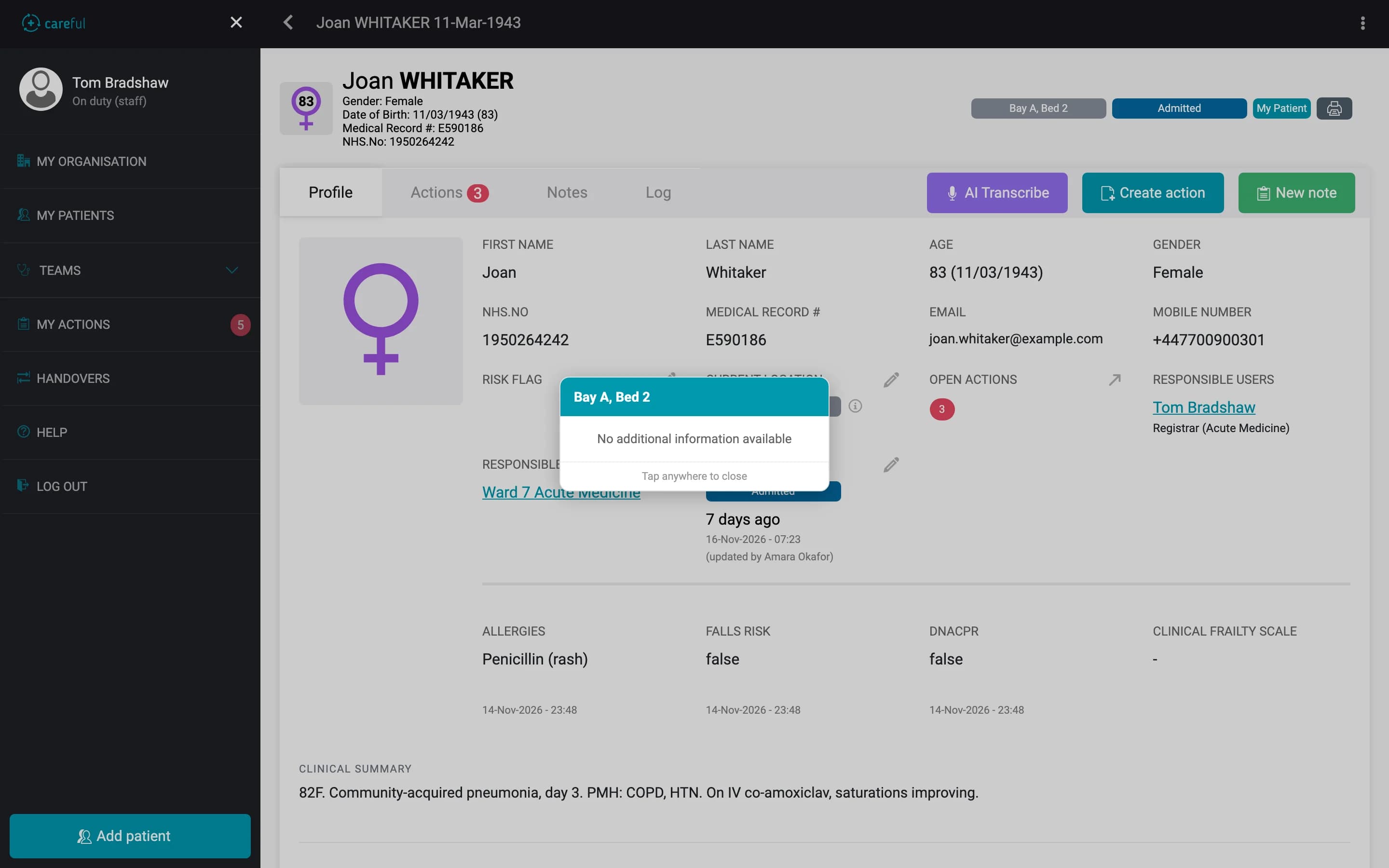 A location's details, opened from the info icon beside the current location
Tip: No location assigned means the patient has no location. Non-standard location means it is not on your organisation's list. No additional information available means it is on the list, with no details.
View location details from a patient list
When you are planning where patients go, you can check each location from the list without opening each patient profile. The list shows the info icon only on a wider screen, such as a computer's. On a phone, open the patient profile instead.
- Open My Patients, or a team's Patients tab.
- In the patient's row, select the info icon beside their location.
- Select anywhere to close the details.
Tip: Select the location itself, not the icon, and CAREFUL opens the list to change it: see Set or change a patient's location.
Check a location before you choose it
When you move a patient, two places can have similar names. Check the details first to choose the right bay or room.
- Open the patient profile and select Current Location.
- Select the info icon beside a location in the list. On a keyboard, highlight the location and press i while the filter box is empty.
- Select anywhere on the details to go back to the list.
- Select the location you want. CAREFUL saves it at once.