
Adding a new patient creates their record in CAREFUL and puts them on the patient list of one or more of your teams. Before it creates the record, CAREFUL checks whether your organisation already holds one for the same patient.
You can add a patient only to teams you are in. Add patient stays greyed out until you are in at least one team. Administrators have no extra rights here: they too can add patients only to their own teams.
You need the patient's first and last name, and at least one of your teams. Everything else is optional: the NHS number, Medical Record Number, gender, date of birth, clinical summary, status and referral source.
CAREFUL makes you responsible for the new patient. They join your My Patients list. Everyone in the teams you chose can open the record. If a team owner is on duty and uses the CAREFUL phone app, CAREFUL tells them that you have added a patient.
A patient may already have a record in your organisation, in another team or from an earlier stay. You then add that record to your team instead: see Add an existing patient to your team. CAREFUL cannot merge or delete patient records. Once created, a duplicate stays.
If you enter an NHS number or Medical Record Number, CAREFUL looks for a record with that number only. It does not then look for one with the same name: see What happens when CAREFUL finds a possible duplicate patient?
Add a new patient
Add a patient when they come into your care and your organisation has no CAREFUL record for them. It might be a new admission, a transfer from another hospital or a new referral to your service.
- Select Add patient at the bottom of the menu on the left. On a phone, select the menu button at the bottom of the screen first.
- In Find a Patient, enter the patient's First Name and Last Name. Add their NHS.No or Medical Record Number if you have it.
- Check the matches CAREFUL lists as you type. If one of them is your patient, select it instead: see Add an existing patient to your team.
- Select Create Patient. If CAREFUL shows a possible duplicate and none of the records is your patient, select Create as New Patient.
- In Create a Patient, check the copied details and select one or more of your teams under Teams. If you are in only one team, CAREFUL fills it in.
- Select Create Patient. CAREFUL creates the record and opens the patient profile.
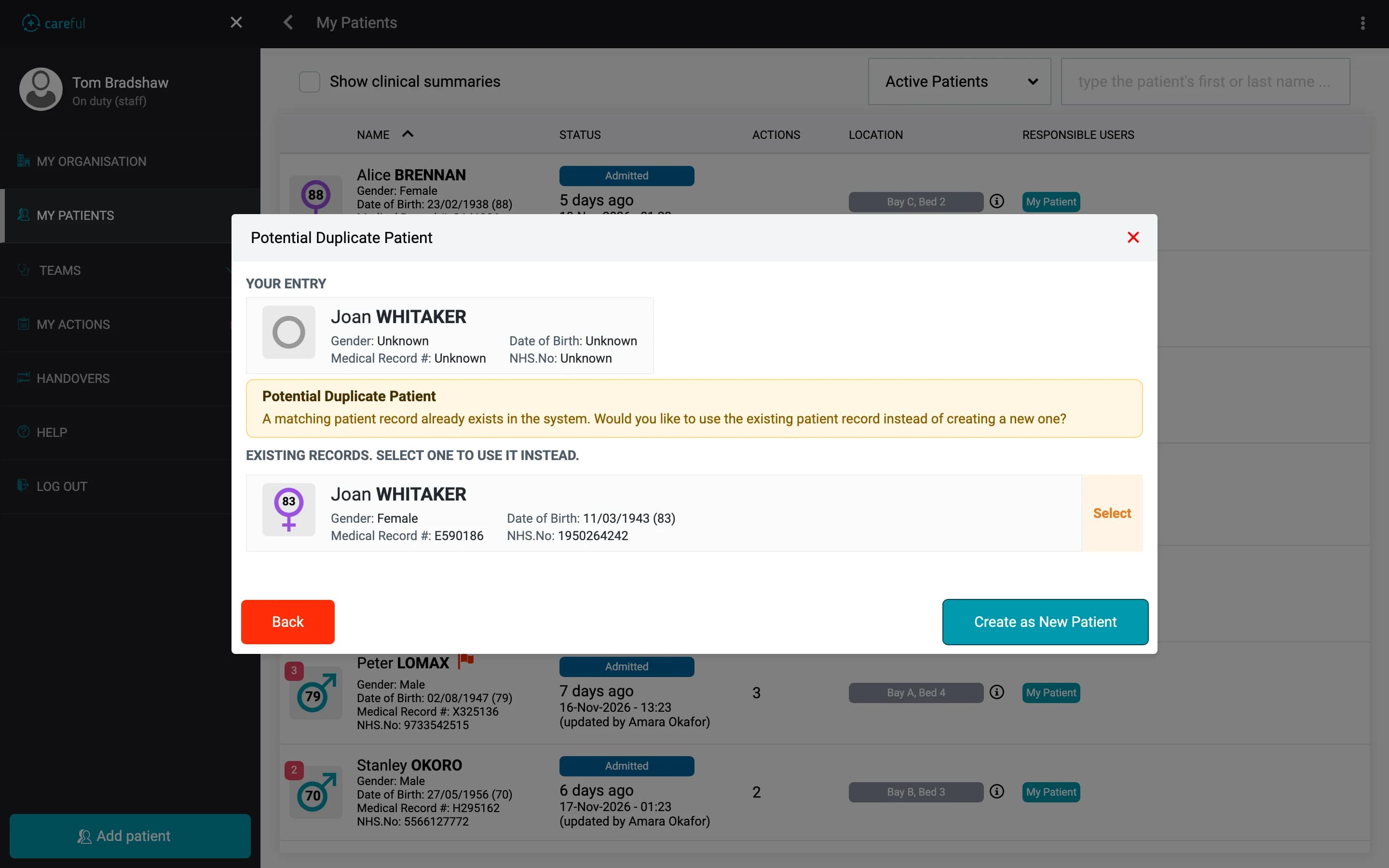 A possible duplicate: your entry above the existing record, with Back and Create as New Patient
Tip: CAREFUL copies each name with only its first letter in capitals: "McDonald" becomes "Mcdonald". Correct the names in Create a Patient before you create the record.
Add numbers, status and referral source
Only the names and a team are required, but the rest helps colleagues. A link from another clinical system, such as your EPR, opens a record by its Medical Record Number. Numbers you typed in Find a Patient are already filled in.
- In NHS.No and Medical Record Number, enter the patient's numbers.
- Select the Gender and Date of birth. The date of birth cannot be in the future.
- In Current clinical summary, add the patient's clinical summary.
- In Patient status, select one of your organisation's statuses, or No status.
- In Referral source, enter where the patient came from, such as the emergency department or their GP practice.
- Select Create Patient.
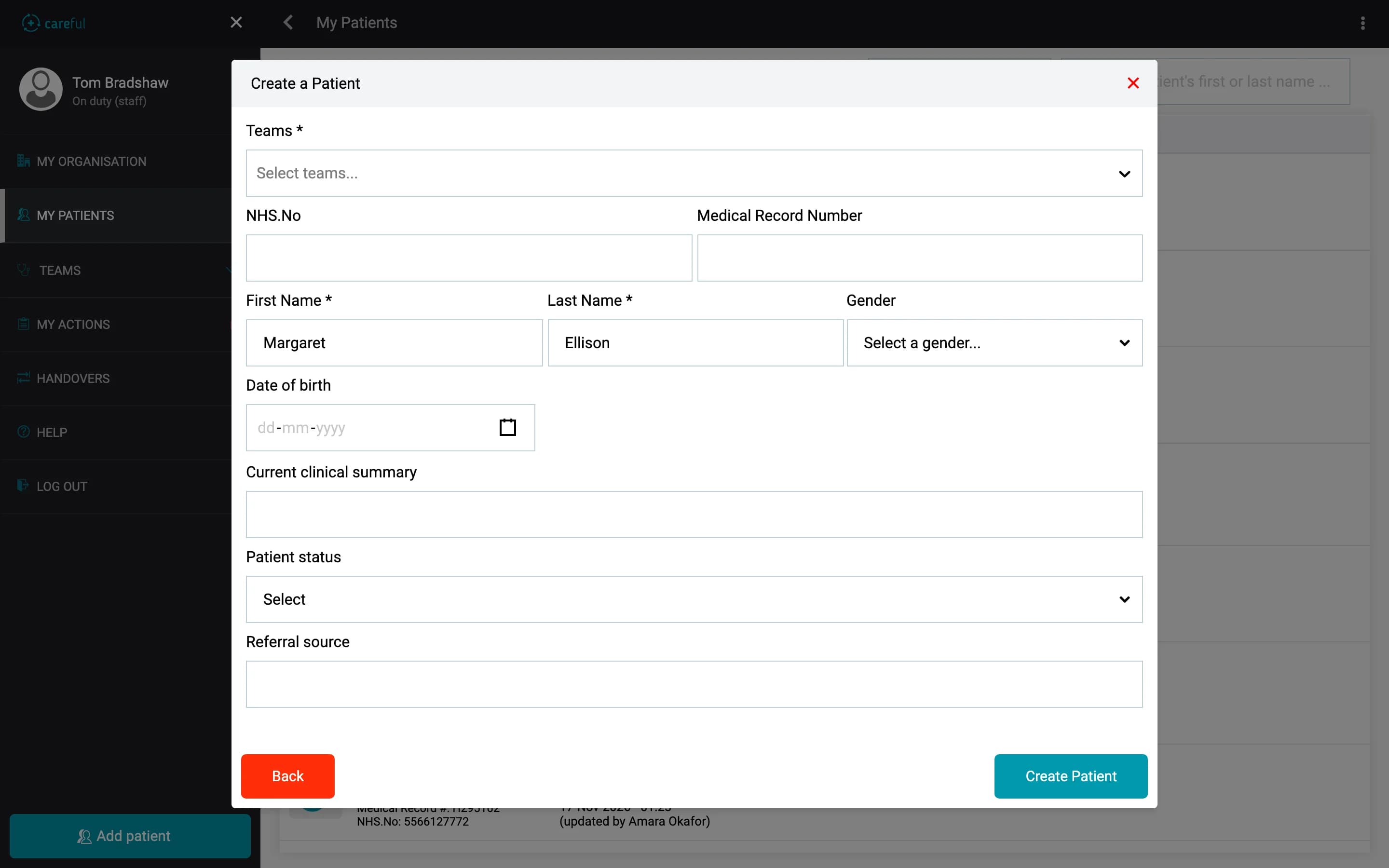 Create a Patient, with the names copied from Find a Patient and the other details still to fill in
Tip: The status list leaves out the inactive status. CAREFUL sets it when a patient is discharged from their last team: see What are active and inactive patients?
Add a patient from a team's page
Start from the team's page when you know which team is taking the patient, such as your ward at the start of an admission. CAREFUL selects that team for you.
- Select Teams in the menu on the left, then the team. On a phone, select the menu button at the bottom of the screen first.
- Select Add patient. The window's title shows the team's name.
- Enter the patient's names and select Create Patient, as above.
- Check that Teams holds the team. Add any other teams of yours that are taking the patient.
- Select Create Patient.
Tip: Add patient appears in a team's menu only if you are in that team.