
Organisation fields are extra details your organisation records for every patient, such as an expected discharge date or a frailty score. Your organisation's administrators set them up. They appear on the Profile tab, below the patient's details, each with the date and time it last changed. If your organisation has none, the section does not appear.
You can update an organisation field for any patient in one of your teams. Administrators can update them for any patient record in the organisation. You cannot update them on a read-only record, while your team has a referral for the patient that it has not yet accepted.
Each field holds one kind of value: text, a number, a date and time, or true or false. You type the whole value each time. The box starts empty, with the current value shown above it.
Each update adds a new value. The Profile tab shows the one entered most recently, even if you marked it as old. The Log tab lists every update. CAREFUL sends no notification about a change.
Update a field
Record a new value when it changes, such as a new score after an assessment or a revised discharge date. Every colleague who opens the record finds the same field in the same place.
- Open the patient profile.
- On the Profile tab, select the field, or Edit under it. A window named after the field opens.
- Check the Current value, if the field has one.
- Enter the new value. For a true-or-false field, select True or False. For a date and time, enter both.
- Select Submit.
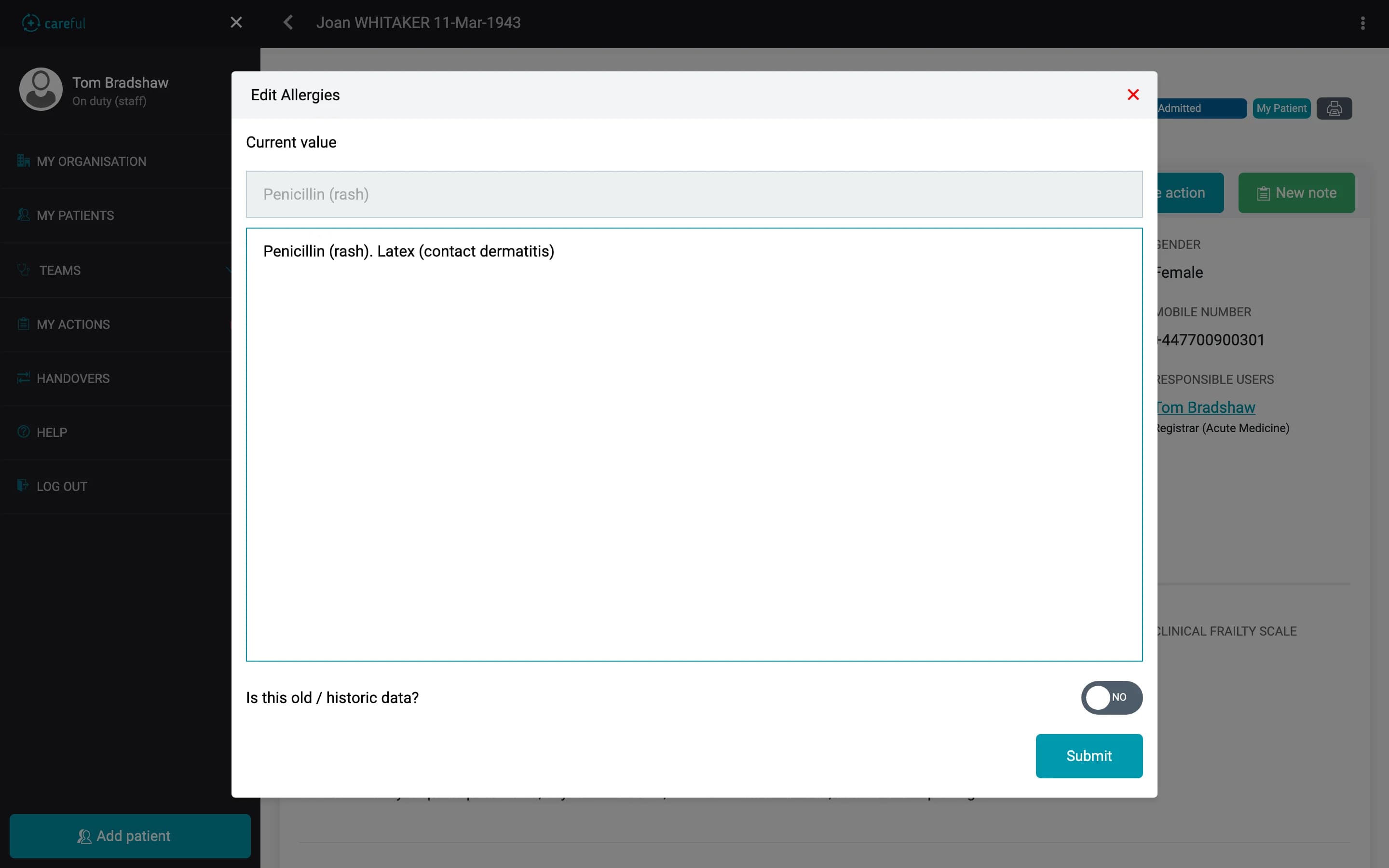 The window for an organisation field: the current value, the new value typed, and Is this old / historic data?
Tip: If CAREFUL shows The value entered is not the correct type or is incomplete!, check that the value is of the right kind, such as a number for a number field.
Record an old value
When you enter a value from earlier, such as a reading from paper notes or another service's letter, mark it as old. CAREFUL keeps the date and time it applied.
- On the Profile tab, select the field.
- Enter the value.
- Set Is this old / historic data? to yes.
- Enter the Applicable date. Add the Applicable time if you know it.
- Select Submit.
Tip: You cannot give a time without a date: CAREFUL shows An applicable date must accompany an applicable time.