
Find a Patient searches every patient record in your organisation. It tells you whether CAREFUL already holds a record for a patient, before you add them to your team or create a new one.
The search covers patients in every team, and patients discharged from every team. You can search if you are in at least one team. Until you are, Add patient stays greyed out.
Each match shows the patient's name, date of birth, NHS number and Medical Record Number. It does not show which teams care for the patient. Selecting a match does not open the record either. To work with the patient, you add them to your team: see Add an existing patient to your team. A patient already in one of your teams is on that team's patient list. They are also on My Patients if you are responsible for them: see Open a patient's record.
The Patients tab of My Organisation shows whether and where any patient in your organisation is, without adding them. It shows each patient's name, date of birth, gender, NHS number and medical record number. It also shows their status, location and number of actions, but no notes or clinical summary. Administrators can open any record from it. Everyone else needs a team in common with the patient: see View all patients in your organisation.
If your organisation has a connected patient system, its matches are marked External: see Find a patient in a connected external patient index.
Search by name
Search by name when you do not have the patient's numbers to hand. You might hear about the patient by phone, at a handover or on a ward round.
- Select Add patient at the bottom of the menu on the left. On a phone, select the menu button at the bottom of the screen first.
- In First Name or Last Name, type at least two letters. CAREFUL lists the patients whose name starts with them.
- To narrow the list, fill in the other name, the Date of birth or the Gender.
- Read the matches. On a computer, they are under Existing Patient Records, beside the form. On a phone or in a narrow window, they are under the box you are typing in.
- Select a match to see the patient's details in the form.
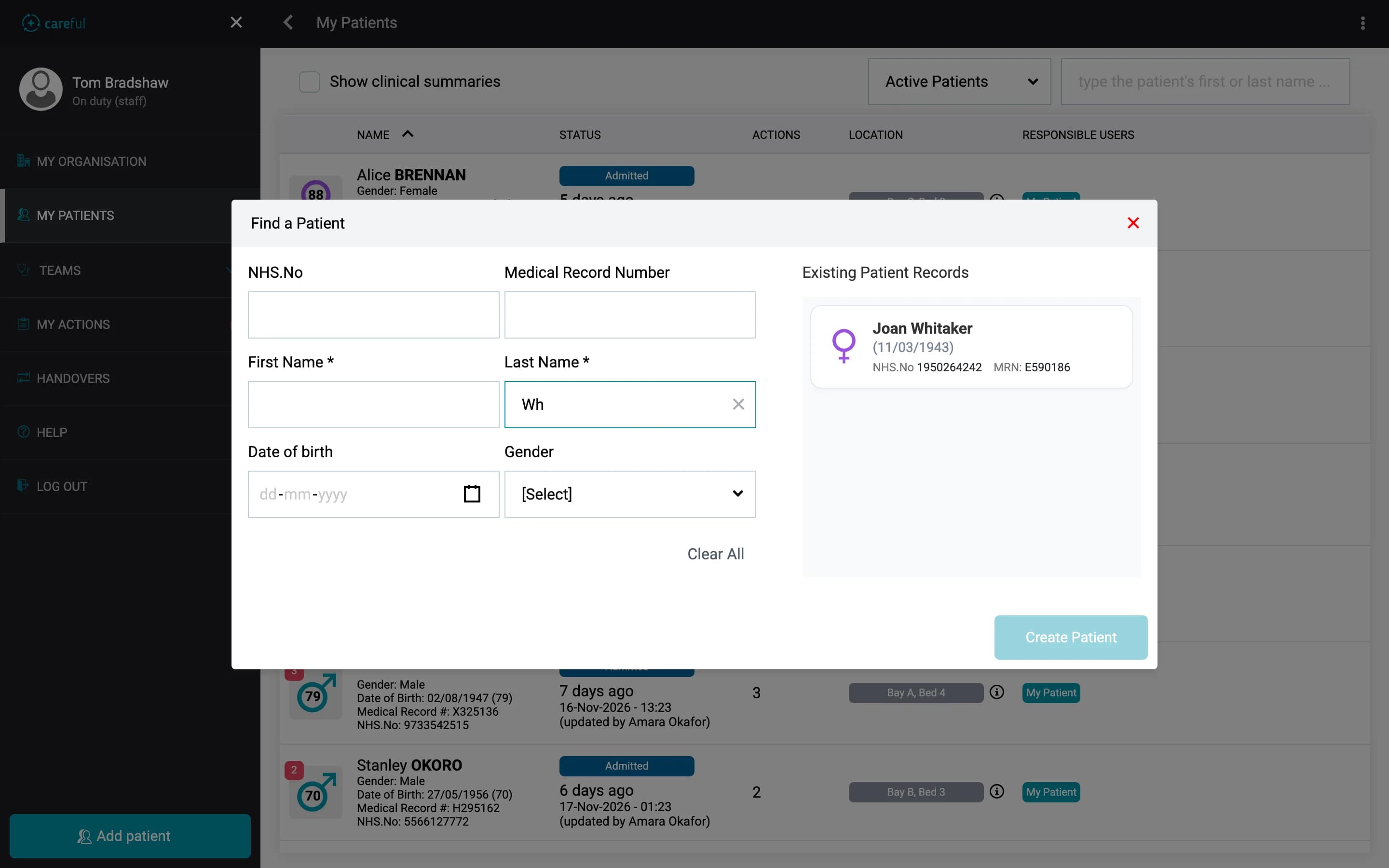 Find a Patient with two letters of a last name typed, and the patient whose name starts with them listed as a match
Tip: If nothing matches, a computer shows No existing patient found. A phone shows No patients found, then closes the list after four seconds.
Search by NHS number or Medical Record Number
A number picks out the right patient when two patients share a name. Use it when you have a referral letter, a wristband or a list from another system.
- Select Add patient.
- Type the whole number in NHS.No or Medical Record Number.
- Select the patient in the matches.
Tip: A number must match exactly: CAREFUL lists nothing until you have typed all of it. A number search ignores the names, date of birth and gender.
Search again, or go on to add the patient
Once you select a match, CAREFUL locks the form on that patient's details. Clear it to look for someone else, or go on to add the patient to your team.
- To search again, select Clear All.
- To add the patient you selected to one of your teams, select Confirm: see Add an existing patient to your team.
- If no record matches, enter the first and last name and select Create Patient: see Add a new patient.
Tip: Until you select a match, each filled-in box has a cross that clears that box alone.