
A team's Patients tab lists every patient in the team, not only the patients you are responsible for. Selecting a patient's row opens their patient profile.
You can see the list of any team you are in. Team owners and members see the same list. Administrators can see it for every team in the organisation.
The list shows the team's patients whatever their status, 50 to a page, in order of last name. A patient leaves the list when they are discharged from the team. The number on the Patients tab counts the team's patients. It shows only on teams you are in.
Under each patient, the list shows their clinical summary. It also shows up to five of their open actions, unless you turn actions off. If the team has handover categories, you can show those as well.
CAREFUL remembers your search, filter, sort and page for each team separately, and apart from My Patients. In a web browser, it keeps them until you close the tab. The CAREFUL app keeps them on the device, even after you sign out or restart the app.
Open a team's patient list
Use the team's list when you need everyone the team looks after, not only your own patients. It suits a board round, a safety huddle or picking up a team's patients on call.
- Select Teams in the menu on the left, then the team. On a phone, select the menu button at the bottom of the screen first.
- Select the Patients tab, if it is not already open.
- Read the list. To see more than 50 patients, use the page numbers at the bottom.
- Select a patient's row to open the patient profile.
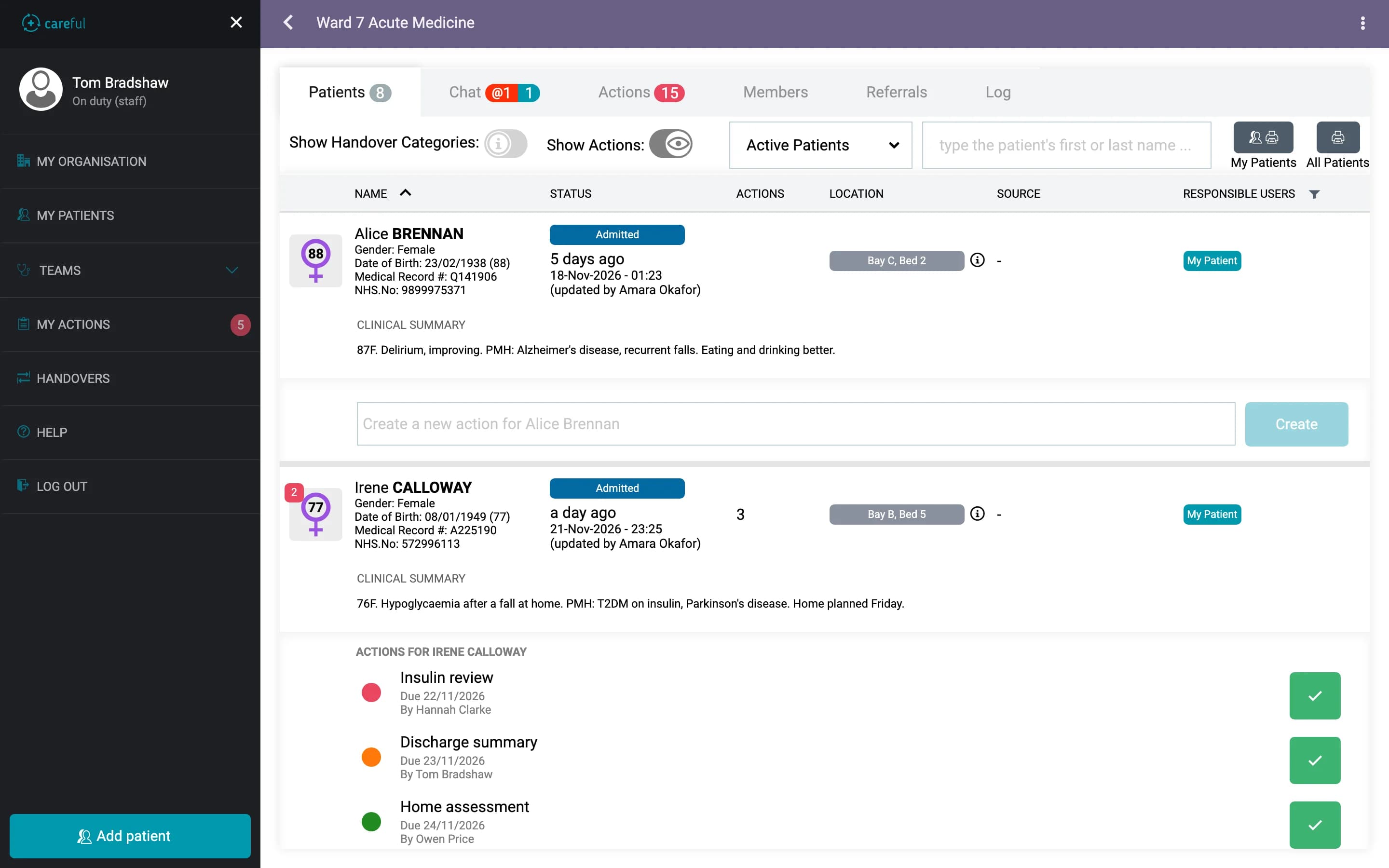 A team's Patients tab: each patient's status, location and who is responsible, with the clinical summary under the row
Tip: If the team has no patients, or a search or filter matches nobody, the list shows No patients found.
Read a patient's row
Each row shows who the patient is, where they are, who is responsible for them and how many actions are open. You can plan a round or a handover without opening every record.
- Read the patient icon at the start of the row. It shows the patient's age, and a red number if they have open actions that are overdue or due within the next 24 hours.
- Under Name, read the patient's name and risk flag, then their gender, date of birth, Medical Record # and NHS.No.
- Under Status, read the patient's status, how long they have had it, and when it was set and by whom.
- Under Actions and Location, read how many open actions the patient has and where they are.
- Under Source, read where the patient came to the team from. It shows the team that referred them, or the Referral source entered when they were added.
- In the last column, read My Patient if you are responsible, then the colleagues who share responsibility. Select a link such as "+2 more" to see them all.
Tip: On a phone or in a narrow window, the list has no column headings. The Actions and Location columns are hidden: the location shows under the status instead.
Sort the list
Sort the list to suit the job in hand. Sort by Location to work bay by bay on a round, or by Status to group the patients at each stage of your organisation's pathway.
- Select Name, Status or Location at the top of the column. An arrow beside it shows the direction.
- Select the same heading again to reverse the order.
- On a phone or in a narrow window, select the sort button at the top of the screen instead. Select a heading under Sort by, then the arrow beside it to reverse the order.
Tip: The headings sort in the same way as on My Patients, but each team keeps its own sort: see Sort your patient list
Work from the list
Some jobs need no visit to the patient profile. After a bed move, you can update a location from the list. On a board round, you can add the jobs that come up as you go.
- To change a patient's location, select the location in their row: see Set or change a patient's location.
- To add an action for yourself, type it in the box under the patient's actions: see Quickly add an action from the team patient list.
- To show or hide actions and handover categories, use the switches above the list: see Show or hide handover categories and actions on a team's patient list.
- To find a patient or narrow the list, search or filter it: see Search and filter a team's patient list.
Tip: Selecting a location does not open the patient profile. Select anywhere else in the row, or the clinical summary under it, to open the profile.
More help: Set or change a patient's location · Quickly add an action from the team patient list · Show or hide handover categories and actions on a team's patient list · Search and filter a team's patient list