
The Teams page lists every team in your organisation, with your Access level for each. It shows which teams you can open, and opens each of them.
Everyone in the organisation sees every team's name on this page, including teams they are not in. The page shows only names and access levels. It shows nothing about a team's patients or members.
Access level shows Member for each team you are in, as a team owner or a member. Other staff see No access for the rest: those rows are greyed out and do not open. Administrators see Admin rights for the teams they are not in, and can open them.
To join a team marked No access, ask its team owner or an administrator to add you.
The list is in alphabetical order of team name. You can reverse it, but CAREFUL does not remember that: the list is back in alphabetical order the next time you open the page. Administrators also see Create a new Team at the top of the page.
Open the Teams page
Use the Teams page to see how your organisation is divided into teams, and which of them you are in. Administrators use it to reach any team, including teams they are not in.
- Select Teams in the menu on the left, then All teams. On a phone, select the menu button at the bottom of the screen first.
- Read each team's name and Access level.
- Select a team's row to open it. Rows marked No access are greyed out and do not open.
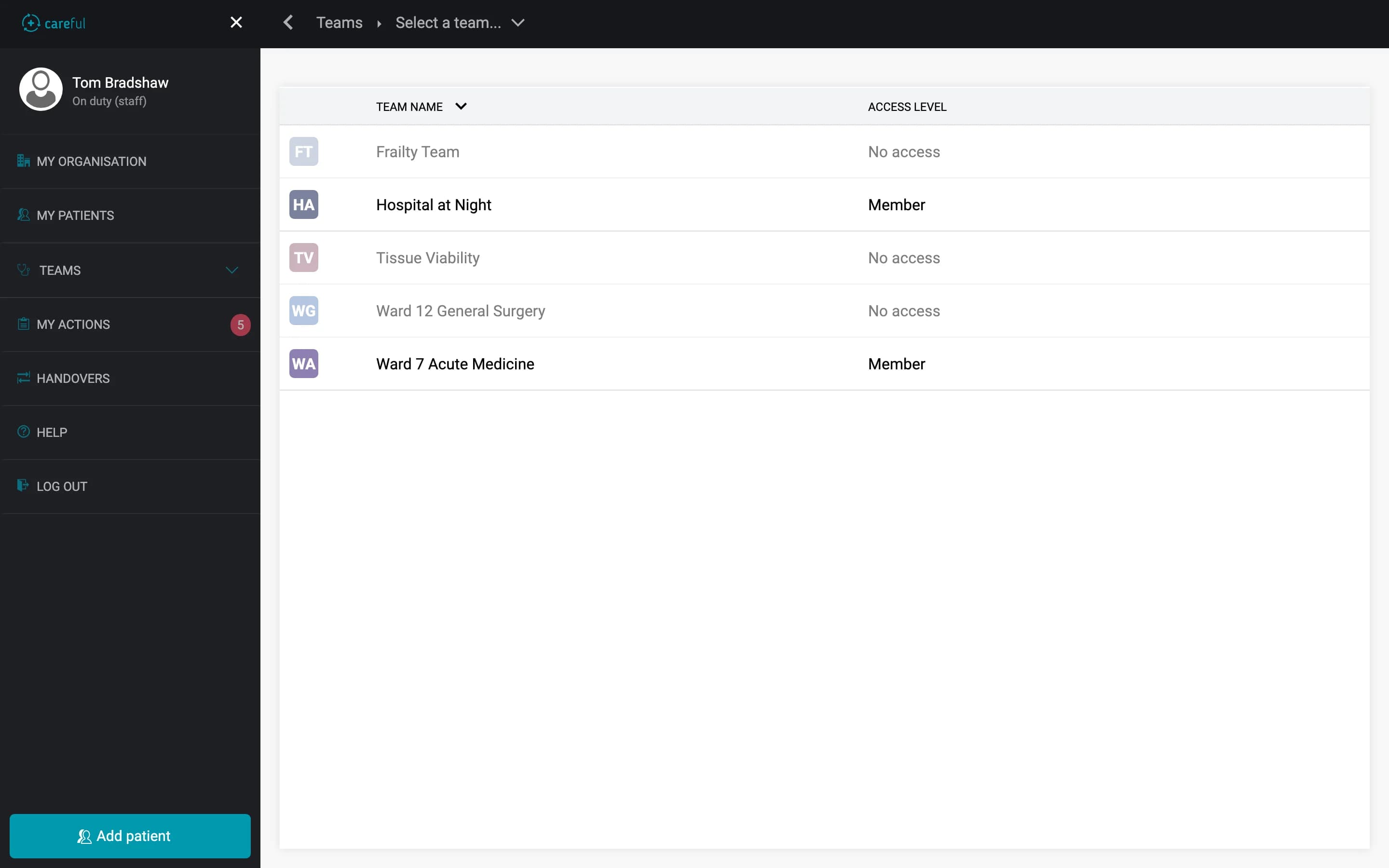 The Teams page: Member beside your own teams, and No access beside the rest
Tip: To go straight to one of your own teams, select Select a team... at the top of the page. It lists the teams you are in. Administrators can also start a new team from it.
More help: Open a team
Sort the teams by name
The list starts in alphabetical order. In an organisation with many teams, reverse it to reach the teams near the end of the alphabet.
- Select Teams in the menu on the left, then All teams.
- Select Team name at the top of the column. The arrow beside it shows the direction.
- Select Team name again to go back to alphabetical order.
- On a phone or in a narrow window, select the sort button at the top of the screen instead. Select Team name under Sort by, then the arrow beside it to reverse the order.
Tip: Only Team name sorts the list. Access level does not.