
The Log tab of a team page lists what has happened to the team, and who did it, with the newest entry first. Each entry shows the date and time, who acted and what they did.
You can see the log of any team you are in, as a team owner or a member. Administrators can see it for every team in the organisation.
The log records changes to the team itself: its name, memo, handover categories and chat. It records who joined or left the team, and each change of role. It records each patient the team takes on, readmits or discharges. It also records each referral the team sends or receives. A referral shows in the logs of both teams.
The log does not record the work on the team's patients. Actions, notes, handovers, responsibility and changes to patient records are in each patient's own log. Changes to duty are not in the team's log either.
What a referral or a readmission changes along the way has no entries of its own. When the team accepts a referral, for example, the Referral accepted entry stands for the patient joining the team. A new order of handover categories is not recorded. For a change to the memo, the log shows Message added to Team, but not what the memo said.
You cannot change or remove an entry, and nor can an administrator. The log shows 50 entries at a time: select Load more for older ones.
Read the log
The log answers "who changed this team, and when?" Check it when someone has joined or left the team, a handover category has changed or the memo is new. It also helps when you look into a complaint or an incident.
- Select Teams in the menu on the left, then the team. On a phone, select the menu button at the bottom of the screen first.
- Select Log.
- Read each entry: the Date, the User who acted and the Event. The event starts with its name in bold, such as User added to team, followed by the details.
- Select Load more at the end of the list to see older entries.
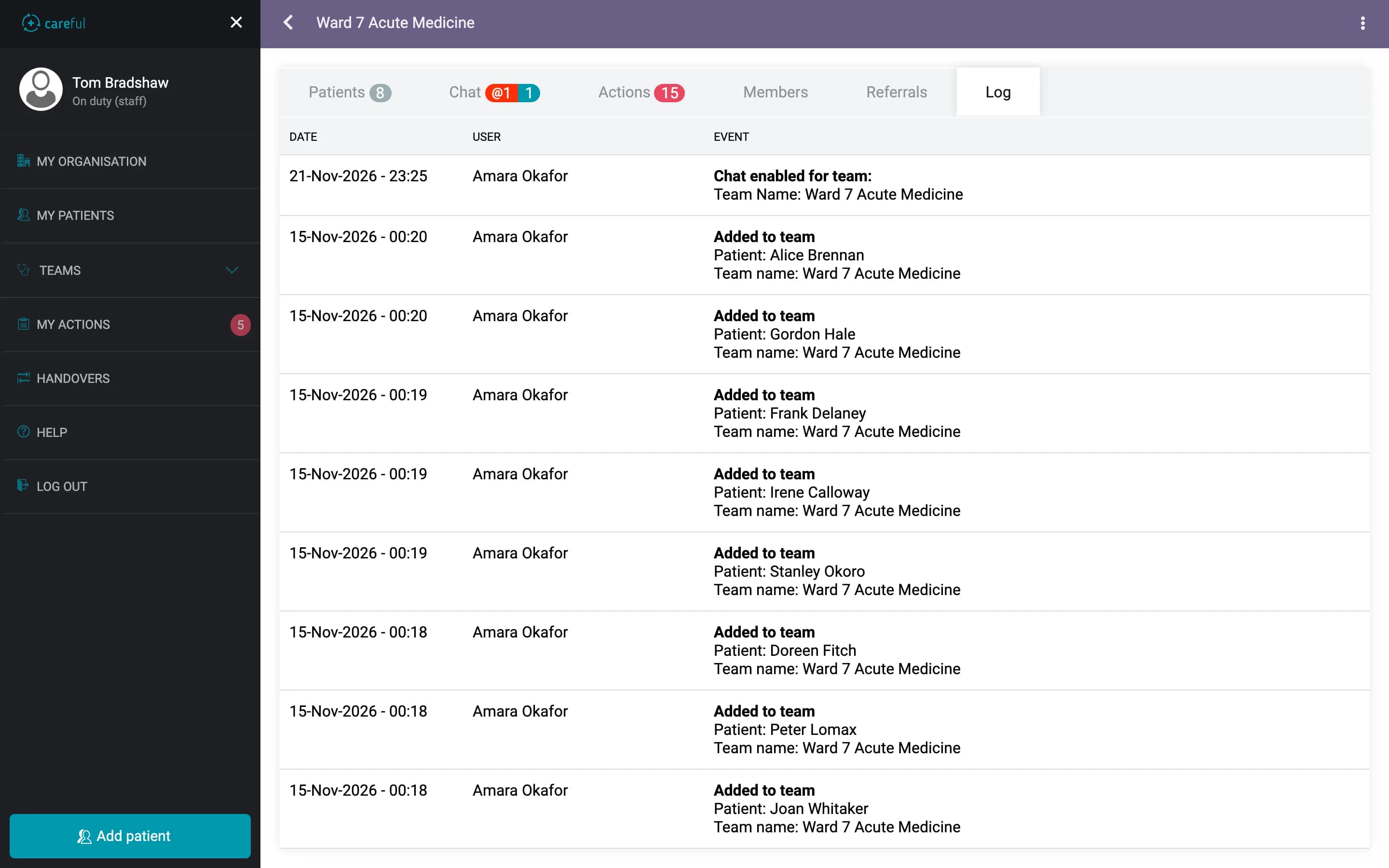 A team's Log tab: the date, who acted and the event, newest first
Tip: On a phone or in a narrow window, the log has no column headings. Each entry shows the date, then the name, then the event.
Find a change in the log
Each kind of change has its own name in the log. Look for the name to find who joined the team or who renamed a handover category. The names also show the patients the team took on.
- Look for User added to team, User created and added to team, User removed from team and User team role updated to follow who is in the team. A change of role shows Owner or Staff, for a member.
- Look for Added to teams, Added to team, Readmitted and Patient discharged from team to see which patients the team has taken on and discharged. A new patient shows as Added to teams, even for one team; an existing patient added to the team shows as Readmitted.
- Look for Referral requested, Referral accepted, Referral rejected and Referral cancelled to follow the team's referrals, sent and received.
- Look for Team name updated and Message added to Team for changes to the team's name and memo.
- Look for New Info Category added to Team, Team Category Updated for Team and Team Category Removed from Team for changes to its handover categories.
- Look for Chat enabled for team and Chat disabled for team to see when an administrator turned chat on or off.
Tip: The oldest entry is Team created, with the team's first name. Users added to teams marks colleagues an administrator added to several teams at once.