
From a team's Members tab, a team owner can set a colleague in the team on or off duty. CAREFUL changes it at once, with no confirmation, and does not tell the colleague.
Team owners can do this for anyone in the teams they own, including other team owners. Administrators can do it for anyone in any team. Members can change only their own duty, from their own row. Administrators can also use the On duty switch on a colleague's profile. On My Organisation Members, administrators can change only their own duty.
On the Members tab, you cannot change the duty of a colleague who has not yet accepted their invitation, marked unverified. Nor can you change it for a colleague whose account is disabled. Their row does not offer Set to OFF duty or Set to ON duty.
Duty belongs to the person, not the team. Setting a colleague off duty in one team sets them off duty in all their teams. Signing out does not take anyone off duty.
While a colleague is off duty, CAREFUL holds back most of their phone notifications:
- new and reassigned actions, completed actions and progress updates;
- handover requests, and answers to the handovers they sent;
- referrals to and from their teams;
- changes to their patients' status, risk flag or location;
- colleagues taking or giving up responsibility for their patients;
- for team owners, news of a patient or colleague added to their team, or a colleague removed from it;
- changes to a team memo, and chat messages.
CAREFUL does not keep these for later. A few notifications arrive whether or not the colleague is on duty. CAREFUL tells them when one of their actions is deleted, restored or reopened. It also tells them when they are added to or removed from a team, or when an administrator changes their profile.
You can still give an off-duty colleague an action, or hand a patient over to them. When you choose a colleague, the pickers mark each one with a dot: green for on duty, grey for off duty. If your organisation uses video calling, you cannot video call a colleague who is off duty.
Set a colleague off duty
Set a colleague off duty when they have finished work but are still shown as on duty, perhaps because they went home without changing it. Their phone then stops getting most CAREFUL notifications. Colleagues see that they are off duty.
- Select Teams in the menu on the left, then the team. On a phone, select the menu button at the bottom of the screen first.
- Select Members, then find the colleague. Their row shows On duty.
- Select at the end of their row.
- Select Set to OFF duty. CAREFUL changes it at once. The row now shows Off duty.
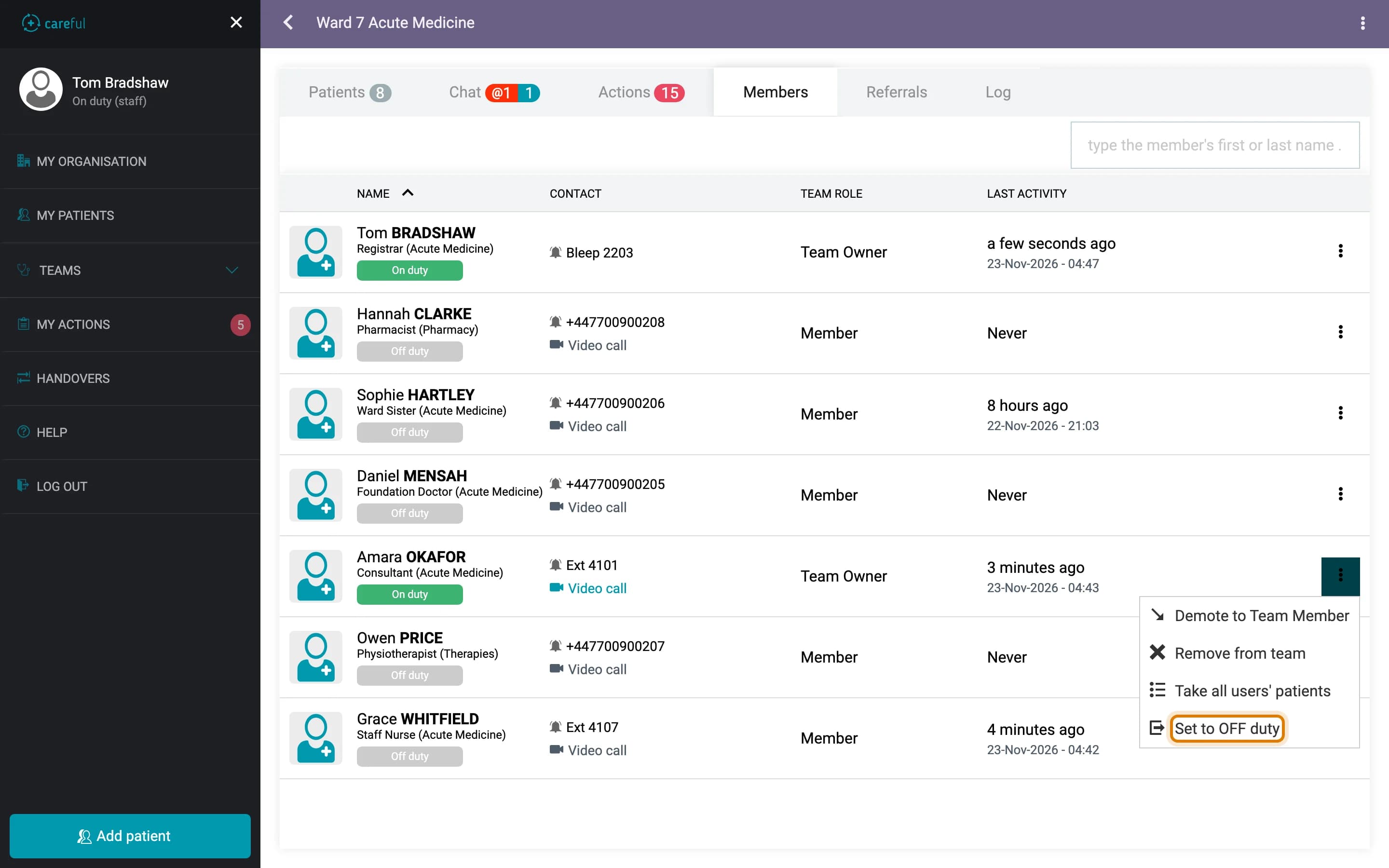 Set to OFF duty in the ⋮ menu of a colleague who is on duty
Tip: The colleague is not told. They stay off duty until they, a team owner or an administrator sets them on duty again.
Set a colleague on duty
Set a colleague on duty when they are working but CAREFUL shows them as off duty. They may have been called in, or not gone on duty at the start of their shift. Their phone then gets CAREFUL notifications again.
- Open the team and select Members.
- Find the colleague. Their row shows Off duty.
- Select Set to ON duty. CAREFUL changes it at once. The row now shows On duty.
Tip: Notifications held back while they were off duty do not arrive afterwards. Set to ON duty does not ask for their contact number. The number under Contact stays as it was.
Set yourself on or off duty from a team
Anyone in the team can change their own duty from their row on the Members tab. It is quicker than going to your profile when you already have the team open.
- Open the team and select Members.
- Find your own row.
- Select Set to OFF duty or Set to ON duty.
Tip: The change applies in all your teams. To use the switch on your profile instead, see Set yourself on or off duty.