
The two print buttons on a team's Patients tab make a handover sheet as a PDF. My Patients prints the team's patients you are responsible for. All Patients prints the patients on the list, not only yours.
You can print the list of any team you can see: your own teams, or every team if you are an administrator.
You can print from a computer. On a phone or in a narrow window, CAREFUL hides the print buttons.
To confirm: whether the print buttons show on a tablet, and whether the PDF opens in the CAREFUL app on one (Q116).
CAREFUL makes the PDF and opens it in a new browser tab. You print it or save it from there.
To confirm: whether a browser, such as Safari, blocks the new tab as a pop-up.
The printout follows your search, your status filter and the list's sort order.
A printout may leave patients out, without warning:
- It holds at most 50 patients: those on the page of the list you are on.
- It ignores the filter by responsible colleague. It prints the page as if that filter were cleared.
- My Patients uses the same page number. From page 2 of the list, it leaves out the first 50 of your patients. That may be all of them.
Check every printout against the list on screen before you rely on it. If page numbers show under the list, the list holds more than 50 patients: print each page in turn. Clear the filter by responsible colleague before you print.
The printout always includes the team's handover categories. It never shows actions or who is responsible for each patient. If the team has a memo, it comes last, on a page of its own.
To confirm: how a handover category that holds a form prints.
Print the list
Print the list when the team needs it on paper. You might take it to a board round or a bed meeting, or hand it to the night team.
- Open the team on a computer and select the Patients tab.
- To print only some of the team's patients, search the list or filter it by status. Clear any filter by responsible colleague: the printout ignores it.
- Go to page 1, if page numbers show under the list.
- Select My Patients or All Patients, at the end of the row above the list. CAREFUL opens the PDF in a new tab.
- Print the PDF from that tab, or save it.
- Check the printout against the list on screen. If the list has more pages, go to each one and print it in turn.
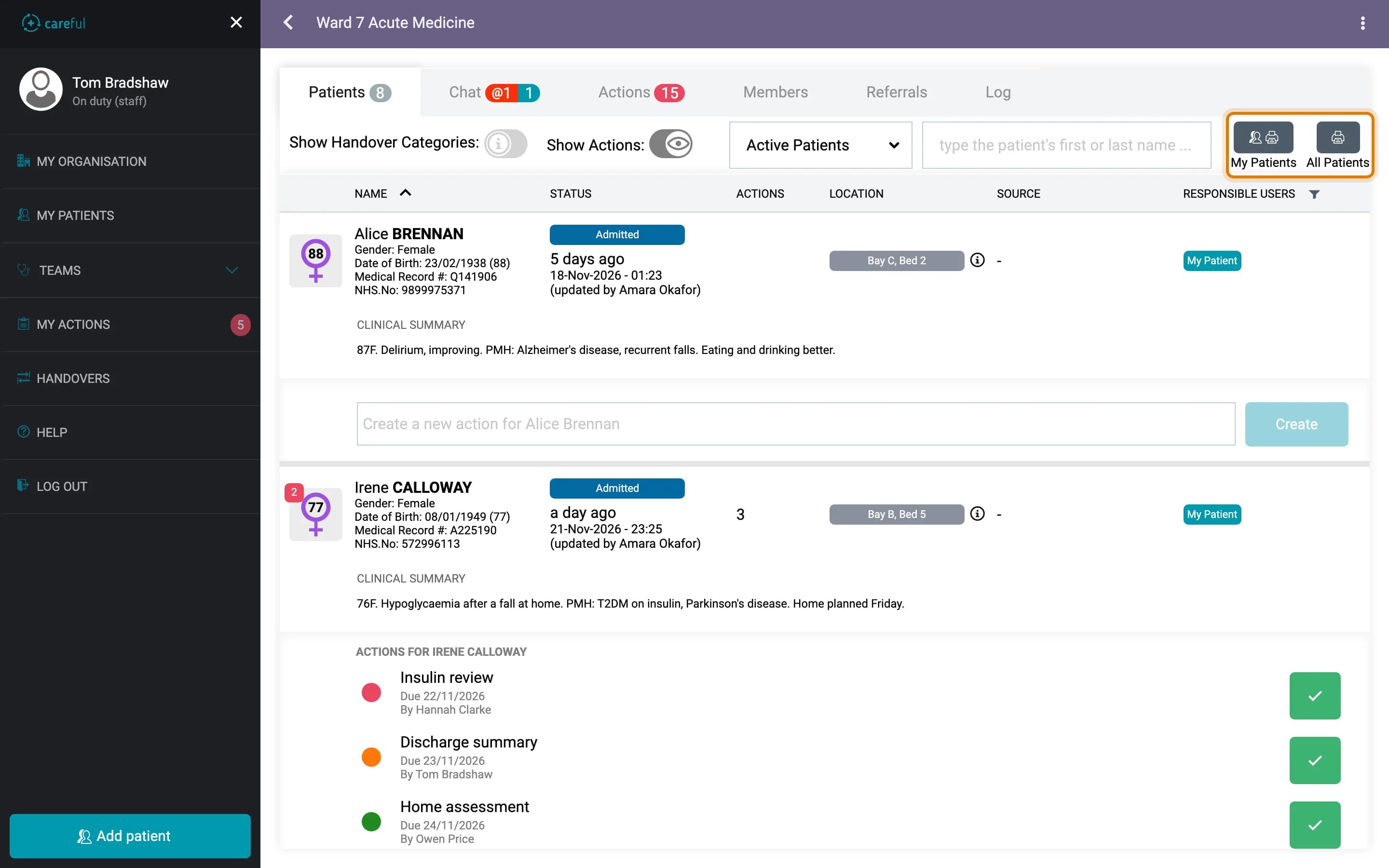 The My Patients and All Patients print buttons, at the end of the row above the list
Tip: Point at a button to see what it prints: Print MY patients in this team or Print ALL patients in this team.
Read the printout
The handover sheet gives each patient a block of their own, in landscape on A4. It carries the details a team needs on paper, but not everything the screen shows.
- Read the top of the first page. It shows "CAREFUL Team Handover Sheet", the team's name and when you printed it.
- For each patient, read their name, date of birth, gender, medical record number and NHS number, then their location and status.
- Under the name, read the patient's clinical summary.
- Read the tables below it: your organisation's own fields for the patient, then the team's handover categories.
- If the team has a memo, read it on the last page.
Tip: The handover categories print whether or not Show Handover Categories is on in the list.