
A team page holds the team's shared work: its patients, actions, members, referrals and log. If the team uses chat, the page holds its chat too. It opens on the team's Patients tab.
You can open any team you are in, as a team owner or as a member. Administrators can open every team in the organisation, including teams they are not in.
The menu on the left lists only your own teams. The Teams page lists every team in the organisation. Administrators open the other teams from there. Other staff see No access beside the teams they are not in, and cannot open them.
To confirm: what you see if you follow a link to a team you are not in, such as the referring team's name on a referral.
Open one of your teams
Open your team at the start of a shift to see its patients. Open it again at handover, to check who is responsible for whom, or when a referral or a chat message comes in. The menu lists your teams in alphabetical order.
- Select Teams in the menu on the left. On a phone, select the menu button at the bottom of the screen first.
- Select the team's name. CAREFUL opens the team on its Patients tab.
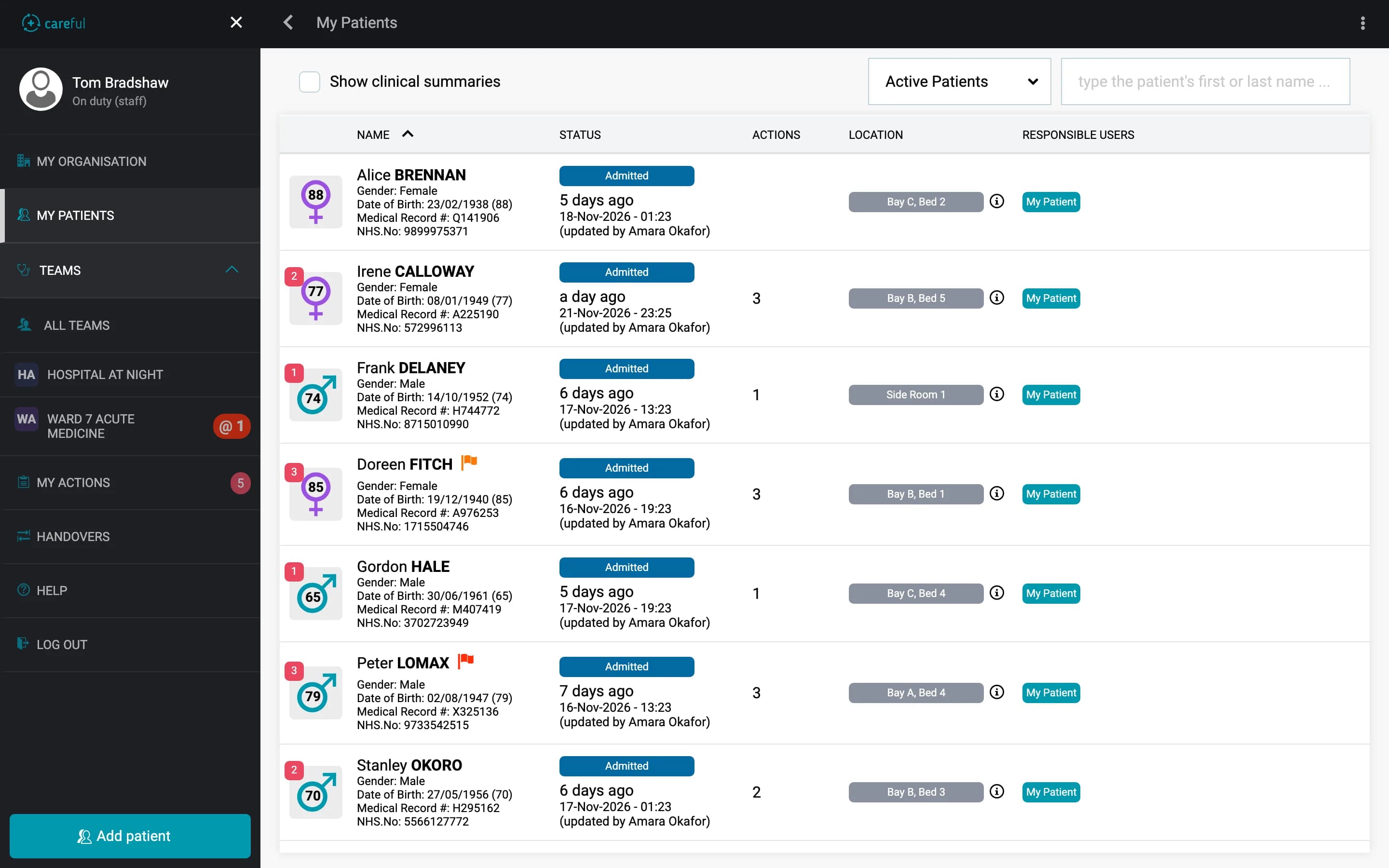 Teams opened in the menu: All teams, then the teams you are in
Tip: A number beside a team's name in the menu counts the referrals the team has received and not yet accepted or rejected. If the team uses chat, a second number counts its unread messages. If any mention you, it shows @ and the number of mentions instead.
Open a team from the Teams page
The Teams page lists every team in your organisation and shows which ones you can open. Administrators use it to open a team they are not in. They might be setting up a new team or checking a team's log.
- Select Teams in the menu on the left, then All teams. On a phone, select the menu button at the bottom of the screen first.
- Read Access level: Member for your own teams and No access for the rest. Administrators see Admin rights beside the teams they are not in.
- Select the team's row to open it. To go straight to one of your own teams, select Select a team... at the top of the page, then the team.
Tip: Teams marked No access are greyed out. To join one, ask its team owner or an administrator to add you.
More help: See all the teams in your organisation
Open a team from your dashboard or a patient profile
You can also reach a team from where you are already working. Your dashboard counts each of your teams' patients, actions and referrals. A patient profile names the teams that care for the patient.
- On your dashboard, select a team's name to open it on its Patients tab.
- To open the tab behind a number on your dashboard, select the number. Due soon and Overdue open the team's Actions tab, and Referrals opens its Referrals tab.
- On a patient profile, select a team's name under Responsible teams. Your own teams are links; administrators can follow every team's name.