
The search box on a team's Patients tab finds the team's patients by first or last name. It also finds a patient by their whole NHS number or medical record number. The status filter shows only the patients with one status, or with none.
You can search and filter the list of any team you can see: your own teams, or every team if you are an administrator. The search looks only at the team's patients. To look for any other patient in your organisation, see Find a patient.
Each word you type must match the start of the patient's first or last name. "Smi" finds Smith, but "ith" does not. The search also matches the names of the colleagues responsible for each patient. Patients who match by their own name or number come first.
The status filter offers Active Patients, No status and then your organisation's statuses. Active Patients is not a status: it shows every patient in the team, as the list does before you filter. Unlike the filter on My Patients, this one also offers the Inactive status. CAREFUL sets that status when a patient is discharged from their last team, and a discharged patient leaves the team's list. This filter therefore usually finds nobody.
You can also filter the list by the colleagues responsible for each patient: see Filter a team's patients by who is responsible. The search and the filters work together. The list then shows the patients who match them all.
CAREFUL remembers your search and filters for each team. In a web browser, it keeps them until you close the tab. The CAREFUL app keeps them on the device, even after you sign out or restart the app. Your search and status filter also apply when you print the list. The filter by responsible colleague does not: see Print a team's patient list.
Search the list
Search when the list is long and you know whom you are looking for. A relative may ring, a result may come back, or a colleague may ask about a patient at handover.
- Open the team and select the Patients tab.
- Select the box that says type the patient's first or last name. On a phone or in a narrow window, select the search button at the top of the screen first.
- Type the start of the patient's first or last name, or their whole NHS number or medical record number. The list changes as you type.
- Select the patient's row to open the patient profile.
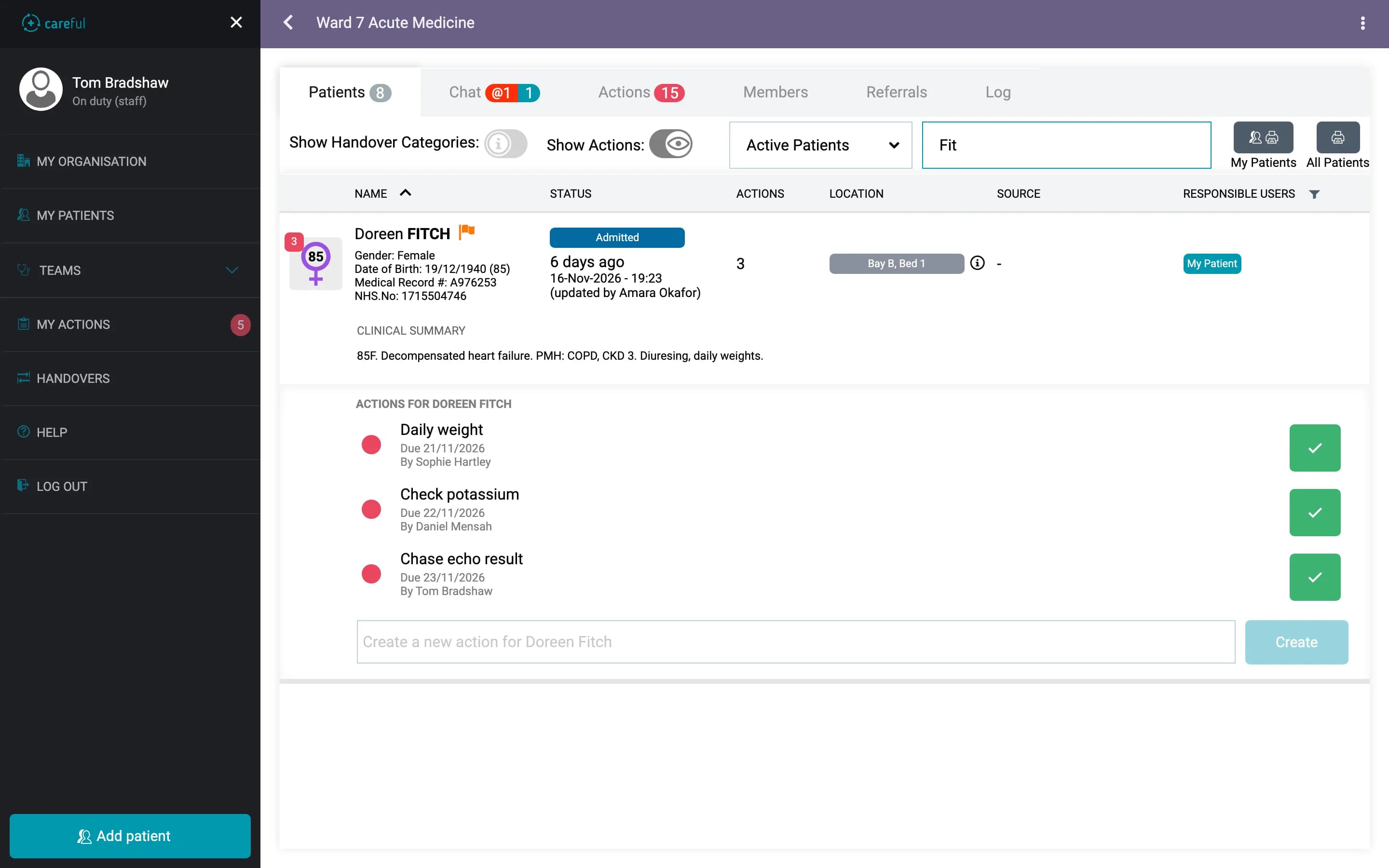 The start of a last name typed in the search box: the list shows only the patients who match
Tip: Type a colleague's name to list the team's patients they are responsible for. The box accepts letters without accents, numbers, spaces, hyphens, apostrophes, full stops and underscores.
Filter by status
Filter the list to see the team's patients at one stage of your organisation's pathway. Before a bed meeting, that might be the patients ready to go home. Filter by No status to find the patients who still need a status.
- Open the team and select the Patients tab.
- On a phone or in a narrow window, select the filter button at the top of the screen. CAREFUL opens the filter panel.
- Select the status list. Until you filter, it shows Select.
- Select a status, or No status. The list changes at once.
Tip: On a phone, the filter button is red while the filter panel is open. It stays red while you filter by one of your organisation's statuses or by responsible colleague.
Clear your search and filters
CAREFUL keeps your search and filters when you leave the team. Clear them to see the whole list again.
- Open the team and select the Patients tab. On a phone or in a narrow window, open the search box and the filter panel from the top of the screen.
- Delete the text in the search box.
- In the status list, select Active Patients.
- If you filtered by responsible colleague, open that filter, then select Clear and Done. On a computer, it is the filter icon in the last column heading.
Tip: Clearing one of them leaves the others in place. If the list looks short, check the search box, the status list and the filter by responsible colleague.