
The filter by responsible colleague narrows a team's patient list to the patients of the colleagues you choose. It changes only what you see, not who is responsible.
You can filter the list of any team you can see: your own teams, or every team if you are an administrator.
The filter lists everyone responsible for at least one of the team's patients, including you if you are. It also lists colleagues from the patients' other teams, colleagues whose account is disabled and anyone still responsible after leaving the team. Members of the team who are responsible for none of its patients are not listed. The number beside each name counts the team's patients they are responsible for.
If you choose several colleagues, the list shows every patient that any of them is responsible for. The filter works with the search and the status filter. The list then shows the patients who match them all.
Your choice applies only when you select Done. If you close the filter any other way, the list stays as it was.
CAREFUL remembers the filter for each team. In a web browser, it keeps it until you close the tab. The CAREFUL app keeps it on the device, even after you sign out. A printed patient list ignores this filter: see Print a team's patient list.
Filter by responsible colleague on a computer
Filter when you need one colleague's patients from a long list. Before a consultant's ward round, you can list the patients they are responsible for. At handover, you can list the outgoing doctor's patients. A nurse or therapist can list only their own patients in this team.
- Open the team and select the Patients tab.
- Select the filter icon in the last column heading, the column of responsible colleagues.
- Tick one or more colleagues. To find a name, type part of it in Search users.
- Select Done. The list shows only their patients. The icon shows how many colleagues you chose.
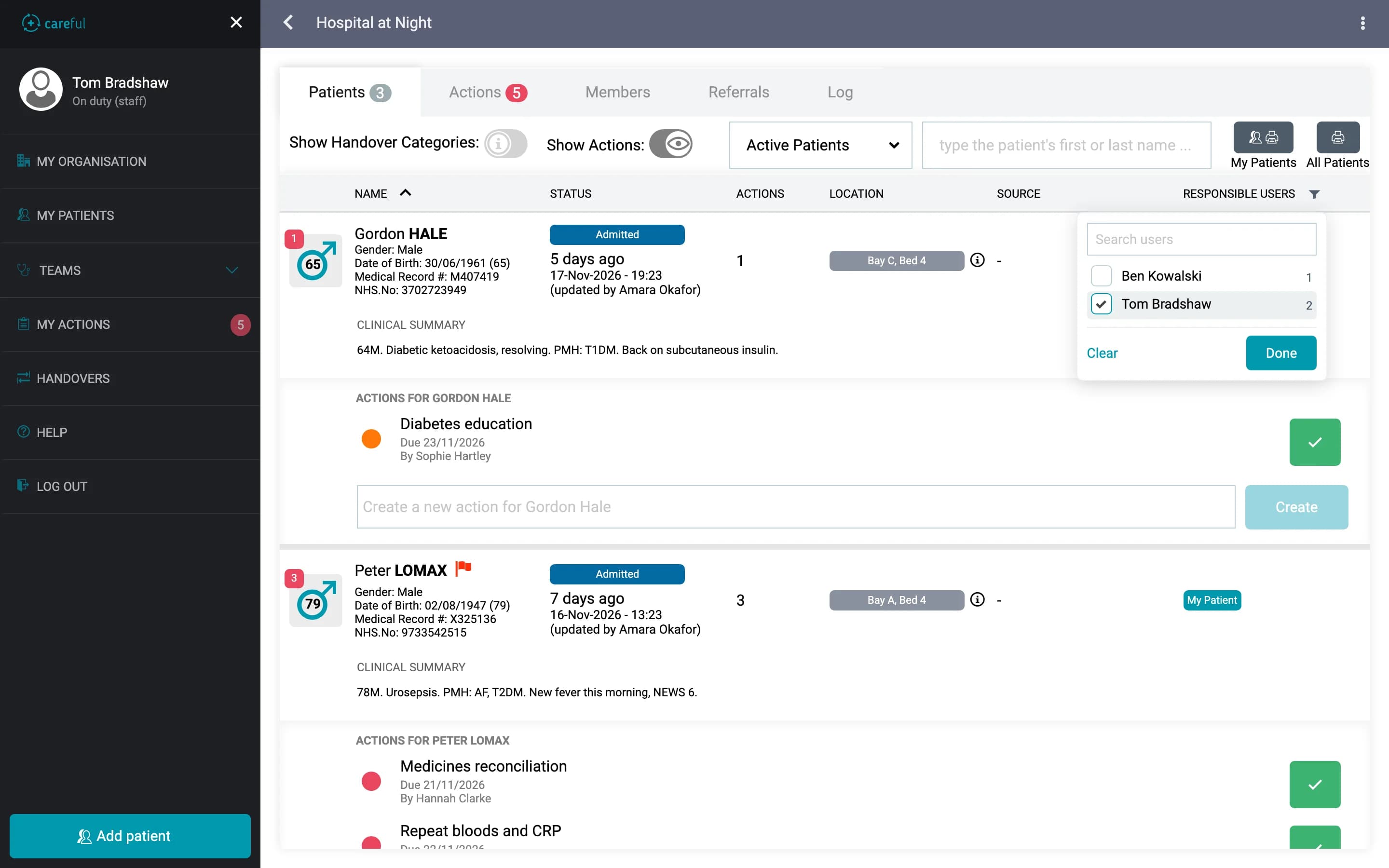 The filter in the last column heading: each colleague with the number of the team's patients they are responsible for
Tip: Typing a colleague's name in the search box also finds the patients they are responsible for. It lists patients with that name too, first.
Filter by responsible colleague on a phone
On a phone or in a narrow window, the list has no column of responsible colleagues. The filter sits in the filter panel, with the status filter.
- Open the team and select the Patients tab.
- Select the filter button at the top of the screen. CAREFUL opens the filter panel.
- Select All responsible users.
- Tick one or more colleagues, then select Done. The box shows the colleague's name, or how many you chose, such as "2 responsible users".
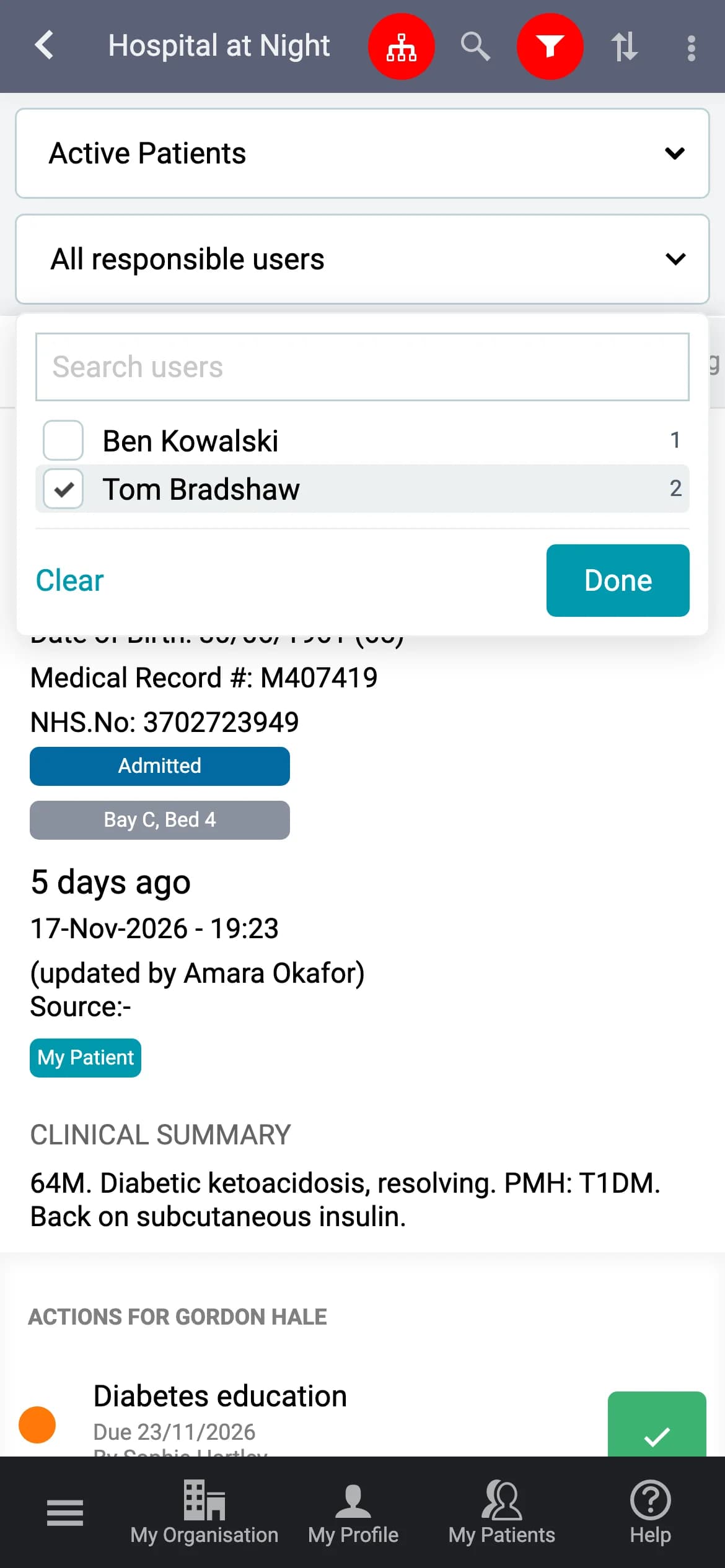 On a phone, the filter by responsible colleague opens from All responsible users in the filter panel
Tip: The filter button stays red while you filter by responsible colleague, even after you close the panel.
Clear the filter
CAREFUL keeps the filter on when you leave the team and come back. Clear it to see all the team's patients again.
- Open the team and select the Patients tab.
- Open the filter by responsible colleague. On a phone or in a narrow window, it is in the filter panel.
- Select Clear, then Done. The list shows all the team's patients again, unless a search or status filter is still on.
Tip: Clear only removes the ticks. The list changes when you select Done.