
Handover all patients, on My Patients, sends one colleague a single handover of the patients you are responsible for, from all your teams. When they accept, they become responsible for those patients in your place. Your open actions for those patients move to them.
Only the patients your colleague shares a team with go into the handover. Patients already in a handover you sent that is still waiting are left out too. CAREFUL lists the patients left out, with the reason. They stay with you.
You can choose any colleague in your organisation except yourself, as long as they have verified their email address or mobile number. Disabled colleagues are not listed. Once you choose, CAREFUL shows how many of your patients can go to them. If none can, you cannot send it.
You cannot use it while you are responsible for more than 500 patients. Hand some over one at a time first.
Your colleague accepts or rejects the whole handover. They cannot take some patients and leave the rest. Nothing changes until they accept: you stay responsible and keep your actions. A handover does not expire. It waits until your colleague accepts or rejects it, or you cancel it.
Giving up responsibility, a colleague taking your patients and discharge do not cancel a waiting handover. If it no longer applies, cancel it yourself.
When your colleague accepts, CAREFUL leaves out any patient who is no longer in one of their teams. That patient stays with you, although CAREFUL reports the whole handover as accepted. So after your colleague accepts, check your My Patients list for any patient who did not move.
If your colleague uses the CAREFUL phone app and is on duty, CAREFUL tells them about the handover. If they are off duty, CAREFUL does not tell them, then or later. The handover waits on their Handovers page.
Hand over all your patients
At the end of a shift, or before leave or days off, you can pass your whole caseload to one colleague in one request. That might be the doctor taking over your ward, or the registrar covering the night.
- Select My Patients in the menu on the left. On a phone, select My Patients at the bottom of the screen.
- Select Handover all patients.
- Start typing a name, role or speciality, then select your colleague. Before you type, CAREFUL suggests the colleagues who share a team with most of your patients.
- Read the line at the bottom of the window, such as "All 12 patients can be handed over to Sam". If only some can, it says how many, and a list shows why the others cannot.
- Select Submit. CAREFUL sends one handover of the patients that can go, and closes the window.
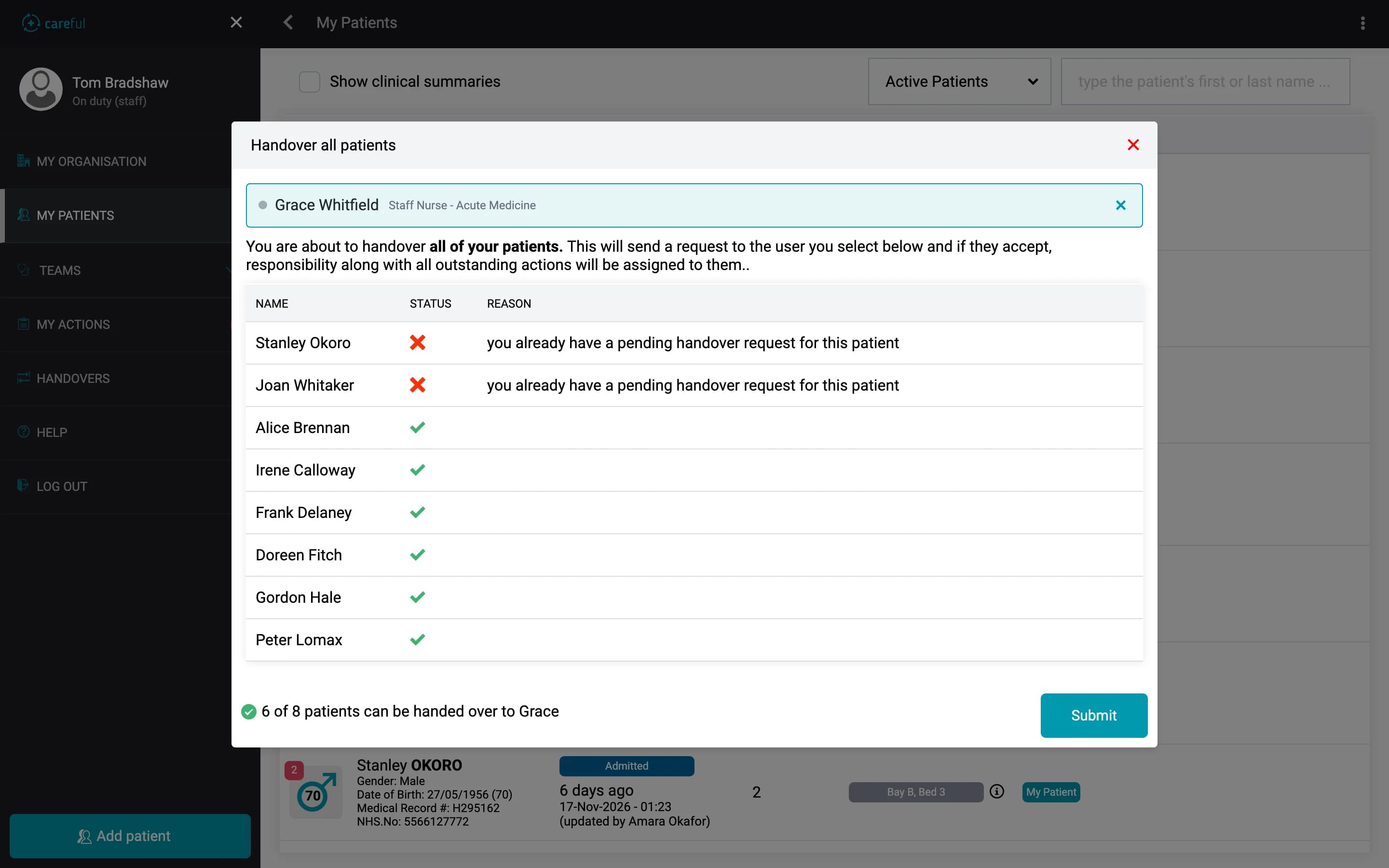 The patients that cannot go are marked with a cross and a reason; the line at the bottom says how many can
Tip: If Submit does not appear, none of your patients can go to that colleague, or you have more than 500. Select a colleague in your patients' teams, or hand some patients over one at a time.
Hand over the patients left behind
If you work in several teams, one colleague may share a team with only some of your patients. The rest stay with you until you hand them to someone in their teams.
- In the list, note the patients marked with a cross. Under Reason, CAREFUL says why each one cannot go.
- Select Submit to send the handover of the others.
- Select Handover all patients again, then select a colleague in the other patients' teams.
- Check the list. Patients in the first handover show "you already have a pending handover request for this patient".
- Select Submit.
Tip: To hand over one patient on their own, use Handover Patient on the patient profile: see Hand over a patient to a colleague.