
The Handovers page lists your handovers that are waiting for an answer. Received holds those sent to you, and Sent holds those you sent. Each tab shows how many it holds.
Everyone in your organisation has a Handovers page. It shows only their own handovers. Administrators are no exception: nobody can see a colleague's handovers here.
Only waiting handovers are listed. Once a handover is accepted, rejected or cancelled, it leaves both tabs. The patient's log keeps the record. A handover does not expire: it stays until one of you acts on it.
The number beside Handovers in the menu counts the handovers waiting for you. Your dashboard shows the same number on My Received Handovers, and how many you sent on My Sent Handovers.
If you use the CAREFUL phone app and are on duty, CAREFUL tells you when a colleague sends you a handover. It also tells you when a colleague accepts or rejects one you sent. Selecting the notification opens this page. CAREFUL does not tell you when a colleague cancels a handover sent to you: it leaves your Received tab.
Open your handovers
Look at your handovers at the start and end of a shift. Received shows what colleagues have asked you to take over. Sent shows which of your handovers nobody has answered yet.
- Select Handovers in the menu on the left. On a phone, select the menu button at the bottom of the screen first. CAREFUL opens the Received tab.
- To see the handovers you sent, select Sent.
- Or, on your dashboard, select My Received Handovers or My Sent Handovers to open that tab.
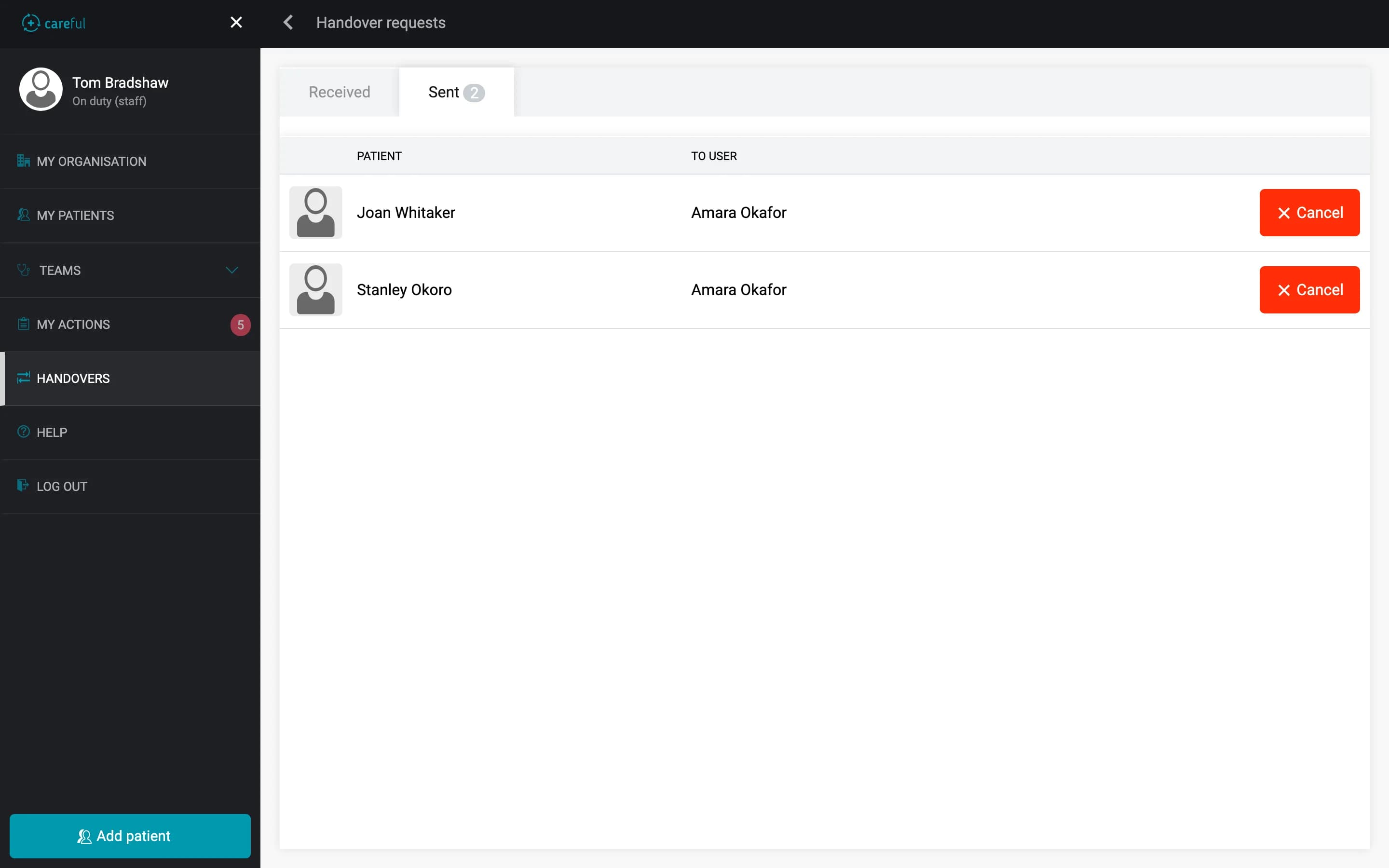 The Sent tab: your handovers still waiting for an answer, each with the colleague it went to
Tip: When nothing is waiting, the tab says so: "You currently have no pending handover requests" on Received, and "You currently have no pending sent handover requests" on Sent.
Read a handover's row
Each row is one handover. It may hold one patient or many. Check who it is for and who sent it before you act on it.
- Under Patients or Patient, read who the handover is for. A handover of several patients shows the first patient's name and how many more, such as "and 4 more". If it is a team handover, the team's name follows.
- Select the row to list every patient in it. Select hide to shorten the list again.
- Read the colleague: From user on the Received tab, To user on the Sent tab. Account Disabled under a name means that colleague's account has been disabled.
- On a phone, each row labels the colleague From, on the Sent tab too. There, it is the colleague you sent the handover to.
- Select Accept or Reject on a received handover, or Cancel on one you sent.
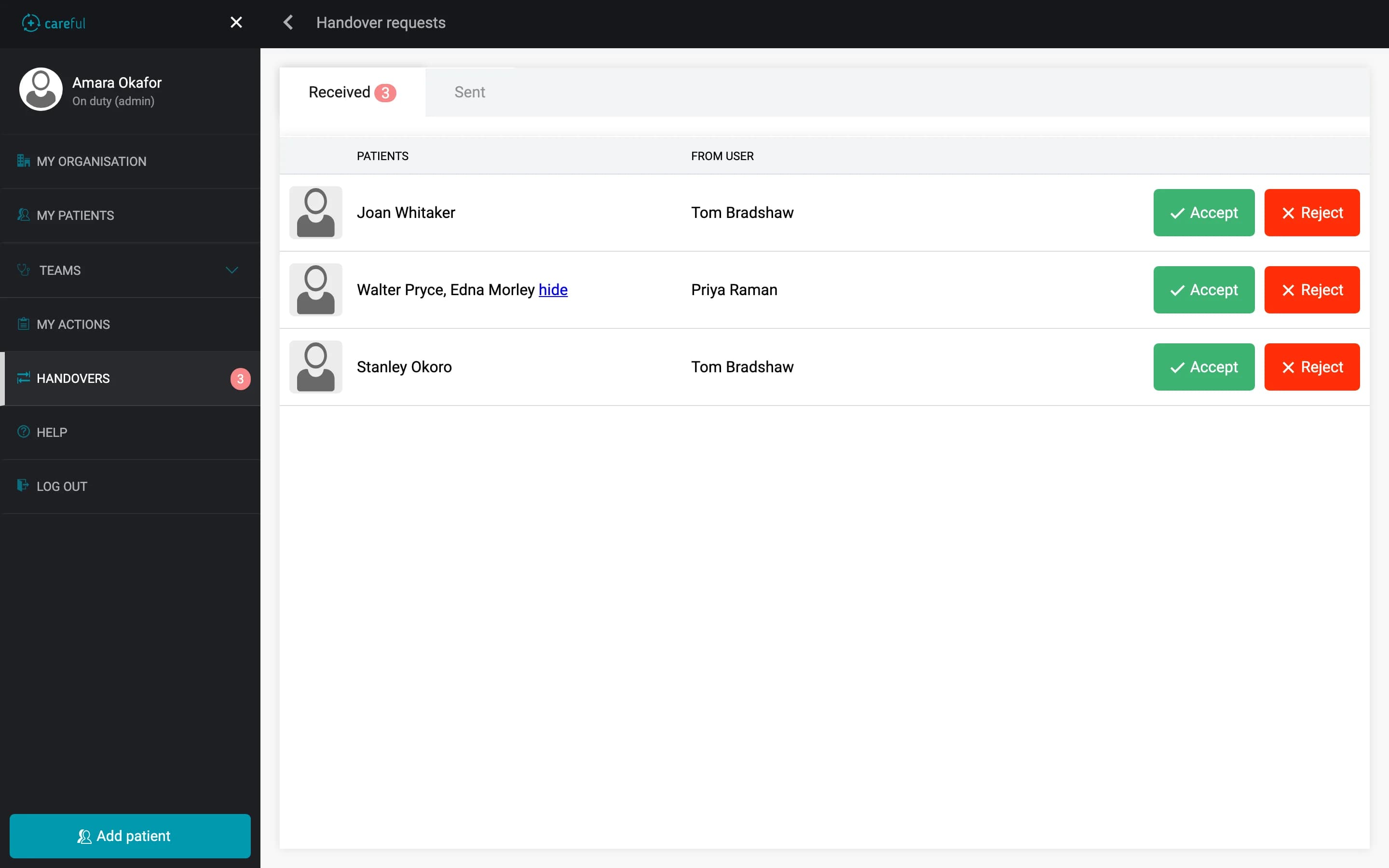 The Received tab, with a team handover's row selected to list every patient in it
Tip: On a computer, point at "and 4 more" to see the other names without opening the row.