
Take responsibility for all patients makes you responsible for every patient in a team at once. Colleagues who are already responsible for them stay so.
Only members of the team see it in the team's menu, team owners included. Administrators who are not in the team do not.
It covers the patients in the team when you select it. Patients added to the team later are not included. CAREFUL refuses if the team has more than 500 patients, counting the ones you are already responsible for. You then take responsibility for each patient on their own.
It moves no actions. To take over a colleague's patients and their actions, see Take all of a team member's patients.
There is no way to give these patients all up at once. You give up responsibility one patient at a time, and CAREFUL checks each one first: see Give up responsibility for a patient. You can also hand them all over to one colleague, with Handover all my patients in this team.
If they use the CAREFUL phone app and are on duty, each patient's responsible colleagues are told: one notification for each patient. Each patient's log records Responsibility for patient taken.
Take responsibility for every patient in a team
Take the whole team's patients when you are looking after all of them. You might be the nurse in charge of a ward for the shift. You might be the doctor covering a ward overnight or at the weekend, or a therapist who sees every patient in the team.
- Select Teams in the menu on the left, then the team. On a phone, select the menu button at the bottom of the screen first.
- Select Take responsibility for all patients. CAREFUL asks you to confirm.
- Select Take Responsibility. CAREFUL makes you responsible for each patient and closes the window.
- Check the Patients tab. Each row now shows My Patient.
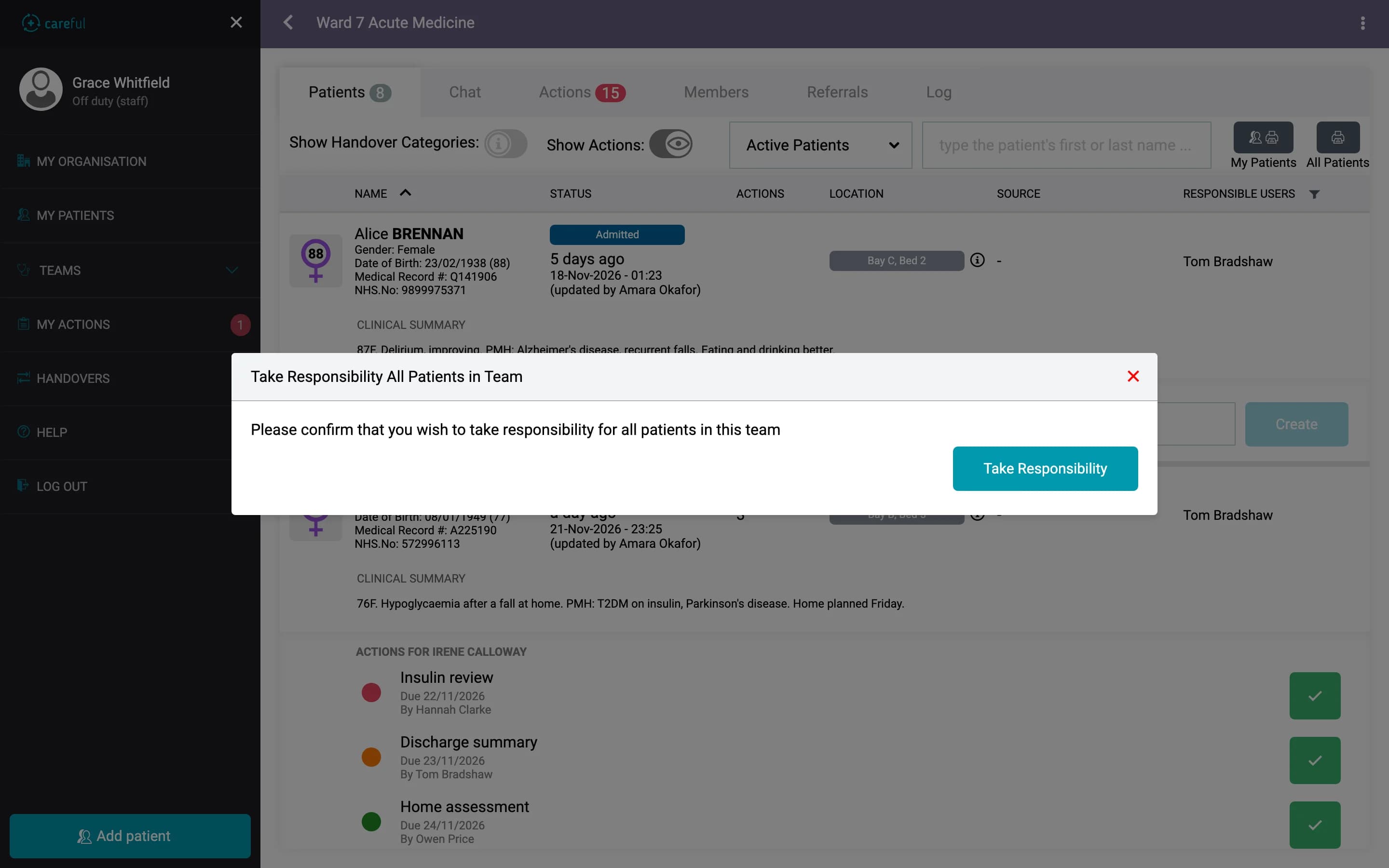 CAREFUL asks you to confirm before it makes you responsible for every patient in the team
Tip: If CAREFUL says the team has too many patients, select Cancel. Open each patient profile you need, then select Take Responsibility.
See the team's patients you are responsible for
Your My Patients list holds your patients from all your teams. To see only the ones in this team, filter the team's list by your own name.
- Open the team and select the Patients tab.
- Open the filter by responsible colleague. On a computer, it is the filter icon in the last column heading. On a phone or in a narrow window, select the filter button at the top of the screen, then All responsible users.
- Tick your own name, then select Done. The list shows only the team's patients you are responsible for.
Tip: The number beside each name counts the team's patients that colleague is responsible for. CAREFUL keeps the filter on when you come back to the team. To see every patient again, select Clear, then Done.