
A team's Members tab lists everyone in the team. For each colleague, it shows their role, whether they are on duty, their contact number and when they last used CAREFUL. Selecting a colleague's row opens their profile.
You can see the members of any team you are in. Team owners and members see the same list. Administrators can see it for every team in the organisation.
The list shows 50 people to a page, in order of last name. It includes colleagues who have not yet accepted their invitation, marked unverified. It also includes colleagues whose account is disabled, marked Account Disabled. A disabled colleague stays responsible for their patients until someone in the team selects Take Patients.
On duty and Off duty show whether each colleague is on duty now. Duty belongs to the person, not the team. It is the same in all their teams.
The menu at the end of a row holds what you can do for that colleague. What it offers depends on your role:
- anyone in the team can take all of a colleague's patients in the team. On their own row, they can set themselves on or off duty and edit their own details;
- team owners and administrators can also change a colleague's role, remove them from the team and set them on or off duty;
- administrators can also resend or cancel an invitation, edit a colleague's details and change their email address or mobile number.
If your organisation uses video calling, Video call under a colleague's contact number starts a call. It is greyed out for colleagues who are off duty, unverified or disabled.
CAREFUL remembers your search, sort and page for each team. In a web browser, it keeps them until you close the tab. The CAREFUL app keeps them on the device, even after you sign out or restart the app.
Open the Members tab
Check the Members tab before you hand over a patient, give someone an action or ring a colleague. It shows who is in the team, who is on duty and the number to reach them on.
- Select Teams in the menu on the left, then the team. On a phone, select the menu button at the bottom of the screen first.
- Select Members.
- Read each row: the colleague's photo, name, job title and speciality, then On duty or Off duty.
- Under Contact, read the contact or bleep number the colleague gave for reaching them while on duty.
- Under Team Role, read Team Owner or Member. Beside Last active, read when they last used CAREFUL, such as "2 hours ago", or Never.
- Select a colleague's row to open their profile.
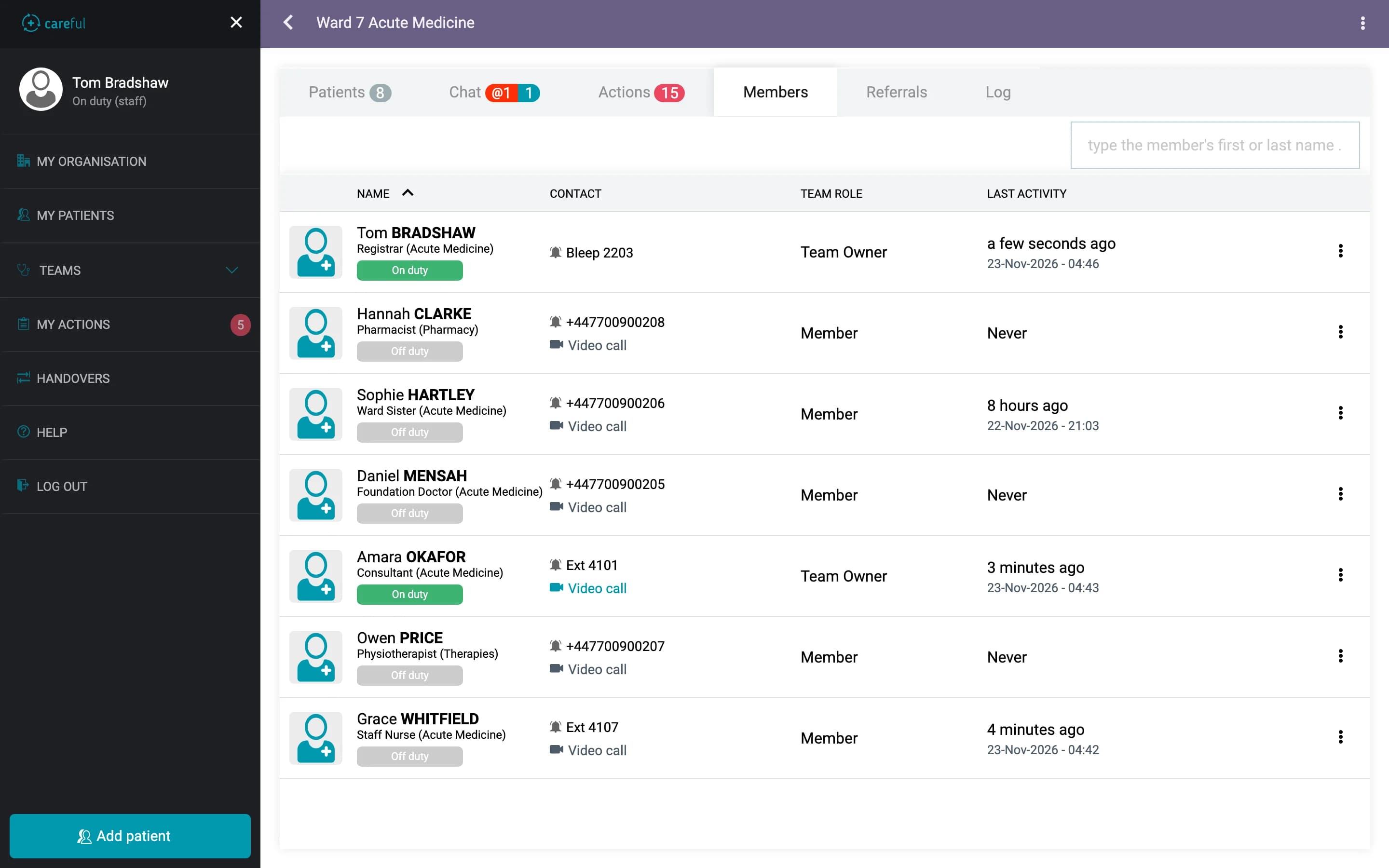 A team's Members tab: each colleague's duty, contact number, team role and when they were last active
Tip: A colleague who has not yet accepted their invitation shows unverified beside their role, on a faded row. A disabled colleague's row shows Account Disabled and does not open their profile.
Find a colleague in the list
In a large team, search for one colleague instead of paging through the list. It is the quickest way to check that someone is in the team, or to find their contact number.
- Open the team and select Members.
- Select the box that says type the member's first or last name. On a phone or in a narrow window, select the search button at the top of the screen first.
- Type part of the colleague's first name or last name. The list changes as you type.
- Select the colleague's row to open their profile.
Tip: The search finds any first or last name that contains what you type. Type one name only: "Jo Smith" finds nobody, but "Smith" finds Jo Smith.
Sort the list
Sort the list to answer a different question. Sort by Team Role to see who the team owners are, or by the last column to see who has used CAREFUL recently.
- Open the team and select Members.
- Select a heading at the top of a column: Name, Contact, Team Role or the last-activity heading. An arrow beside it shows the direction.
- Select the same heading again to reverse the order.
- On a phone or in a narrow window, select the sort button at the top of the screen instead. Select a heading under Sort by, then the arrow beside it to reverse the order.
Tip: Name sorts by last name. When you sort by Contact, colleagues with no contact number come last, whichever way round you sort.
Act on a colleague from the list
Some jobs for a colleague start from their row. You might take their patients when they go off sick, or set them off duty when they have gone home still on duty.
- Open the team and select Members.
- Select at the end of the colleague's row. On a phone, the menu opens with their name at the top.
- Select what you want to do, such as Take all users' patients or Set to OFF duty. The menu offers only what your role allows.
- For a disabled colleague, there is no menu. Select Take Patients if they are still responsible for patients in the team. Team owners and administrators see Remove instead once they are responsible for none.
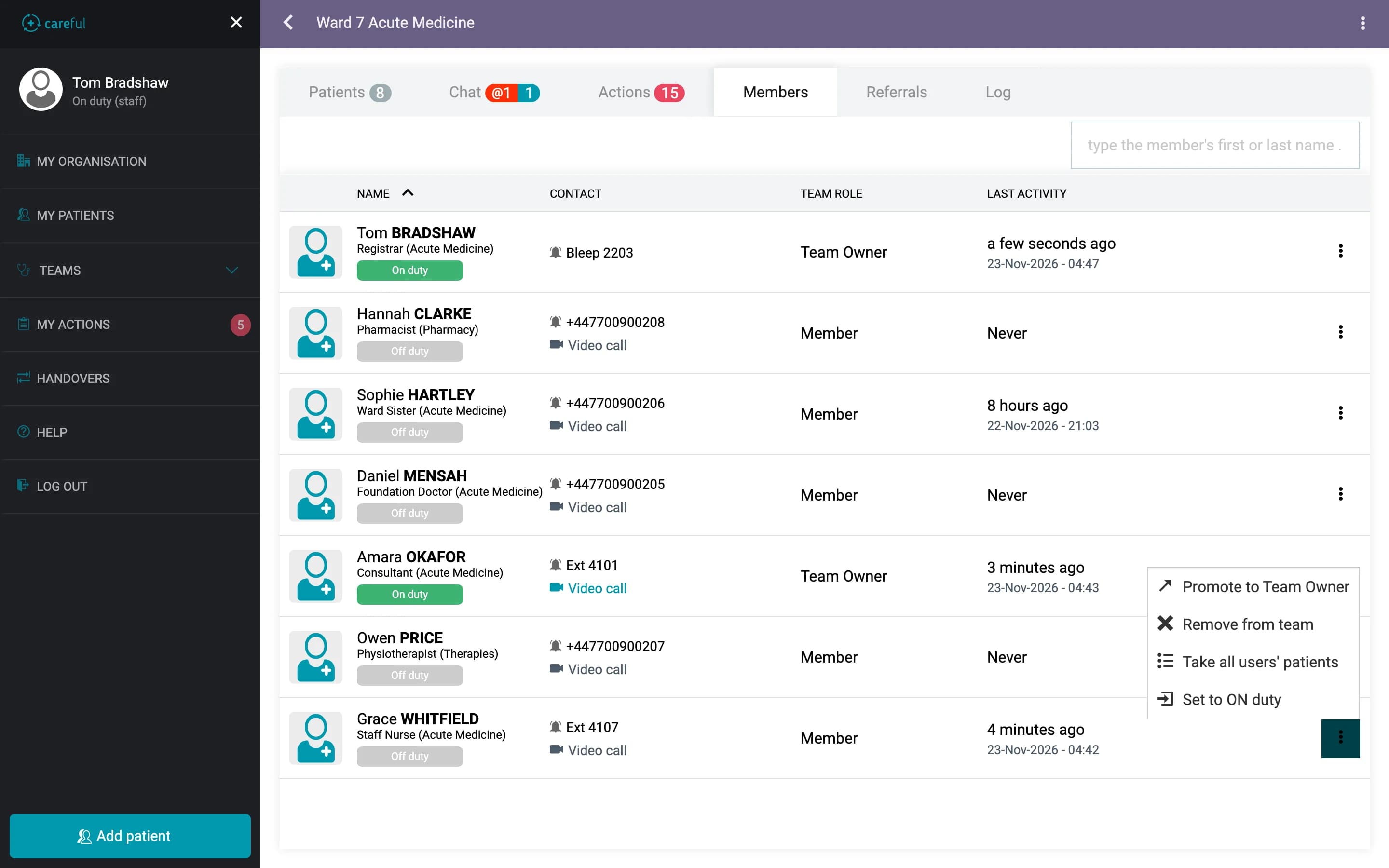 A team owner's ⋮ menu on a member's row
Tip: If a row has no , there is nothing your role lets you do for that colleague. Members see no menu on the row of a colleague who has not yet accepted their invitation.
More help: Take all of a team member's patients · Set a team member on or off duty · Make someone a team owner, or change them back to a member · Remove someone from a team