
A team owner runs a team: they decide who is in it and look after its name, handover categories and memo. Promoting a member makes them a team owner, and demoting a team owner makes them a member again. The change takes effect at once.
Only team owners and administrators can change a colleague's role. Team owners can change it for anyone in the teams they own, including other team owners. Administrators can change it in any team, their own role included.
A team owner cannot change their own role. Their own row on the Members tab offers neither Promote to Team Owner nor Demote to Team Member. Another team owner or an administrator can change it.
You can change the role of a colleague who has not yet accepted their invitation. You cannot change it for a colleague whose account is disabled: their row has no menu.
A team can have several team owners. Only an administrator can demote a team's last team owner, because team owners cannot change their own role. The team is then left with no team owner. After that, only an administrator can make someone its team owner.
CAREFUL does not tell the colleague. Their patients, actions and duty stay as they were. The team's log records each change as User team role updated, with the new role as Owner or Staff.
Make a member a team owner
Make a member a team owner when they take on running the team. They might be a new ward manager, a senior nurse who keeps the team's list right or a consultant who leads the service. With two or more team owners, the team can still be run when one of them is away.
- Select Teams in the menu on the left, then the team. On a phone, select the menu button at the bottom of the screen first.
- Select Members, then find the colleague. Their row shows Member under Team Role.
- Select at the end of their row, then Promote to Team Owner.
- In Confirm Promotion to Team Owner, select Yes. Their row now shows Team Owner.
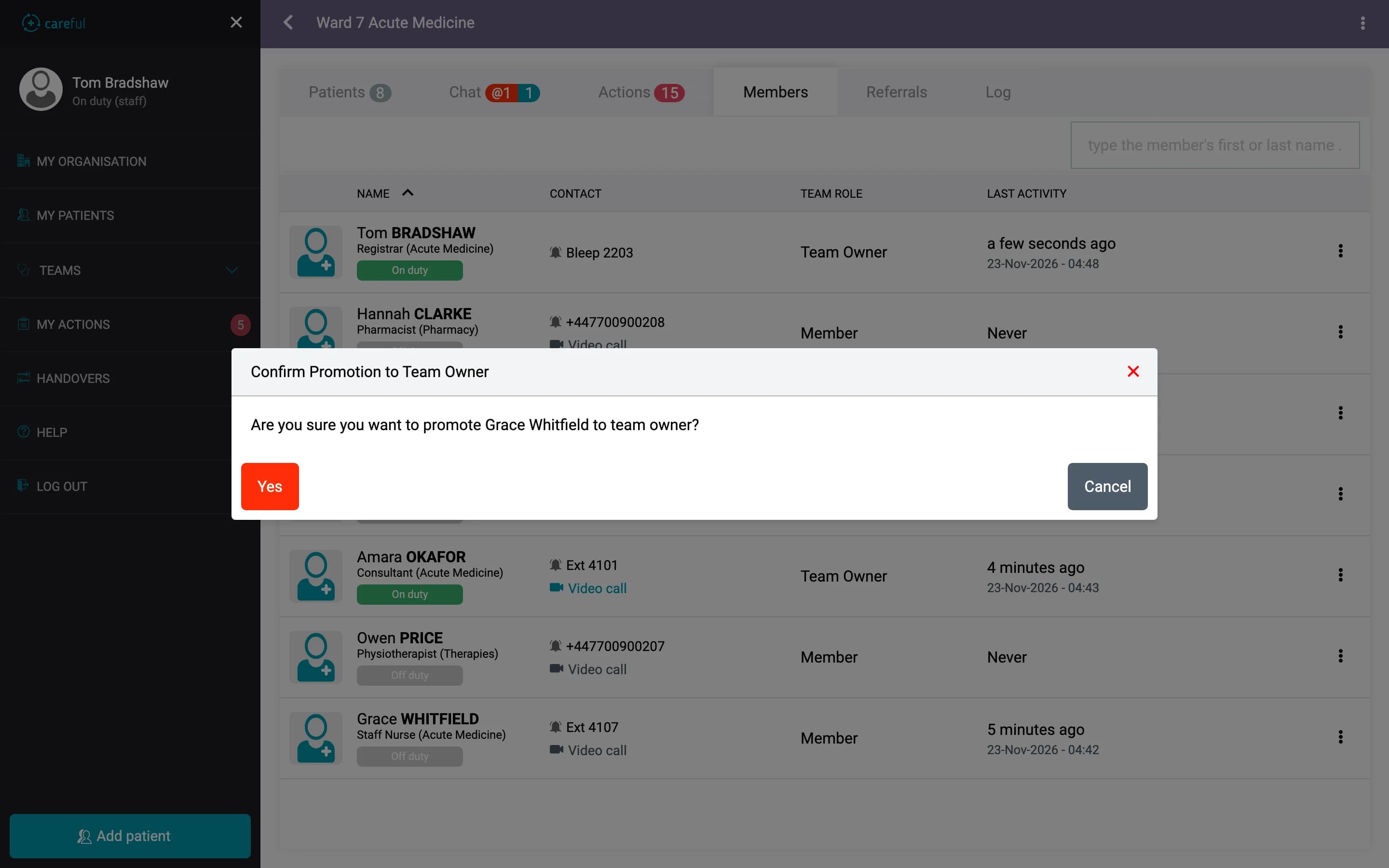 Confirm Promotion to Team Owner, asked before the role changes
Tip: To make a colleague a team owner as you add them to the team, select Team Owner under Team role: see Add someone to a team.
Change a team owner back to a member
Change a team owner back to a member when they no longer run the team. They may have moved to another post or passed the job to a colleague. They stay in the team, with their patients and actions.
- Open the team and select Members.
- Find the colleague. Their row shows Team Owner under Team Role.
- Select Demote to Team Member.
- In Confirm Demotion to Team Member, select Yes. Their row now shows Member.
Tip: If you are an administrator demoting the team's only team owner, promote someone else first. A team with no team owner can be run only by administrators.