
A handover category is a field for your team's own information, on the record of every patient in the team. You add one with Manage Handover Categories, in the team's menu.
Only team owners and administrators can add handover categories. Team owners can add them to the teams they own. Administrators can add them to any team in the organisation.
A team can have up to eight categories, counting any forms. Once it has eight, Add is greyed out and CAREFUL says "The maximum limit of eight handover categories has been reached." Each name must differ from the team's other categories, whatever its capitals. So if the team has "Plan", you cannot add "PLAN".
A category you add holds text. You cannot add a form from the screens.
To confirm: how an organisation gets a form category set up for a team.
Nothing is saved until you select Save changes, then Save. The new category then appears, empty, for every patient in the team. It comes after the team's other categories: on the patient profile, on the team's patient list and on the printed list. If the team has removed a category before, the new one may not come last. Check, and move it if you need to. Team members fill it in from there.
CAREFUL tells nobody about the new category. The team's Log tab records New Info Category added to Team, with its name.
Add a category
Add a category for something your team records for every patient and reads at handover. A medical team might add "Jobs outstanding" or "Plan overnight". A ward team might add "Family updates", and a therapy team "Therapy goals" or "Equipment needed".
- Select Teams in the menu on the left, then the team. On a phone, select the menu button at the bottom of the screen first.
- Select at the top of the team page, then Manage Handover Categories.
- Under New Handover Category, type the name.
- Select Add. CAREFUL puts the category at the end of the list under Edit Existing Handover Categories, but has not saved it yet.
- Select Save changes. CAREFUL asks you to confirm, with what you have changed, such as "1 added".
- Select Save. CAREFUL saves the category and closes the window.
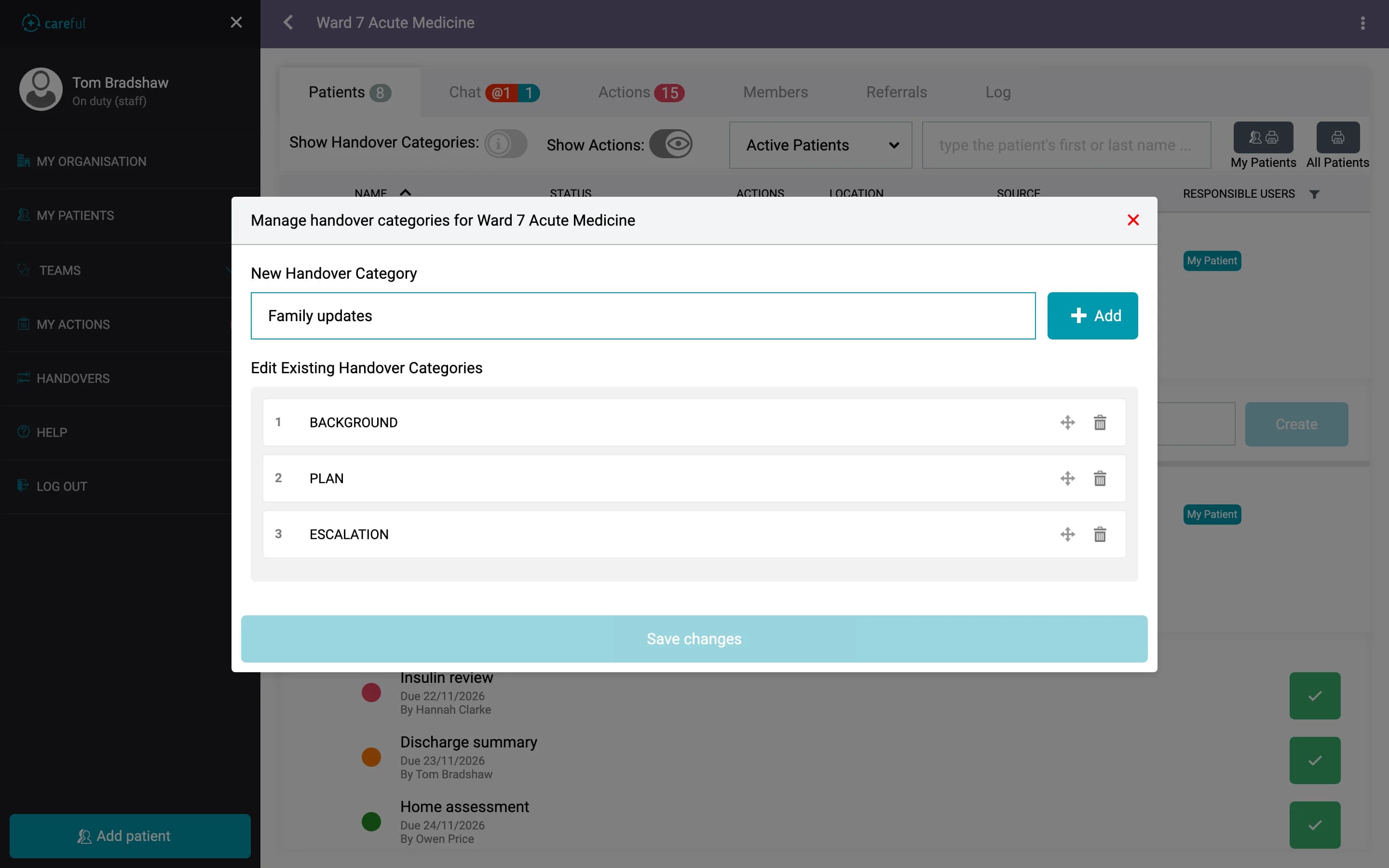 A new category's name typed under New Handover Category, above the team's existing categories
Tip: If CAREFUL says "A Handover Category with this name already exists.", the team has a category of that name, whatever its capitals.
Add several categories at once
When you set up a new team, you can add all its categories at once. Before you save, you can also take out a name you added by mistake.
- Open the team and select Manage Handover Categories.
- Type each name under New Handover Category and select Add. CAREFUL adds each one to the end of the list.
- To take out a new category before you save, select the bin button on its row. CAREFUL removes it at once, with no question.
- Select Save changes, then Save. CAREFUL saves them all together.
Tip: Do not move a new category before you save it: CAREFUL may not keep it where you put it. Save it first, then open the window again and move it: see Reorder handover categories.
More help: Reorder handover categories
Close the window and discard your changes
If you change your mind, close the window and discard what you have changed. The team's categories stay as they were.
- Select the cross at the top of the window. If you have changed anything, CAREFUL asks Discard changes: "Your changes will not be saved."
- Select Discard to close the window and lose your changes. To go back to them, select Cancel.