
The team memo is a note that everyone in a team can read, from the memo button on the team page. Team owners and administrators write it, change it or clear it with Update Team Memo in the team's menu.
Only team owners and administrators can change the memo. Team owners can change it for the teams they own. Administrators can change it for any team.
Each team has one memo. It can hold bold, italic, underlined and struck-through text, different text sizes and lists. When you change it, the new memo replaces the old one for everyone. There is no way to see or restore an earlier version.
Each time you select Submit, CAREFUL tells team members who are on duty, through the CAREFUL phone app. It does so even if you changed nothing or cleared the memo. It does not tell you. The team's log records each Submit as Message added to Team, without the memo's text, even when you clear it.
The memo also prints at the end of the team's printed patient list. A cleared memo removes the memo button from the team page for everyone.
Write or change the memo
Use the memo for what everyone in the team needs to know on every shift. It might hold the on-call rota, the time of the board round or a change to how the ward works this week.
- Select Teams in the menu on the left, then the team. On a phone, select the menu button at the bottom of the screen first.
- Select at the top of the team page, then Update Team Memo. The window opens with the current memo.
- Type or change the text. To format it, use the toolbar above the text: bold, text size, lists and more.
- Select Submit. CAREFUL saves the memo and closes the window.
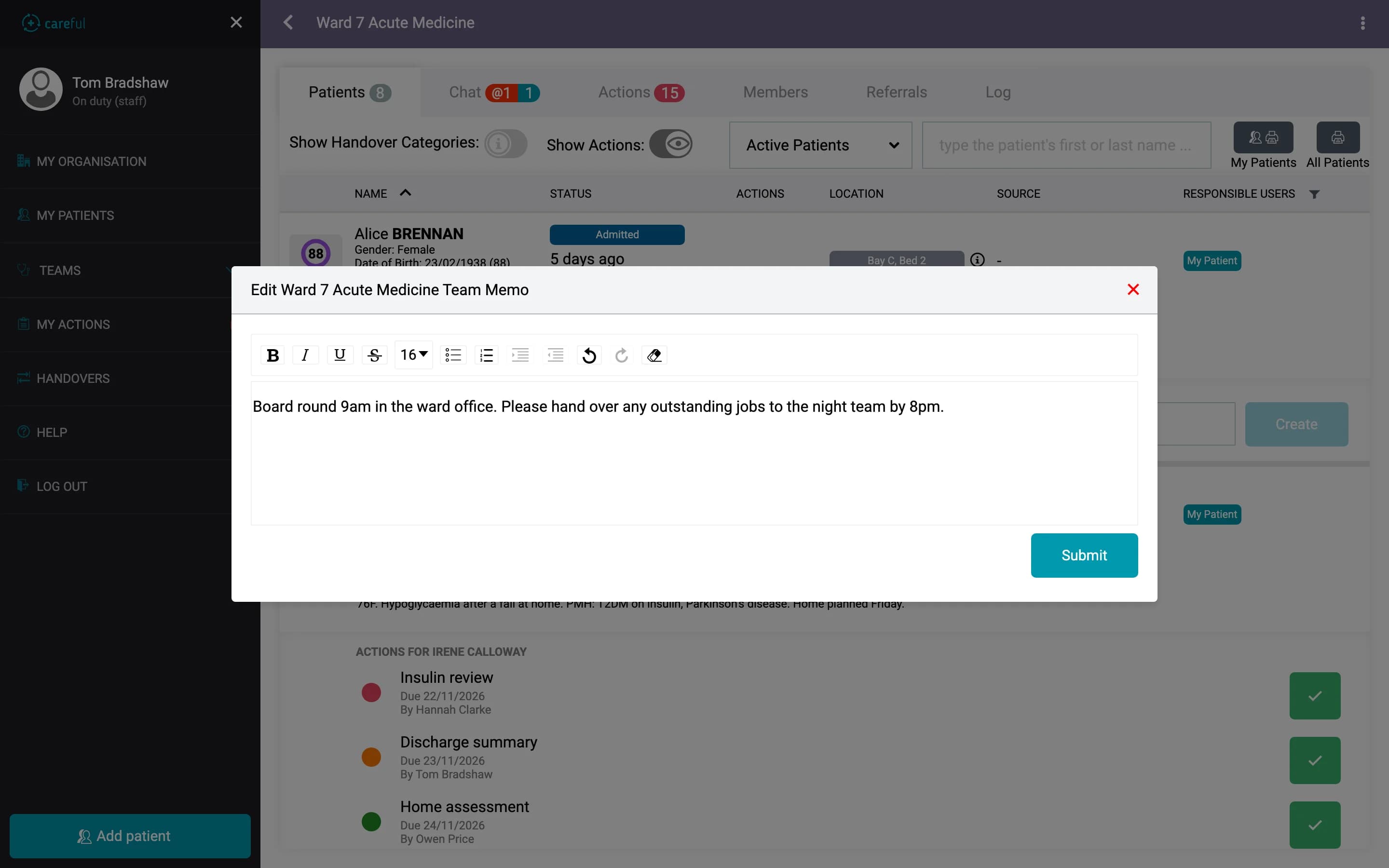 Writing the team memo, with the formatting toolbar above the text and Submit below it
Tip: To leave without saving, select the cross at the top of the window. The memo stays as it was.
Clear the memo
Clear the memo when nothing in it still applies, such as after a temporary change ends. The memo button then disappears from the team page. Colleagues are not left reading an old note.
- Open the team and select Update Team Memo.
- Delete all the text.
- Select Submit. CAREFUL clears the memo and removes the memo button.
Tip: On-duty team members who use the CAREFUL phone app still get a notification that you have updated the memo.