
Removing someone from a team takes them off its Members tab and its patient list. They can no longer open the records of its patients, unless they are in another of the patient's teams or are an administrator. Their CAREFUL account and their other teams stay as they were.
Only team owners and administrators can remove someone. Team owners can remove anyone from the teams they own, including other team owners, but not themselves. Administrators can remove anyone from any team, themselves included. Only an administrator can remove a team's last team owner. The team is then left with no team owner.
CAREFUL will not remove someone while they are the only person responsible for one of the team's patients. The window names the patient and goes no further. If they share responsibility for a patient with a colleague, CAREFUL removes them, but they stay responsible for that patient.
Their open actions stay assigned to them, even for patients whose records they can no longer open. CAREFUL lets you remove a colleague with open actions, but it is better to take their patients first.
You take them with Take all users' patients on their row: see Take all of a team member's patients. CAREFUL makes you responsible for each of their patients in the team, in their place. It also moves their open actions for those patients to you. Their other open actions stay with them until you or a colleague reassigns them. Only someone in the team can take a colleague's patients. After you remove them, their row leaves the Members tab. You can then no longer take their patients from there.
If they use the CAREFUL phone app, CAREFUL tells them they have been removed, whether or not they are on duty. It also tells the team's other team owners who are on duty. If the team uses chat, CAREFUL takes them out of its chat room. The team's log records User removed from team.
Take their patients and actions first
When a colleague leaves the team, their patients and open actions need someone in the team to look after them. They may be moving to another ward, ending a rotation or going on long leave. Taking their patients first moves the patients and those patients' actions to you in one step.
- Select Teams in the menu on the left, then the team. On a phone, select the menu button at the bottom of the screen first.
- Select Members, then find the colleague.
- Select at the end of their row, then Take all users' patients. If their account is disabled, select Take Patients on their row instead.
- In Force take Users' Patients, select Take Responsibility. CAREFUL makes you responsible for their patients in the team and moves their open actions for those patients to you.
- Select the Actions tab and sort by Assigned to. Reassign the colleague's other open actions to colleagues who can do them: see Reassign an action to someone else.
Tip: An administrator who is not in the team cannot take a colleague's patients there. Ask someone in the team to do it, then remove the colleague.
Remove someone from the team
Remove a colleague when they no longer work with the team, after a move to another ward or the end of a placement. The team's list then shows only the people who care for its patients.
- Open the team and select Members.
- Find the colleague and select at the end of their row.
- Select Remove from team. CAREFUL asks you to confirm, naming the colleague and the team.
- Select Confirm. CAREFUL removes them and closes the window.
- If CAREFUL names a patient instead, select Cancel. Take the colleague's patients, then try again.
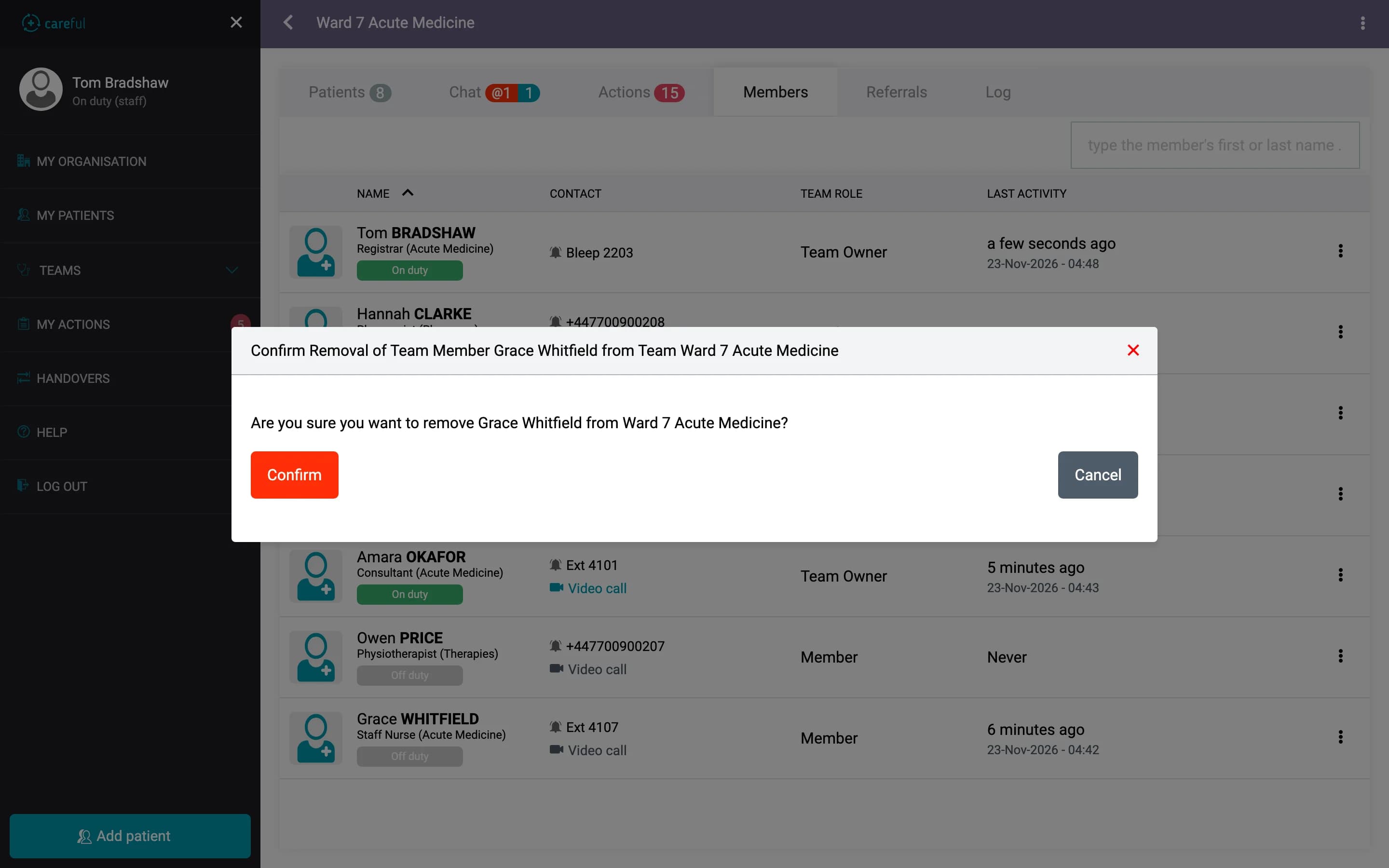 The confirmation names the colleague and the team before anyone is removed
Tip: A disabled colleague's row has a Remove button instead of . It appears only once they are responsible for no patients in the team.