
The box under each patient in a team's patient list creates an action from a title alone. CAREFUL assigns the action to you, due at the end of today.
The box appears while Show Actions is on. The switch is on unless you turn it off: see Show or hide actions in the team patient list. You can use the box for the patients of any team you are in.
A quick action has no due time, description or files. It shows Soon at once, and Overdue from midnight if it is still open.
To give a job to a colleague, set another date or time, or add files, use Create action on the patient profile. You can also reassign a quick action afterwards. You cannot change its title or due date once it exists.
The new action appears in the list above the box, unless the patient already has five other open actions due today or earlier. It also appears in your My Actions list and on the patient's and team's Actions tabs.
Add an action from the patient list
Use quick add for a job you will do yourself today, the moment it comes up. On a board round, that might be chasing a result, rewriting a drug chart or ringing a relative.
- Open the team and select the Patients tab.
- Find the patient. Under their actions, select the box that says "Create a new action for" and their name.
- Type the job, such as "Chase CT report".
- Select Create. On a keyboard, Enter does the same.
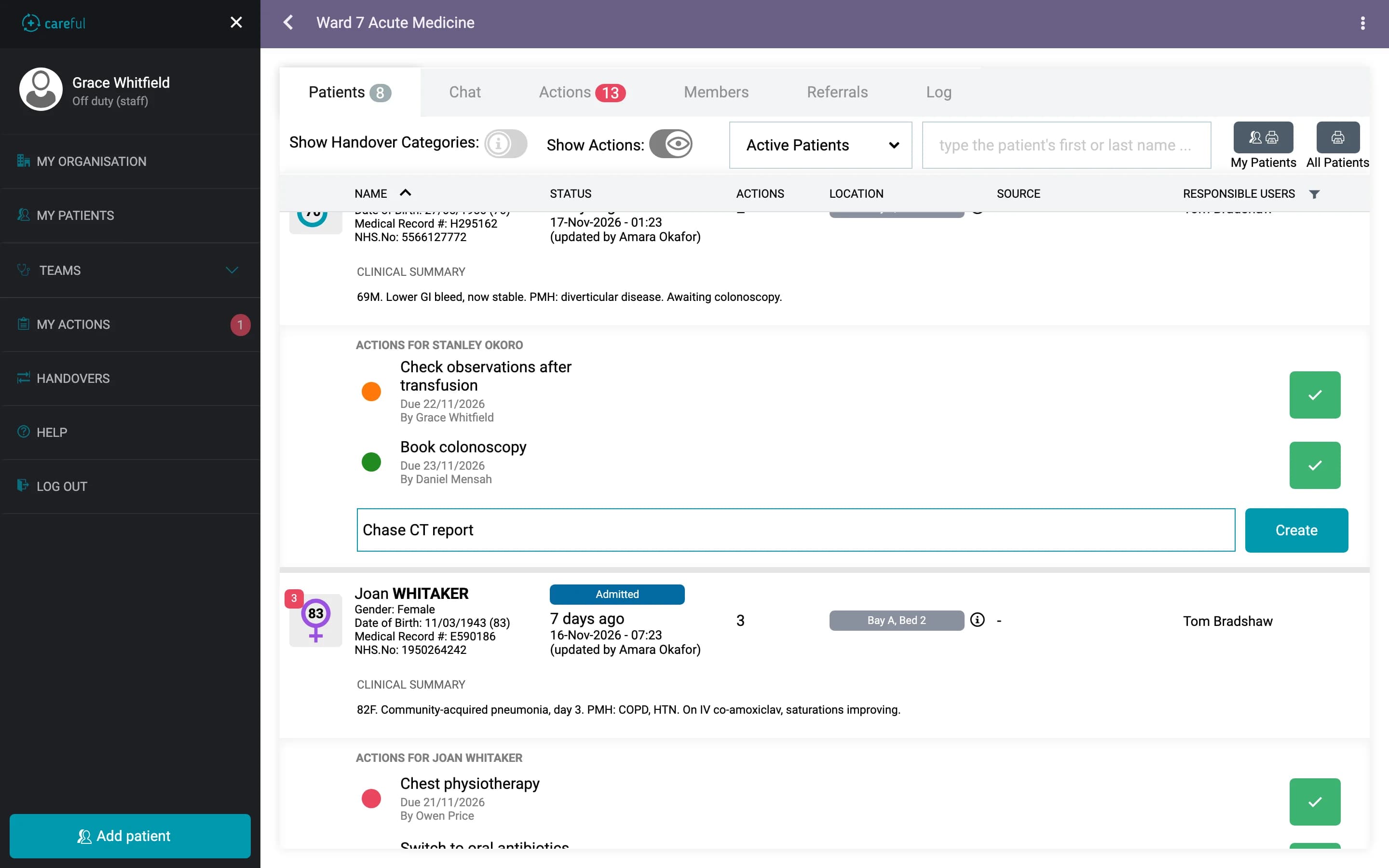 A new action typed into the box under a patient's actions, ready to create
Tip: On the web, the cursor goes back to the same patient's box. You can type the next action straight away.
Give a quick action to a colleague
Quick add always gives the action to you. When a job you noted belongs to someone else, such as a physiotherapy review or a discharge letter, pass it on.
- Select the action in the patient's list to open it.
- Select Reassign action.
- Under New assignee, start typing a name, role or speciality, then select the person.
- Select Submit. The action moves to their My Actions list.
Tip: You can give an action only to someone in one of the patient's teams: see Reassign an action to someone else