
A progress update records what has happened on an action without completing it. It shows under Progress updates on the action's page, newest first, with your name and the date and time.
You can add an update to any action assigned to you and to any action for a patient in one of your teams. Administrators can add one to any action in the organisation. You do not need to be the assignee.
You can add updates to open actions. You can add them to completed actions too, but only from the action's page. You cannot add them to deleted actions. You cannot edit or delete an update once you submit it.
When you add an update to a colleague's action, CAREFUL notifies them if they are on duty.
Add a progress update
Add an update when part of the job is done or something is holding it up. It might record that bloods have gone and the result is awaited, that you have chased the pharmacy or that the family did not answer. Anyone who opens the action then sees where it stands.
- Find the action in My Actions, or on a patient's or a team's Actions tab.
- Select the clipboard button, Update Progress, on its row. Or open the action and select Update Progress.
- Read Previous updates to see what colleagues have already recorded.
- In New update, write what has happened.
- To add a photo or document, select Choose File under Attachments. Check that each file appears in the list. If one does not, it has not uploaded: select Choose File again.
- Select Submit. It stays greyed out until you write an update.
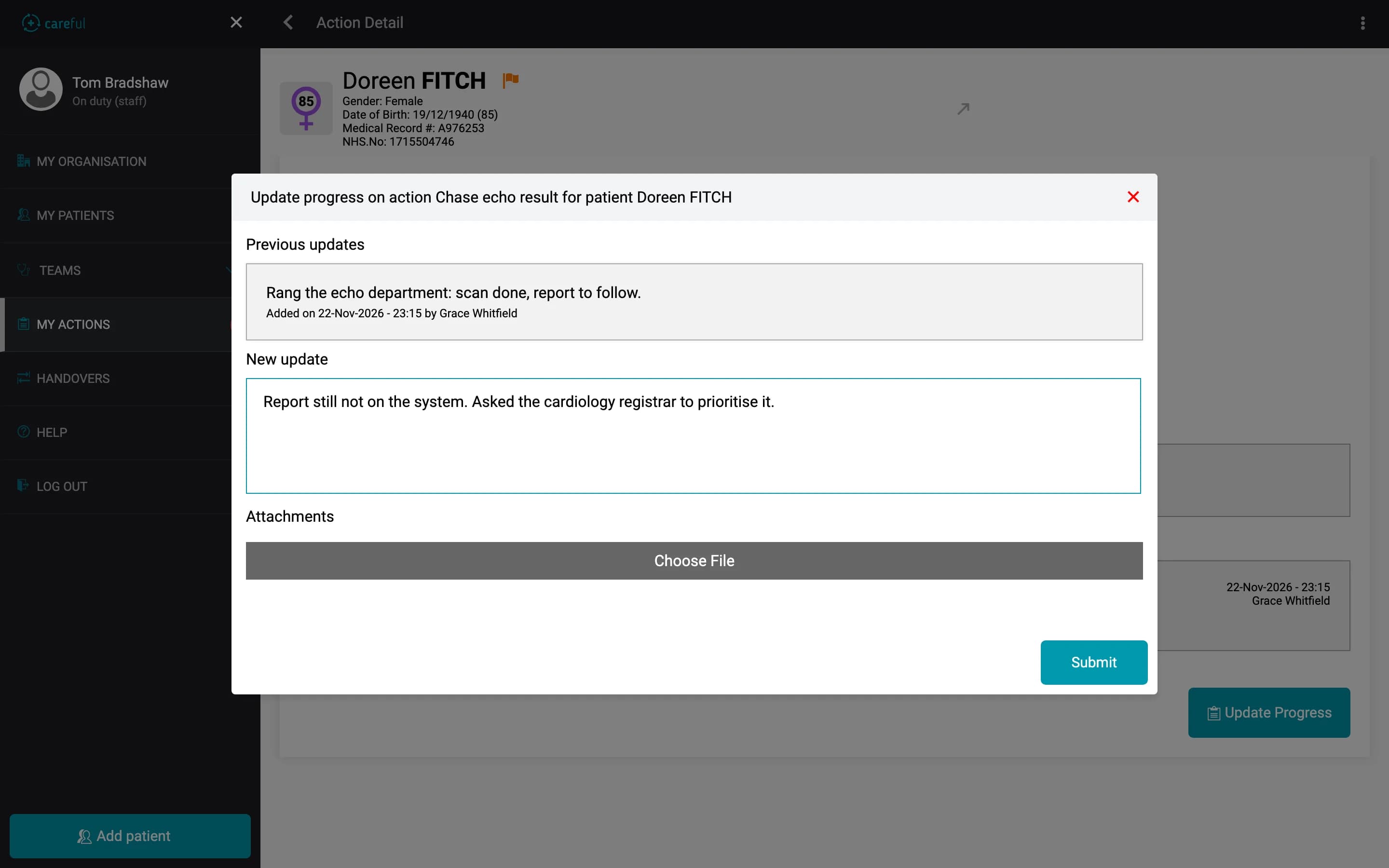 Updating progress: a colleague's earlier update under Previous updates, and a new one written in New update
Tip: The clipboard button is on open actions only. To update a completed action, open it and select Update Progress.