
An action's page holds everything about one action: who has it, when it is due, its description and its progress updates. Once someone completes the action, the page also shows the outcome.
You can open any action assigned to you and any action for a patient in one of your teams. Administrators can open any action in the organisation, including from the organisation's list of actions. For any other action, CAREFUL shows You don't have access to this action: see What prevents me opening an action or a patient profile?
The patient's name at the top opens their patient profile if you are in one of the patient's teams or are an administrator.
You cannot change an action's title, description or due date once it exists. To add information, add a progress update. To change one of them, delete the action and create a new one: see Delete an action and Create an action for a patient.
Open an action
Open an action to read what the job is before you start, to see what colleagues have already done or to check how it ended. You can open it from My Actions, the Actions tabs, the organisation's list or a team's patient list. On the CAREFUL app, you can also open it from a notification about it.
- Open My Actions, or the Actions tab on a patient record or a team.
- Select the action's row. CAREFUL opens the Action Detail page.
- Or, on the CAREFUL app, select a notification about the action.
Tip: The buttons at the end of a row act on the action without opening it. Select anywhere else on the row to open the page.
Check its status, progress and outcome
Read the page to see whether the job is still open, what has happened so far and how it ended. If the action has no due time, the page shows No due time: the action is due at the end of that day.
- Read the tag at the top: Open, Soon, Overdue, Completed or Deleted.
- Read Assigned to, Created on, Due date and Due time. If the assignee's account is disabled, CAREFUL shows Account Disabled under their name.
- Read Description, with any files added when the action was created.
- Read Progress updates, newest first. Each shows when it was added, who added it and any files.
- For a completed action, read Completed, Completed by and Outcome.
- For a deleted action, read Deleted on, Deleted by and Reason for deletion.
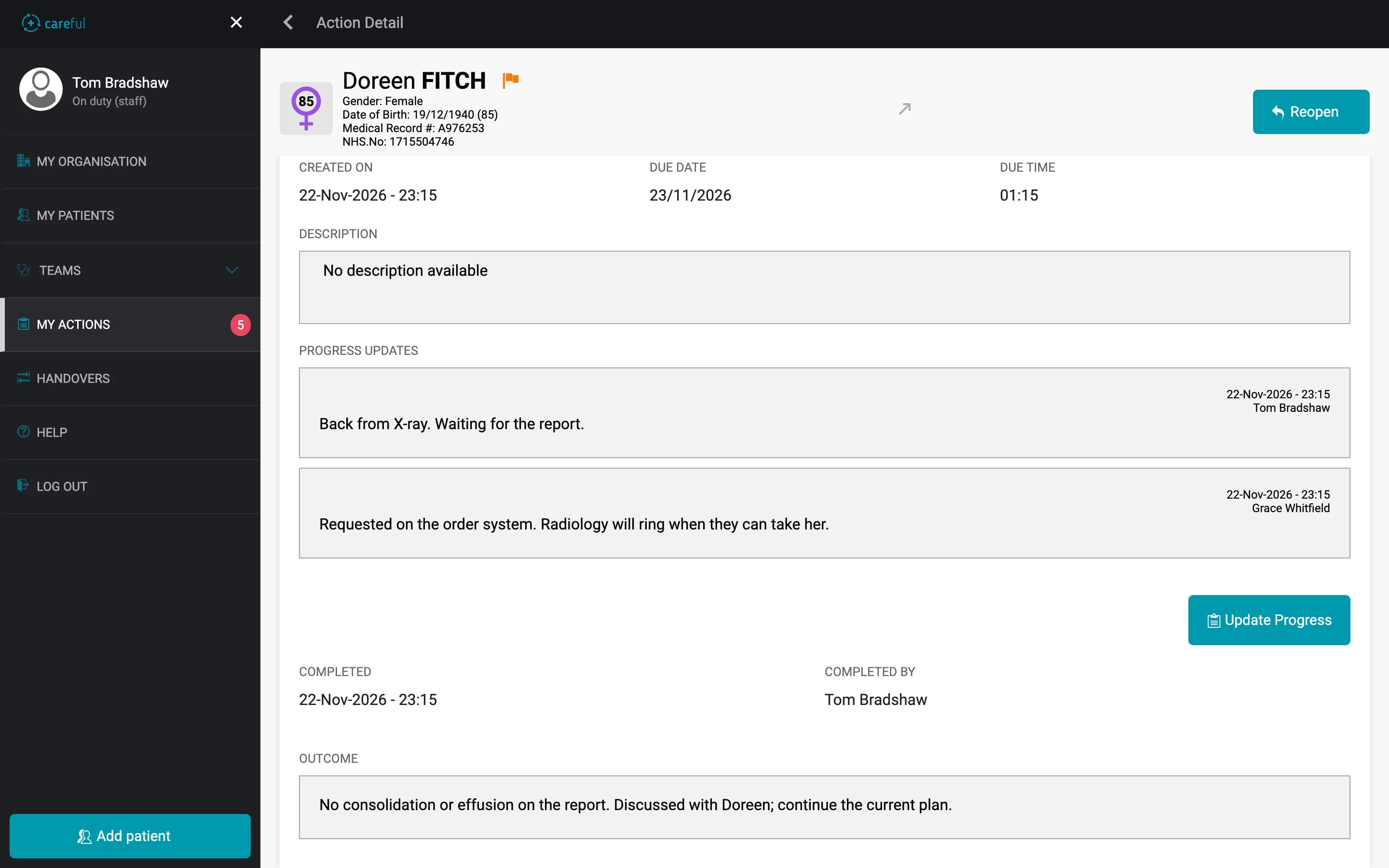 A completed action's page: its progress updates, who completed it and when, and the outcome
Tip: The page does not show who created the action. The patient's Log tab records that: see Can I see who created an action?
Work on the action from its page
From the action's page you can record progress, complete the action, pass it to a colleague or delete it, without going back to the list.
- To record progress, select Update Progress. You can add an update to a completed action too, but not to a deleted one.
- To complete, reassign or delete the action, select , then Complete action, Reassign action or Delete action. The menu is there only while the action is open.
- To reopen a completed action, select Reopen, then Reopen again to confirm. This erases the outcome and the files added when it was completed.
- To restore a deleted action, select the undo button, then Click to Undelete within three seconds.
Tip: Reopen and the undo button disappear 30 minutes after the action was completed or deleted. The change is then permanent.