
Deleting an action takes it out of every list of open actions and records why.
You can delete an open action if you are its assignee or in one of the patient's teams. Administrators can delete any open action in the organisation.
You cannot delete a completed action: it has no delete button.
You must give a reason of up to 100 characters. Anyone who can see the action can read the reason, who deleted it and when. The patient's Log tab records the deletion too.
Completing an action adds a note to the patient's notes. Deleting it adds nothing.
If the assignee uses the CAREFUL phone app, CAREFUL notifies them there when someone else deletes their action. Nobody is told on the web.
For 30 minutes, you or a colleague can restore the action. After that, the deletion is permanent.
Delete an action from a list
Delete an action that someone created twice, or created for the wrong patient. Delete one, too, when the job is no longer needed. The scan may have been cancelled, or a colleague may already have rung the family.
- Open My Actions, or the Actions tab of a patient or team.
- On the action's row, select Delete action, the bin.
- Under Reason for deletion, select a suggested reason or type your own.
- Select Delete. CAREFUL shows Action Deleted and takes the action out of the list.
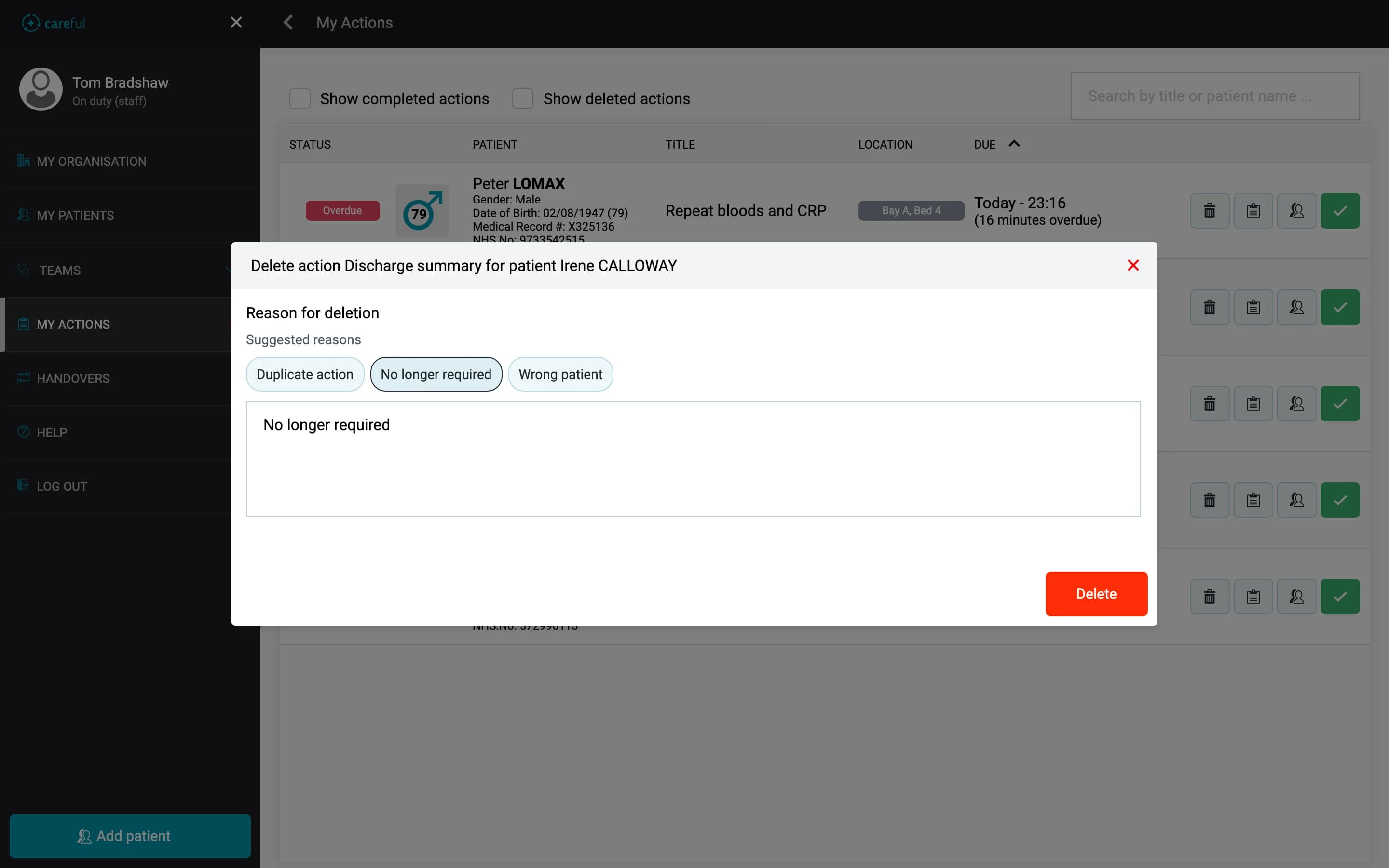 Deleting an action: a suggested reason fills in Reason for deletion
Tip: Delete stays greyed out until there is a reason. You can edit a suggested reason after it fills in the box.
Delete an action from its page
Open the action first when you want to read its details, such as its description or progress updates, before you delete it.
- Open the action.
- Select Delete action.
- Under Reason for deletion, select a suggested reason or type your own.
- Select Delete. The page shows Deleted, with Deleted on, Deleted by and Reason for deletion.
Tip: For 30 minutes, you can restore the action with the undo arrow at the top of the page. Restore a deleted action