
Two selections complete an action: the tick on its row, then Click to Complete. The tick is on My Actions, the Actions tabs, the organisation's list and a team's patient list. CAREFUL closes the action with no outcome and no files.
You can complete any action assigned to you and any action for a patient in one of your teams. Administrators can complete any action in the organisation. You do not need to be the assignee.
Everything else happens as it does when you record an outcome. CAREFUL adds a note to the patient's Notes tab titled "Action Closed - " followed by the action's title, with no text. When you complete a colleague's action, CAREFUL notifies them if they are on duty. For 30 minutes afterwards, you or a colleague can reopen the action.
Complete an action from a list
Some jobs, such as a call to the family, a chest X-ray request or an outpatient booking, need no explanation once they are done. You can close them from the list without opening each one.
- Open My Actions, or the Actions tab on a patient record or a team.
- On the action's row, select the tick (on a phone, Mark Complete). Click to Complete and Add outcome appear for two seconds.
- Select Click to Complete. CAREFUL shows Action Completed.
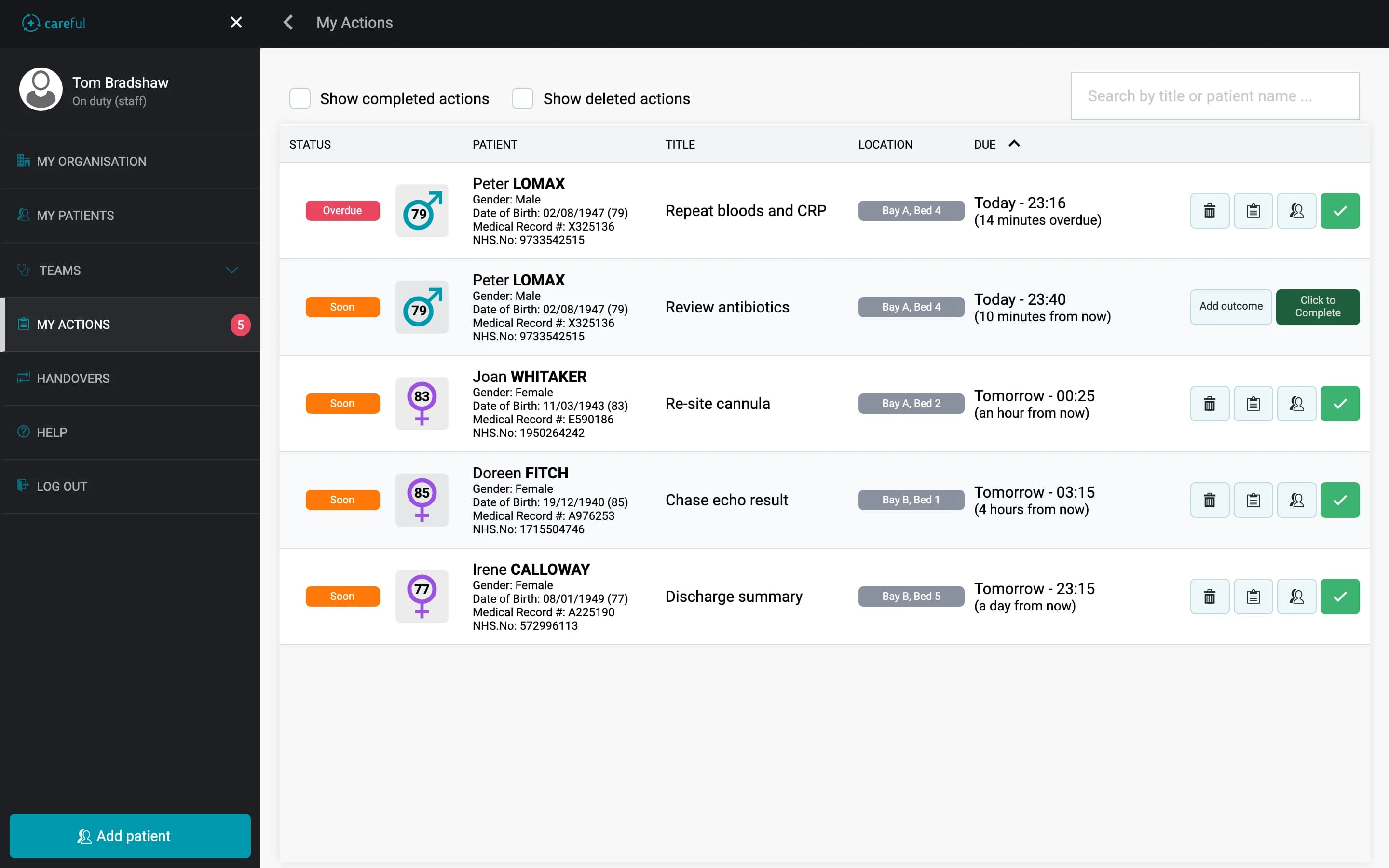 After the tick, Click to Complete and Add outcome show on the row for two seconds
Tip: If you do nothing for two seconds, the tick comes back and nothing changes. To record an outcome instead, select Add outcome.
Complete an action from the team patient list
During a board round, for example, you can complete actions beside each patient once the team's patient list shows them.
- Open the team and turn on Show Actions.
- Find the action under the patient and select its tick.
- Select Click to Complete within two seconds.
Tip: This list has no Add outcome button. To record an outcome, select the action to open it, then complete it from its page.