
A patient's Actions tab lists all their open actions, not only yours. Each row shows who has the action, when it was created and when it is due.
You can see the actions of any patient in one of your teams. Administrators can see them for any patient in the organisation. Your team may have a referral for the patient that it has not yet accepted. If so, you can see the actions on the read-only record: see Why is a patient's record read-only? Until your team accepts the referral, you cannot open or work on those actions unless one is assigned to you.
Anyone in one of the patient's teams can work on these actions, not only the assignee. So can administrators.
The number on the Actions tab counts the patient's open actions that are overdue or due within the next 24 hours. Open Actions on the Profile tab counts all of their open actions.
The tab opens on open actions, with the soonest due at the top. If you tick Show completed actions or Show deleted actions, the tab keeps it ticked for every patient you open.
Open a patient's actions
Check what is outstanding for a patient before a ward round, a family meeting or a discharge. You can see who is doing each job and whether a colleague has already asked for something before you create a new action.
- Open the patient profile.
- Select the Actions tab. On the Profile tab, you can also select Open Actions.
- Select an action's row to open it.
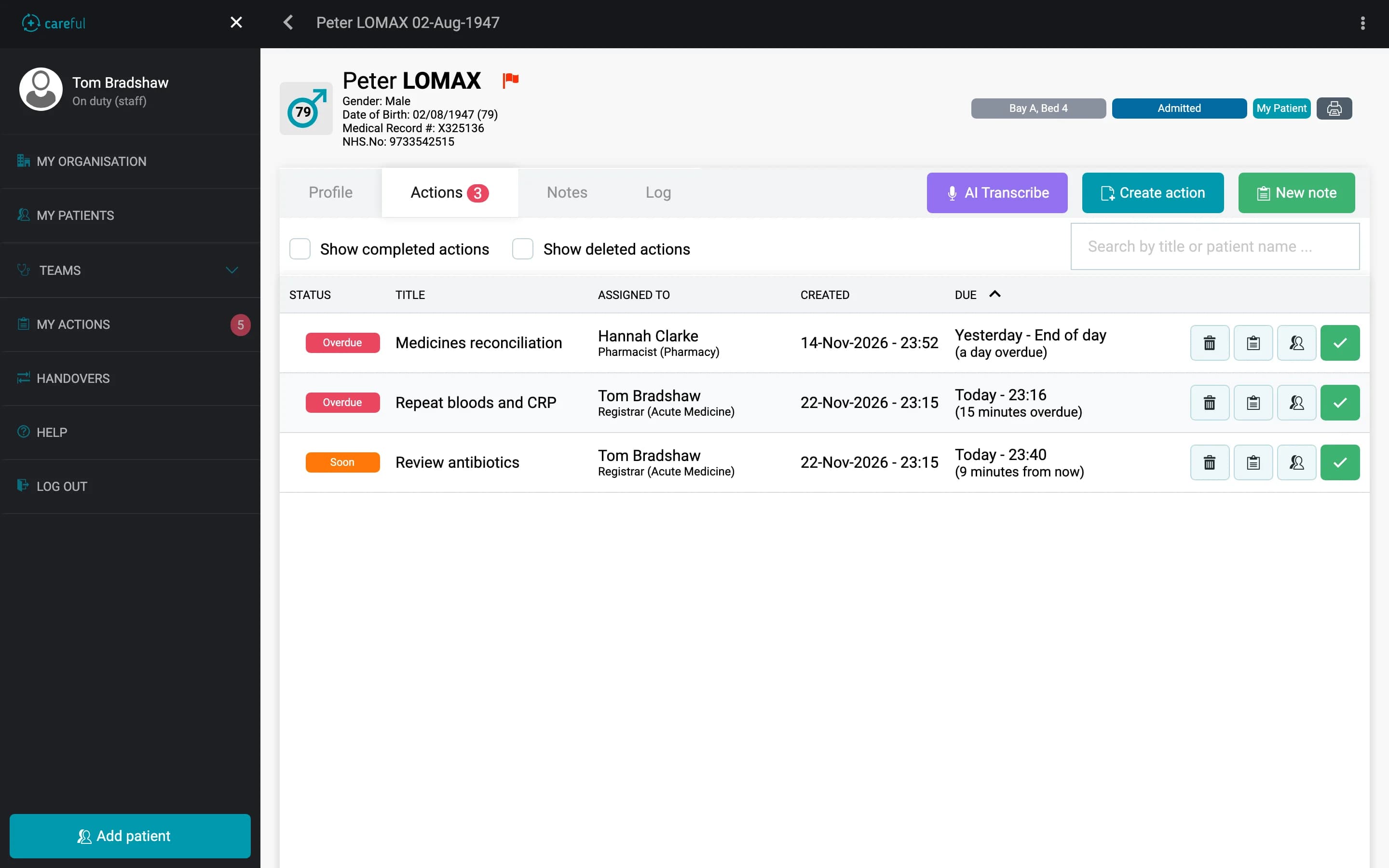 A patient's Actions tab, with who has each action, when it was created and when it is due
Tip: To add an action, select Create action at the top of the patient record (Action on a phone). It appears only if you are in one of the patient's teams: see Create an action for a patient
Read the patient's actions
Each row tells you what the job is, who has it, when it was set and how long is left.
- Read the tag at the start of the row: Open, Soon or Overdue.
- Read Title for the job, and Assigned to for the person who has it.
- Read Created for the date and time someone created the action.
- Read Due for the day and time it is due, such as Today - End of day, and how long is left.
- If Account Disabled shows under the assignee's name, reassign the action to a colleague.
Tip: The list does not show who created an action: see Can I see who created an action?
Work on an action from the list
The buttons at the end of each row act on the action without opening it. Use them to tick off a result you have chased, note progress on a referral or pass a job to the colleague taking over.
- To complete the action, select the tick (on a phone, Mark Complete), then Click to Complete within two seconds. To record what happened as well, select Add outcome instead.
- To record progress, select Update Progress: a clipboard on a computer.
- To pass the action to a colleague, select Reassign action: a people icon on a computer.
- To delete the action, select Delete action, a bin on a computer, and give a reason.
Tip: The buttons appear only on open actions. For 30 minutes after someone completes or deletes an action, its row has a button to bring it back instead.
More help: Complete an action without recording an outcome · Complete an action and record the outcome · Add a progress update to an action · Reassign an action to someone else · Delete an action