
An action gives one person a job to do for a patient. It stays in their My Actions list until someone completes it, deletes it or reassigns it to someone else.
You can create actions for any patient in any of your teams.
You can assign an action to yourself or to someone else. That person must be in one of the patient's teams, but need not share a team with you. You cannot assign an action to a colleague whose account is disabled, or who has not yet verified their email address or mobile number.
A new action is due at the end of today, unless you choose a different date or time. It shows as Soon in the 24 hours before it is due, and as Overdue once that time has passed.
Create an action
Use an action for any job that one person must do for a patient, today or on a later date. It can be clinical, such as chasing a result or prescribing a drug. It can also be a reminder of an important call or booking, such as ringing the family or booking an outpatient appointment.
- Open the patient profile.
- Select Create action, or Create Action. On a phone or in a narrow window, the button is labelled Action.
- In Title, name the job.
- In Assignee, start typing a name, role or speciality, then select the person. To take the action yourself, select Assign to me.
- Select Submit.
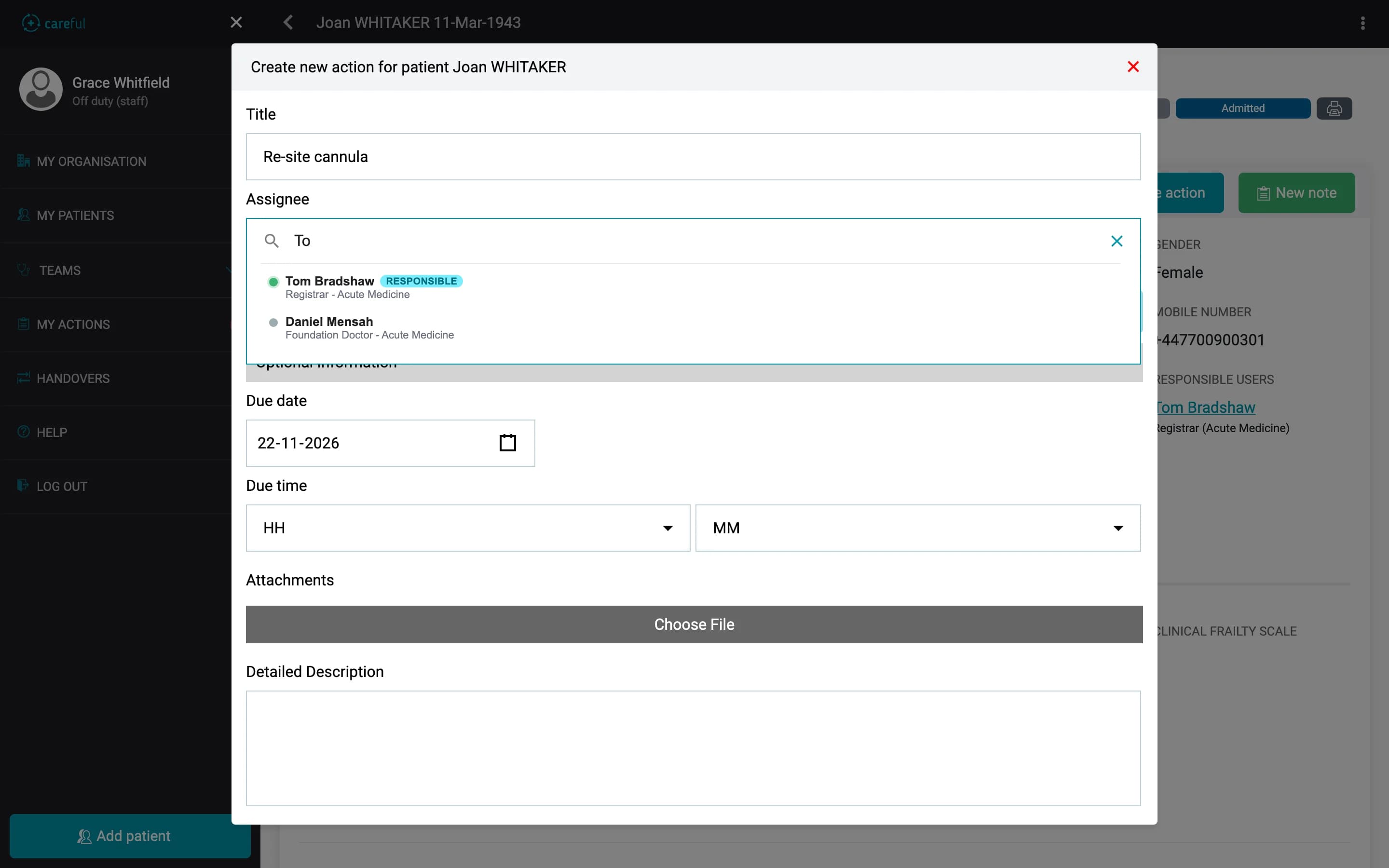 Creating an action and choosing who will do it
Tip: When you type a name, CAREFUL marks anyone responsible for the patient Responsible. Before you type, the suggestions list them first.
Change when it is due, or add files and detail
Every new action is due at the end of today unless you change it. It shows as Soon until then, and as Overdue if it is still open at midnight. Set the date and time the job is really due.
- Due date is already set to today. To change it, select a later day.
- In Due time, select an hour and minute in the future. Leave it empty and the action is due at the end of the day: action lists show End of day.
- To add a photo or document, select Choose File under Attachments.
- In Detailed Description, add anything the assignee needs to know.
- Select Submit.
Tip: Action lists show how long is left, such as "3 hours from now", and then how late it is, such as "2 hours overdue".
Create several actions in a row
After a ward round, one patient often needs several jobs.
- Fill in the first action.
- Tick Create another after submit.
- Select Submit. CAREFUL creates the action, names it in a message and gets the window ready for the next one.
Tip: The next action keeps the same assignee unless you change it. Its due date goes back to today.