
Show deleted actions turns an action list into a list of deleted actions, most recently deleted first. Each row shows the reason, the date and time of deletion, and who deleted the action.
The box is on My Actions and on the Actions tab of every patient and team. Administrators also have it on the Actions tab of My Organisation.
The list shows deleted actions only. You cannot show deleted and completed actions together: ticking one box unticks the other.
My Actions shows the deleted actions assigned to you, including those a colleague deleted. A patient's tab shows every deleted action for that patient, not only yours. A team's tab shows them for the patients still in the team. Deleted actions stay in the list however long ago someone deleted them, but leave a team's tab when the patient leaves the team.
The list does not show who an action was assigned to, or when it was due. The action's own page shows both.
For 30 minutes after someone deletes an action, its row has a button to restore it.
My Actions opens with the box unticked each time. A patient's Actions tab remembers whether you ticked it, and uses that choice for every patient you open. A team's Actions tab remembers it for that team only.
Show deleted actions
Check why an action has gone from a list and who took it out. A colleague may have deleted a duplicate, or decided the job was no longer needed. If someone deleted an action by mistake, you can restore it within 30 minutes.
- Open My Actions, or the Actions tab of a patient or team.
- Tick Show deleted actions. The list shows deleted actions, with Delete Reason and Deleted columns.
- Select an action to open it. Its page shows Deleted on, Deleted by and Reason for deletion.
- Untick Show deleted actions to see open actions again.
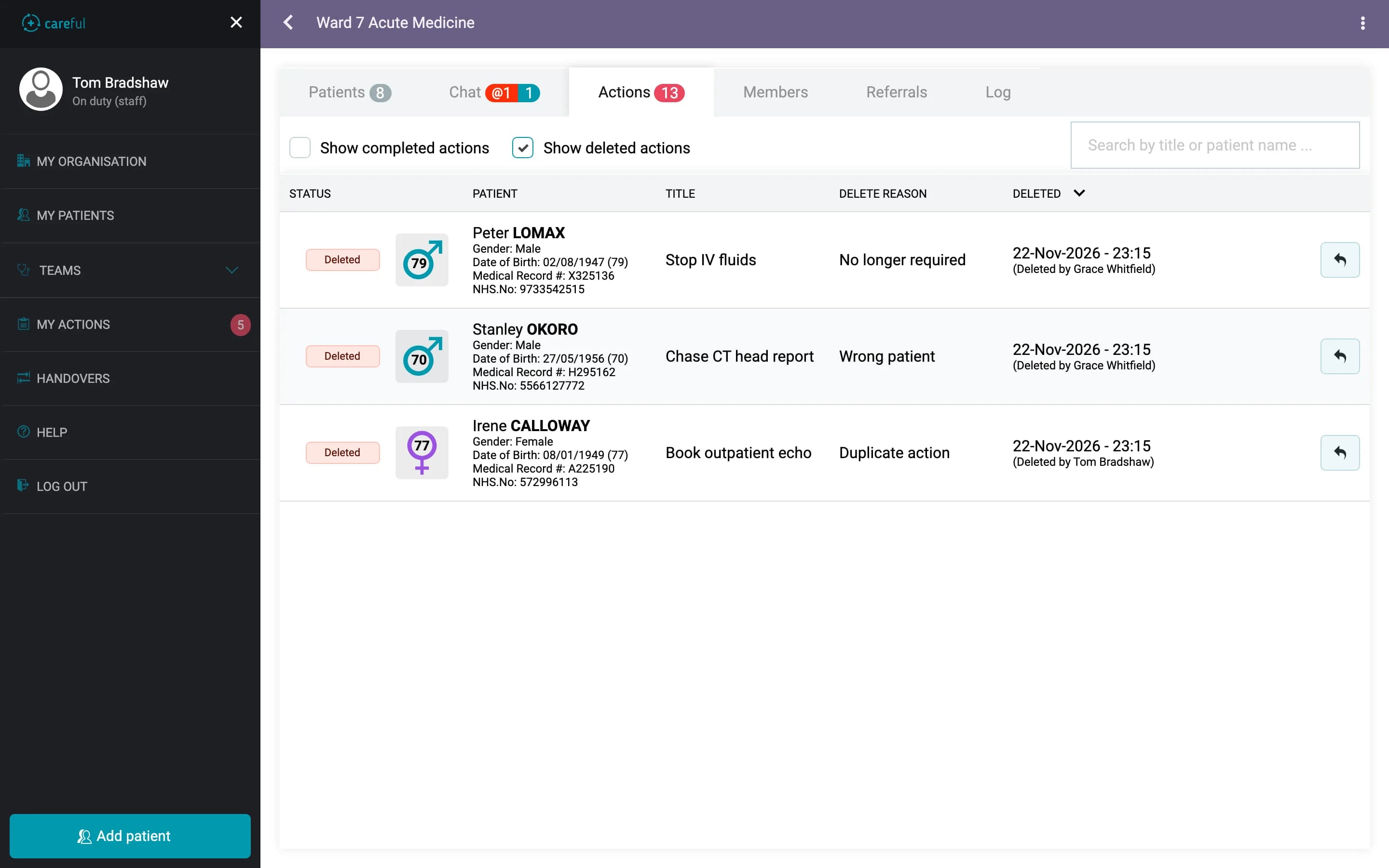 A team's deleted actions, with the reason, when each was deleted and by whom
Tip: An action deleted in the last 30 minutes has a curved arrow on its row, to restore it. Restore a deleted action