
The Show Actions switch on a team's Patients tab lists each patient's open actions under their name, with a box to add a new one. The switch is on unless you turn it off.
Each patient shows up to five of their open actions, not only yours, with the soonest due first. If a patient has more, View More Actions opens their Actions tab.
Each action shows its title, a coloured dot for its status, the date it is due and who it is assigned to. The list shows the due date but not the due time.
You can see the list on any team you are in. Administrators can see it on every team.
CAREFUL remembers the switch in this browser, or in the CAREFUL app on this phone, for every team. A colleague who signs in on the same browser sees the same setting.
If the team has handover categories, the switch sits beside Show Handover Categories: see Show or hide handover categories and actions on a team's patient list
Show or hide actions
Show actions when you run a board round or safety huddle from the patient list, with each patient's jobs under their name. Hide them when you want a shorter list, such as when you are checking where patients are or who is responsible for them.
- Open the team and select the Patients tab.
- On a phone or in a narrow window, select the tree icon at the top of the screen. CAREFUL opens a panel with the switches.
- Select the Show Actions switch to turn it on or off.
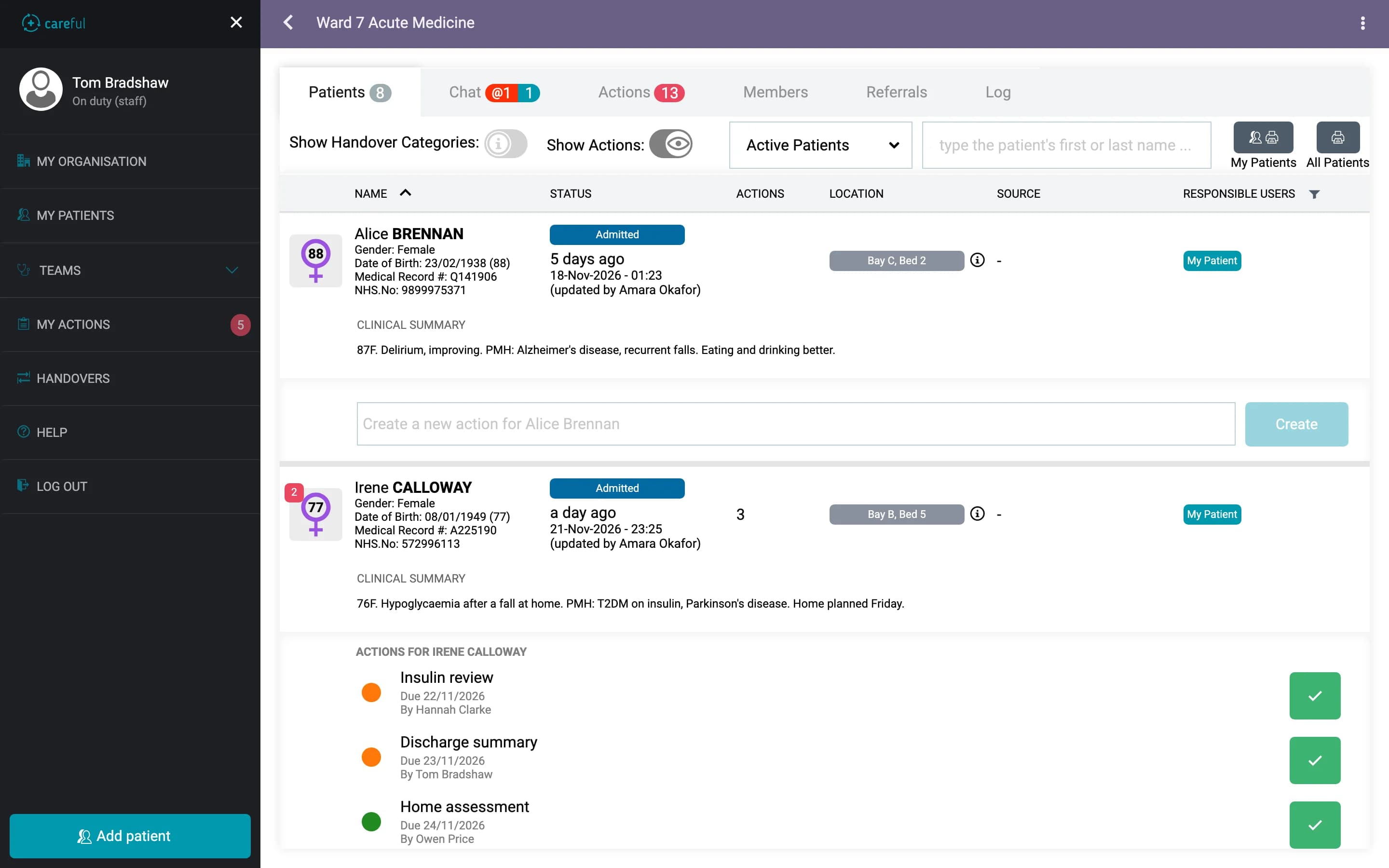 The team's patient list with Show Actions on: each patient's open actions are listed under their name
Tip: On a phone, the tree icon turns red while Show Actions or Show Handover Categories is on.
Use the actions in the list
The list shows each patient's next jobs at a glance. You can tick one off or open it without leaving the team.
- Read the coloured dot at the start of each action for its status: green for open, orange for soon and red for overdue. The date after "Due" is the day it is due.
- Select Show More to read a long title in full.
- To complete an action, select its tick, then Click to Complete within two seconds.
- If a patient has more than five open actions, select View More Actions to see them all.
- Select an action's title to open it.
Tip: Completing an action here records no outcome. To record one, open the action and complete it from its page: see Complete an action and record the outcome