
Completing an action closes it and records the outcome: what you did and what happened. CAREFUL marks the action Completed and adds the outcome to the patient's notes.
You can complete any action assigned to you and any action for a patient in one of your teams. Administrators can complete any action in the organisation. You do not need to be the assignee.
The outcome and files are optional. The note CAREFUL adds to the patient's Notes tab is titled "Action Closed - " followed by the action's title. Its text is the outcome, without the files. You cannot edit it.
When you complete a colleague's action, CAREFUL notifies them if they are on duty. For 30 minutes afterwards, you or a colleague can reopen the action. After that, the change is permanent.
If the patient is linked to your organisation's connected patient system, CAREFUL also sends it a summary of the completed action.
Complete an action from its page
Record the outcome so that anyone who opens the action, or reads the patient's notes, knows what happened. It might be a result and what was done about it, a message passed to the family or the date of a booked appointment.
- Open the action.
- Select Complete action.
- In Action outcome, write what you did and what happened.
- To add a photo or document, select Choose File under Attachments.
- Before you select Submit, check that each file appears in the list. If one does not, it has not uploaded: select Choose File again.
- Select Submit. CAREFUL shows Action Completed and marks the action Completed.
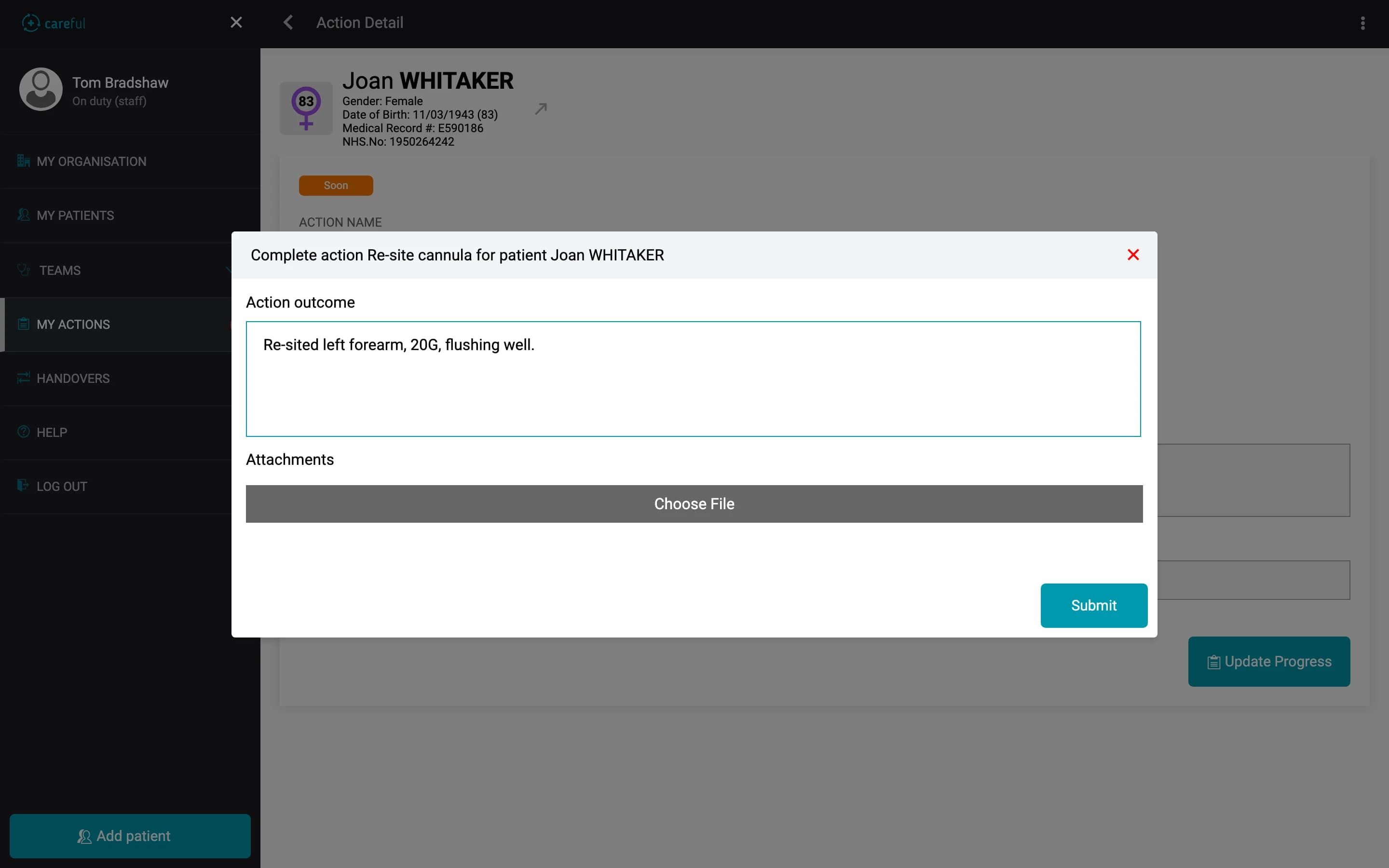 The Complete action window with the outcome written in Action outcome
Tip: To find the outcome later, open the patient profile and select Notes. On the action's note, select Show more to open the action.
Complete an action from a list, with an outcome
When you are working through My Actions or a team's actions, you can record an outcome without opening the action.
- On the action's row, select the tick. Click to Complete and Add outcome appear for two seconds.
- Select Add outcome.
- In Action outcome, write what you did and what happened. Add any files under Attachments.
- Select Submit.
Tip: If a colleague completed or deleted the action first, CAREFUL tells you and saves nothing you entered.