
A team chat message that mentions a colleague and a patient can become an action. A button on the message opens the create action window, filled in from the message.
If your organisation and team use chat, the button appears on team chat messages that mention a colleague with @ and a patient with !. It appears on your messages and on other people's, but not on deleted ones. A mention of @Room alone does not count. The organisation chat room never shows the button: you cannot mention a patient there.
You can use the button in the chat of any team you are in.
To confirm: can an administrator outside the team use its chat and this button?
CAREFUL fills in the first patient the message mentions, with the first colleague as the assignee. The title is the message with the mentions taken out. You cannot change the patient. You can change everything else before you submit. Once the action exists, you cannot change its title, description or due date and time.
The action is due at the end of today unless you change it, as when you create one from the patient profile. If you pick a different assignee, the list offers anyone in one of the patient's teams who is verified and not disabled. CAREFUL refuses the action if the colleague named in the message has a disabled account.
To confirm: the message CAREFUL shows when it refuses that colleague
CAREFUL notifies the assignee through the CAREFUL phone app if they are on duty, unless you assign the action to yourself.
Create an action from a message
A request in chat can slip out of sight as the conversation moves on. As an action, it stays in view. It might be a nurse asking a doctor to review a drug chart, or a therapist asking the ward clerk to ring the family. The job then sits in the assignee's My Actions list until someone completes, deletes or reassigns it.
- Open the team and select Chat.
- Select the Create a new action button on a message that mentions a colleague and a patient. It shows a page with a plus sign, at the top corner of the message.
- Reword the Title as a job. CAREFUL fills it in with the message, without the names.
- Check the Assignee. To give the action to someone else, start typing a name, role or speciality, then select the person.
- Change Due date and Due time if the job is not due by the end of today.
- Select Submit.
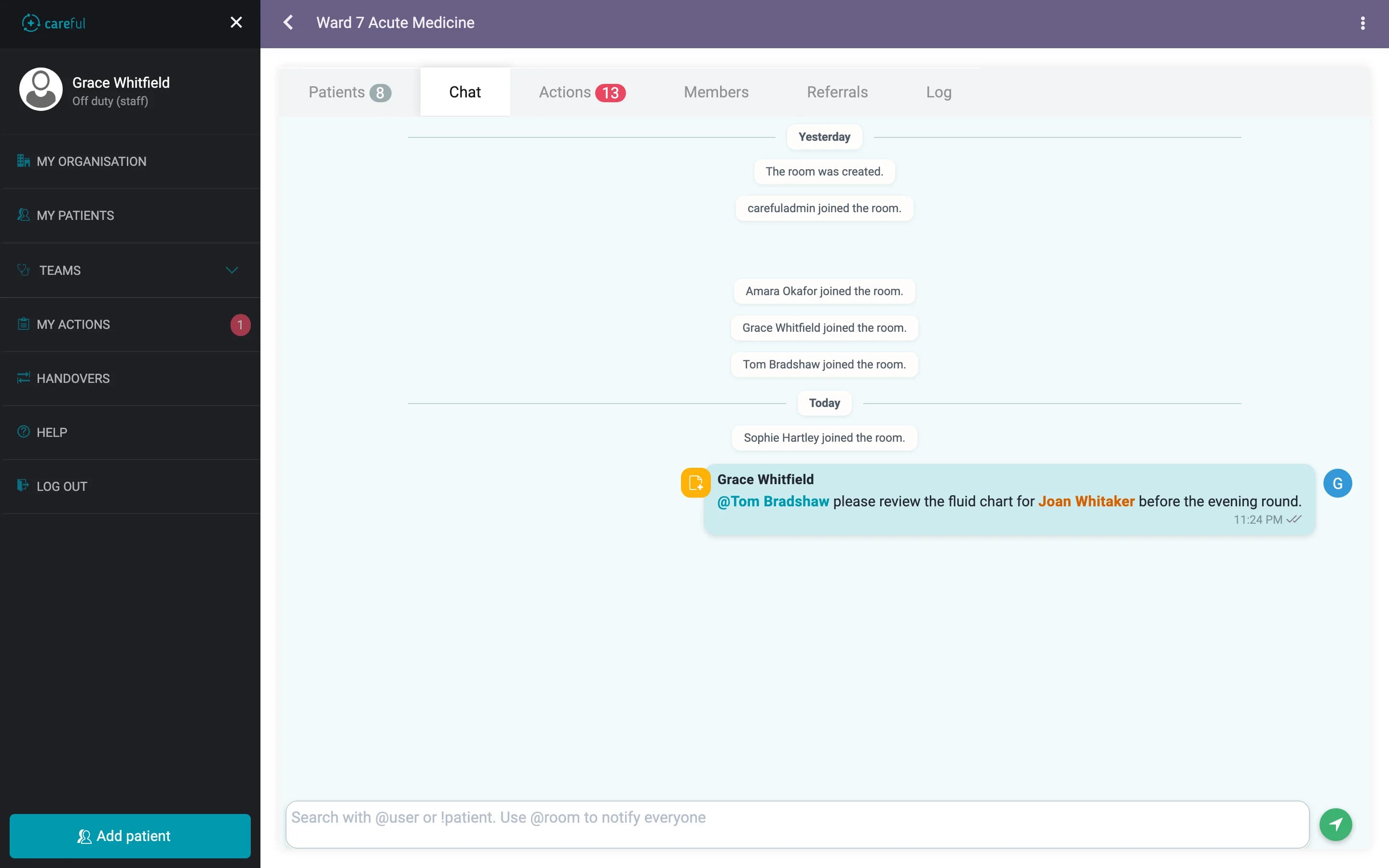 A chat message that mentions a colleague and a patient, with the Create a new action button
Tip: A title holds up to 238 characters. If the message is longer, shorten the title and put the rest in Detailed Description.
Write a message that can become an action
A message that names both the colleague and the patient can become an action with one button, for you or anyone else in the chat. For example: "@Tom Bradshaw please review the warfarin dose for !Joan Whitaker".
- Open the team and select Chat.
- Type @, then select the colleague who will do the job.
- Type !, then select the patient.
- Write the job, then send the message.
Tip: If the message names several colleagues, CAREFUL makes the first one the assignee. Put the person who will do the job first.