
Reopening a completed action makes it open again and erases its outcome. It goes back into its assignee's My Actions list.
You can reopen an action for 30 minutes after someone completes it. After that, the Reopen button disappears and the action stays completed.
You can reopen an action if you are its assignee or in one of the patient's teams. Administrators can reopen any action in the organisation. You do not have to be the person who completed it.
The action goes back to the person it was last assigned to. CAREFUL does not check that they are still in one of the patient's teams, or that their account is not disabled. If either has changed, the action stays with them until someone reassigns it.
The action keeps its due date and time. If that time has passed, it shows as Overdue at once.
CAREFUL erases the outcome and any files attached at completion. Progress updates and the files attached at creation stay. So does the note CAREFUL added to the patient's notes at completion. If CAREFUL has already sent the outcome to your organisation's connected patient system, reopening does not withdraw it.
If the assignee uses the CAREFUL phone app, CAREFUL notifies them there when someone else reopens their action. Nobody is told on the web.
Reopen an action from its page
Reopen an action that someone completed by mistake, such as the wrong one of two similar actions. Reopen it, too, when the job turns out not to be finished: the result is not back yet, or the family did not answer.
- Tick Show completed actions if the action is no longer in your list.
- Open the action.
- Select Reopen at the top of the page.
- Read what CAREFUL will erase, then select Reopen. The status changes from Completed to Open, Soon or Overdue.
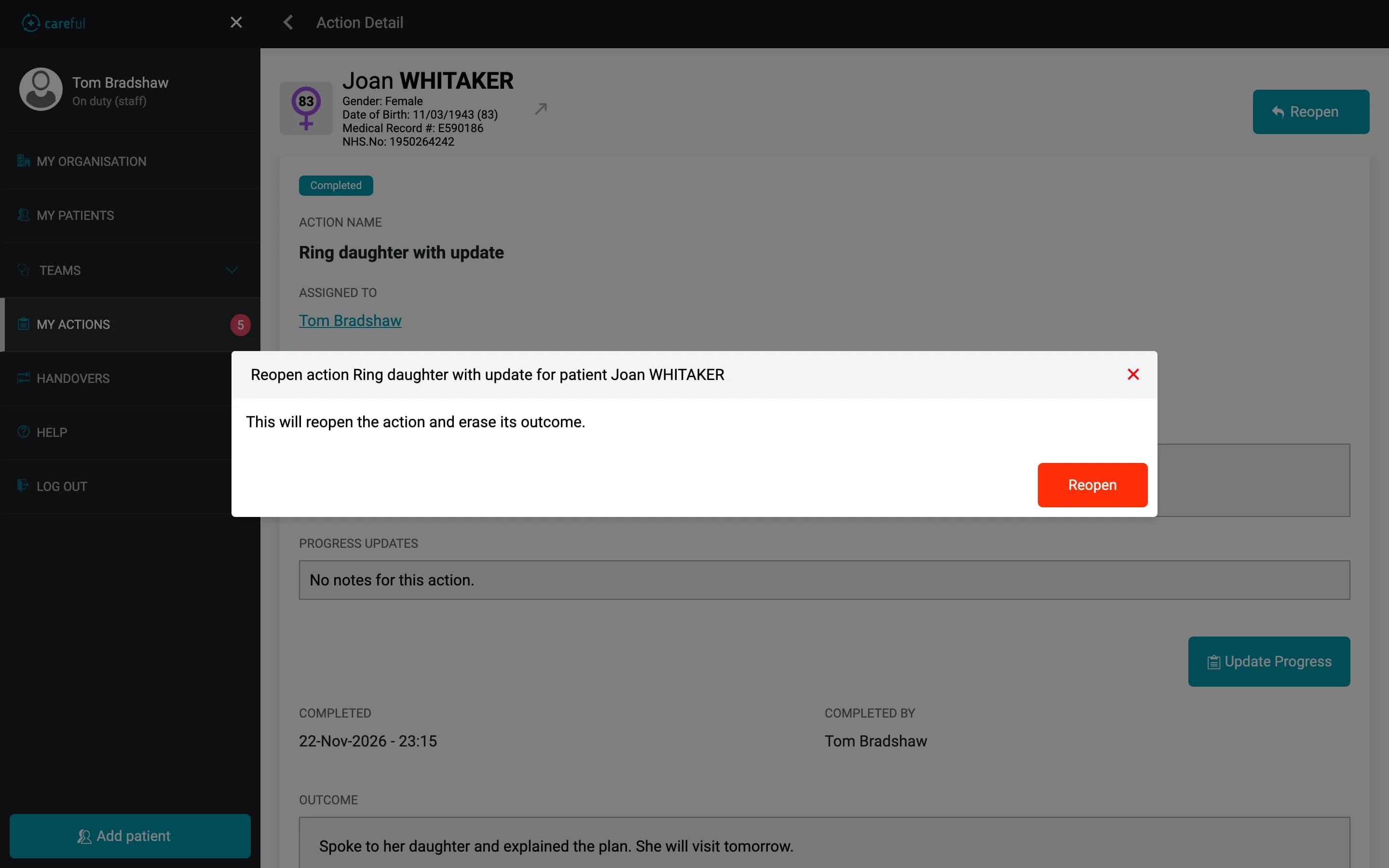 The reopen window warns that the outcome will be erased
Tip: Completing the action again adds a second note to the patient's notes. The first note stays.
Reopen an action from a list
Reopen an action from a list of completed actions, without opening it. This suits a slip in a list, such as completing the wrong row.
- Open My Actions, or the Actions tab of a patient or team.
- Tick Show completed actions.
- On the action's row, select Reopen action, the circular arrow.
- Select Click to Reopen within two seconds, before it changes back.
- Select Reopen to confirm. CAREFUL takes the action out of the completed list.
Tip: From a list, the warning does not say whether there is an outcome to erase. Open the action first to check its Outcome.