
A patient's location records where they are now, such as a ward, a bay or a room. It shows at the top of the patient profile, in My Patients, in team patient lists and in the organisation's patient list. Colleagues use it to find the patient.
You can set the location of any patient in one of your teams. Administrators can set it for any patient record in the organisation. You cannot change it on a read-only record, while your team has a referral for the patient that it has not yet accepted.
You can choose a location from your organisation's list or type one of your own. Your organisation's administrators keep the list. A patient has one location at a time: a new one replaces the old.
CAREFUL saves the location as soon as you select it: there is no Submit. Nor is there a button to clear a location: you clear it with the keyboard. The patient's Log records each change.
CAREFUL tells the colleagues responsible for the patient who are on duty, if they use the CAREFUL phone app. Unlike a status change, this includes you when you are responsible and on duty.
Choose a location from your organisation's list
Update the location whenever the patient moves: from the emergency department to a ward, from one bay to another, or to a side room. Colleagues then look in the right place, whether they come to review the patient, take bloods or bring a relative to the bedside.
- Open the patient profile.
- On the Profile tab, select Current Location. CAREFUL opens your organisation's list, with the patient's location beside Current at the top.
- To narrow the list, type part of the name in Type to filter locations.... Every word you type must appear in the name, in any order.
- Select the location. CAREFUL shows Updating location... and saves it.
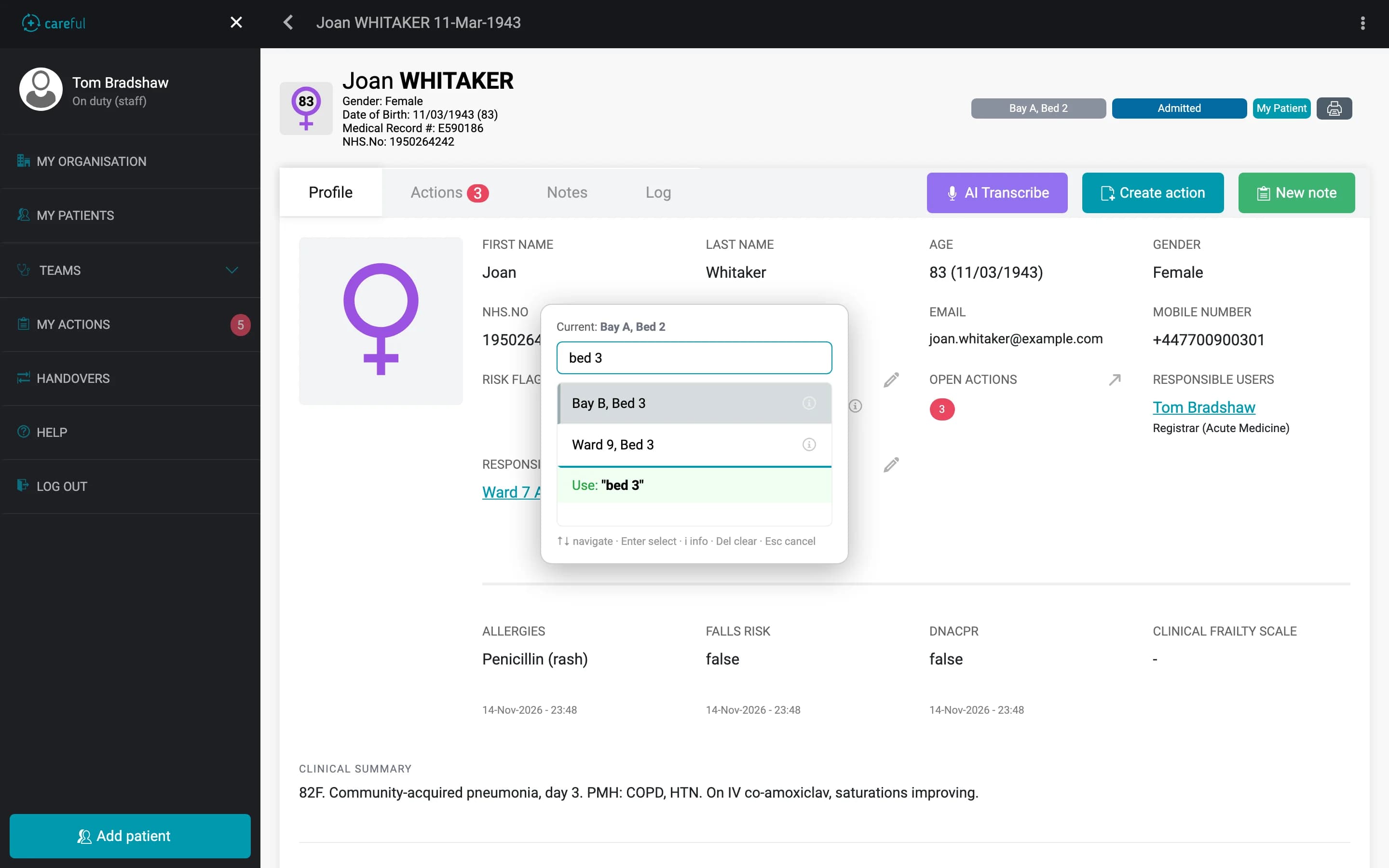 The location list narrowed to the names that hold both words typed, with the current location at the top and Use at the end
Tip: In the list, the patient's present location is marked current. If your organisation has no list yet, CAREFUL shows No default locations defined. You can still type a location of your own.
Type a location that is not on the list
Sometimes a patient is somewhere your organisation's list does not name, such as an escalation area, a corridor space or another hospital. Type the place in your own words. CAREFUL keeps it as a non-standard location, with no details beyond its name.
- Open the patient profile and select Current Location.
- In Type to filter locations..., type the location as you want it to appear.
- Select Use, followed by your text, at the end of the list. CAREFUL saves the location.
Tip: If what you type matches a name on the list, ignoring capitals, CAREFUL does not offer Use. Select the list entry instead.
Change the location from a patient list
After a ward round or a bed meeting, several patients may have moved. You can update each one from the list without opening their patient profiles.
- Open My Patients, or a team's Patients tab.
- In the patient's row, select their location. A patient with no location shows No location.
- Select the new location, or type one and select Use.
Tip: The Patients tab of My Organisation shows locations but does not let you change them.
Clear a patient's location
Clear the location when it is no longer right and you do not yet know the new one. Colleagues then see No location, not an old bed number. There is no button for it: you clear the location with the keyboard.
- Open the patient profile and select Current Location.
- Leave Type to filter locations... empty.
- Press the Delete or Backspace key. CAREFUL clears the location and shows No location. To confirm: does a phone keyboard's Backspace clear it?
Tip: On a keyboard, the arrow keys move through the list and Enter selects. Esc closes the list without a change. The foot of the list shows these keys.