
The Log tab of a patient record lists who did what to the record, and when, with the newest entry first. Each entry shows the date and time, who acted and what they did.
You can see the log of any patient record you can open. Administrators can see it for any patient in the organisation. A team with a referral for the patient that it has not yet accepted can see it too. The record is read-only for that team.
The log records changes to the patient's details, status, risk flag, location, clinical summary and organisation fields. It records each note, and who created, reassigned, updated, completed, deleted, reopened or restored each action. It also records who took or gave up responsibility, handovers and referrals. So does each time a team takes the patient on or discharges them.
What a handover, referral or discharge changes along the way has no entries of its own. When a handover is accepted, for example, the Handover accepted entry stands for the change of responsibility and for the actions that moved with it.
You cannot change or remove an entry, and nor can an administrator. The log shows 50 entries at a time: select Load more for older ones.
Read the log
The log answers "who did this, and when?" Check it when a detail has changed and you need to know who changed it. It also helps when you take over a patient, or look into a complaint or an incident.
- Open the patient profile.
- Select Log.
- Read each entry: the Date, the User who acted and the Event. The event starts with its name in bold, such as Status changed, followed by the details.
- Select Load more at the end of the list to see older entries.
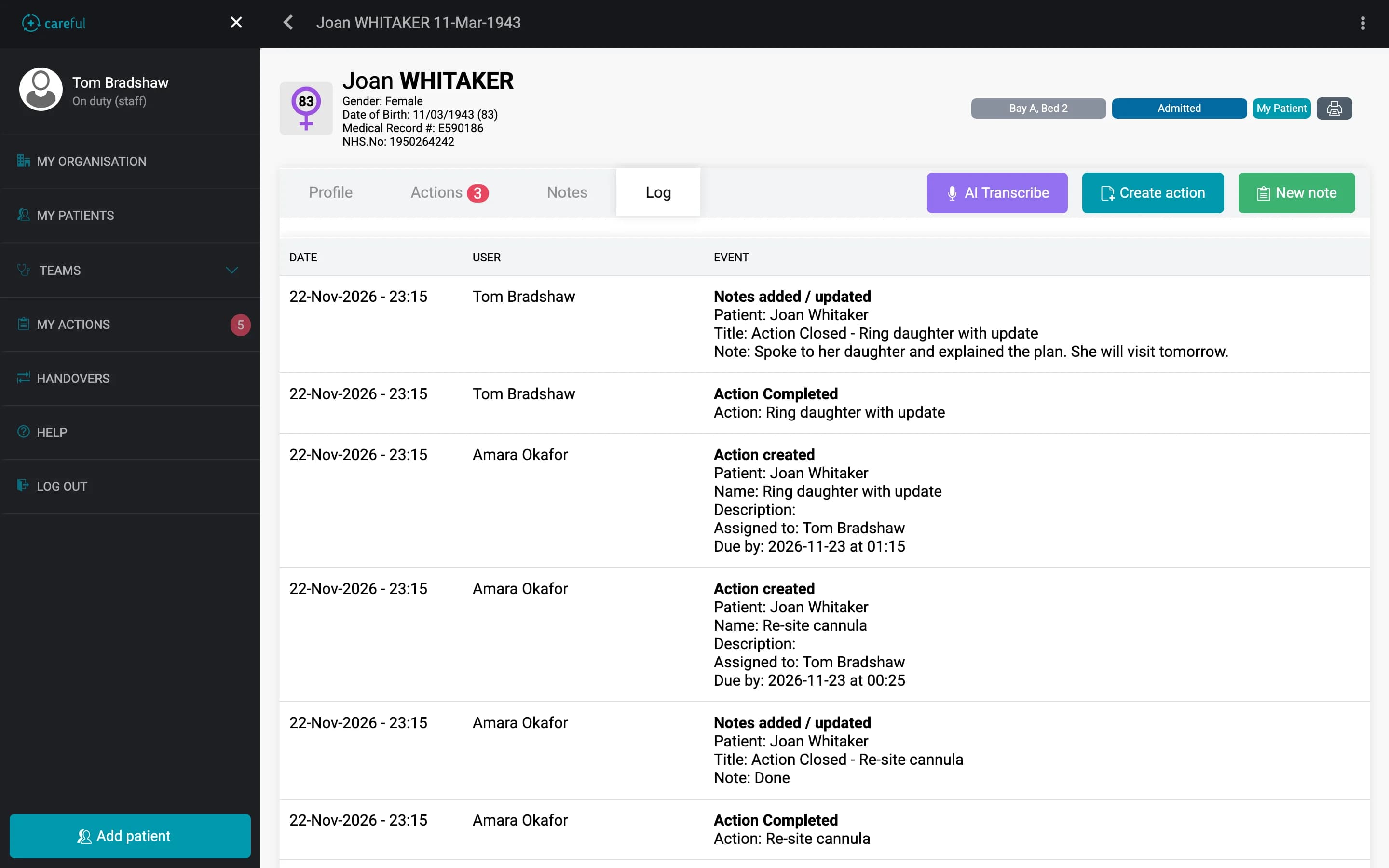 A patient's Log tab: the date, who acted and the event, newest first
Tip: On a phone or in a narrow window, the log has no column headings. Each entry shows the date, then the name, then the event.
Find a change in the log
Each kind of change has its own name in the log. Look for the name to find a new location, a corrected note or an action passed to a colleague.
- Look for Edited to find changes to the patient's details. Look for Status changed, Risk flag changed, Location changed or Patient Organisation Field updated for the rest of the profile.
- Look for Clinical summary changed to find each version of the clinical summary.
- Look for Notes added / updated to find each note, and Notes amended for a corrected one.
- Look for Action created, Action re-assigned, Progress update on action, Action Completed and Action Deleted to follow an action. Actions added from the AI assistant show Bulk Action created instead of Action created.
- Look for Responsibility for patient taken, Handover requested and Handover accepted to see who has looked after the patient.
- Look for Added to team, Referral accepted, Readmitted and Patient discharged from team to see which teams have cared for the patient.
Tip: The Action created entry names the person who created the action. The action's own page does not: see Can I see who created an action?