
A patient's status is a coloured label that shows where the patient is in your organisation's care pathway. The new status shows at the top of the patient profile and in every patient list. The Profile tab and patient lists also show who changed it and when.
You can change the status of any patient in one of your teams. Administrators can change it for any patient record in the organisation. You cannot change it on a read-only record, while your team has a referral for the patient that it has not yet accepted.
You can choose any of your organisation's statuses, or No Status to remove it. Your organisation's administrators decide what the statuses are: see What is a patient status?
You cannot choose the inactive status. You cannot change the status of an inactive patient either. CAREFUL sets that status when a patient is discharged from their last team: see What are active and inactive patients?
You can backdate a change, but not to a time in the future.
CAREFUL notifies the colleagues responsible for the patient who are on duty, if they use the CAREFUL phone app. It does not notify you about your own change.
Change the status
Update the status whenever the patient reaches a new stage in your organisation's pathway. Everyone looking at a patient list then sees which stage the patient has reached. They can also filter the list by status.
- Open the patient profile.
- On the Profile tab, select Status. Update patient status for opens, with the patient's status under Current status.
- In New status, select the status. To remove the status, select No Status.
- Select Submit. CAREFUL changes the status and shows your name and the time beside it.
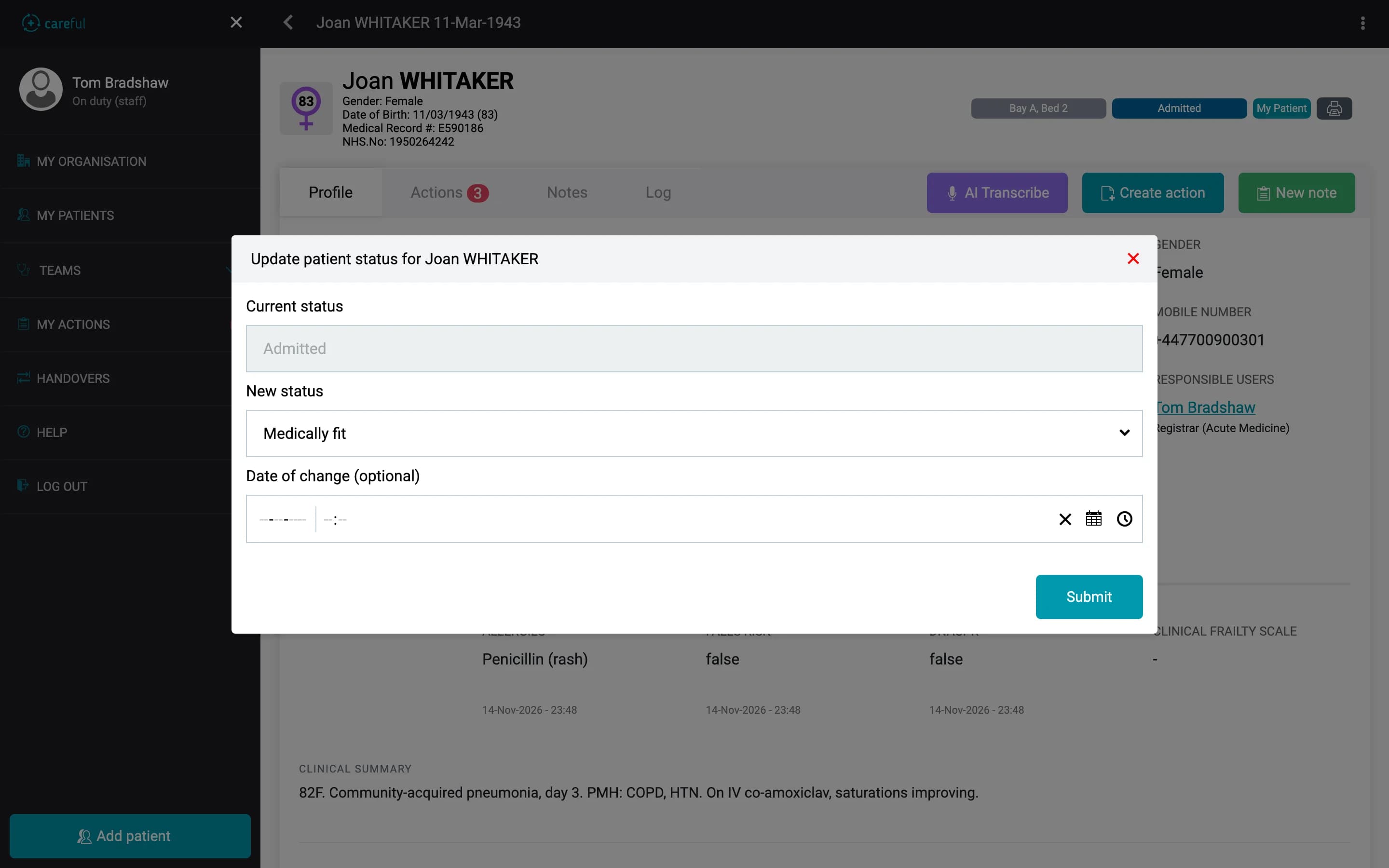 Updating a patient's status: the current status, the new status chosen, and an optional date of change
Tip: If you choose a status that comes earlier in your organisation's list, CAREFUL warns you but lets you go ahead. It also asks you to check before you set a patient's status to Deceased.
Backdate a status change
If the patient reached a new stage earlier and you are updating the record afterwards, backdate the change. The time beside the status, and how long the patient has had it, then count from when it really happened.
- In Update patient status for, select the New status.
- In Date of change (optional), enter or select the date and time the change happened.
- Select Submit. If the time is in the future, CAREFUL shows This date and time must not be in the future and does not save.
Tip: Leave Date of change empty and the change counts from the moment you select Submit.