
Discharging a patient from a team takes them off that team's patient list. The patient stays in any other team that cares for them, with the same record.
You can discharge a patient from any of your teams that cares for them. Administrators can discharge a patient from any of the patient's teams, including teams they are not in. You discharge from one team at a time.
You cannot discharge a patient while an open action is assigned to someone in none of the patient's other teams. If this is the patient's last team, every open action stands in the way. The discharge window lists these actions. Complete all completes them, with an optional reason as their outcome, then discharges the patient in the same step.
You cannot discharge a patient from a team that has referred them to another team while the referral is still pending. A referral sent by another of the patient's teams does not stop it.
Anyone left in none of the patient's teams loses responsibility for the patient. The patient leaves their My Patients list. If you are left in none of the patient's teams and are not an administrator, you can no longer open the record. CAREFUL takes you out of it.
Discharge from the last team makes the patient inactive. CAREFUL sets their status to Inactive. Only administrators can then open the record. The notes, actions and log stay in it.
CAREFUL sends no notification about the discharge itself. Colleagues who use the CAREFUL phone app and are on duty may still be told of its effects:
- If a colleague loses responsibility, the others still responsible are told that you have relinquished responsibility for one of their patients.
- After discharge from the last team, the colleagues responsible are told that the status has changed to Inactive.
- Complete all tells each assignee other than you that their action was completed.
Discharge a patient from your team
Discharge the patient when your team's part in their care ends. They may have gone home, moved to another ward or service, or finished a course of therapy. Teams that still care for the patient keep them on their lists.
- Open the patient profile.
- Select Discharge from team. Discharge patient opens.
- In From, select the team. If you can discharge from only one team, CAREFUL fills it in.
- Select Discharge. CAREFUL checks for open actions and pending referrals.
- If CAREFUL says the patient can be discharged, select Yes. CAREFUL discharges the patient from the team.
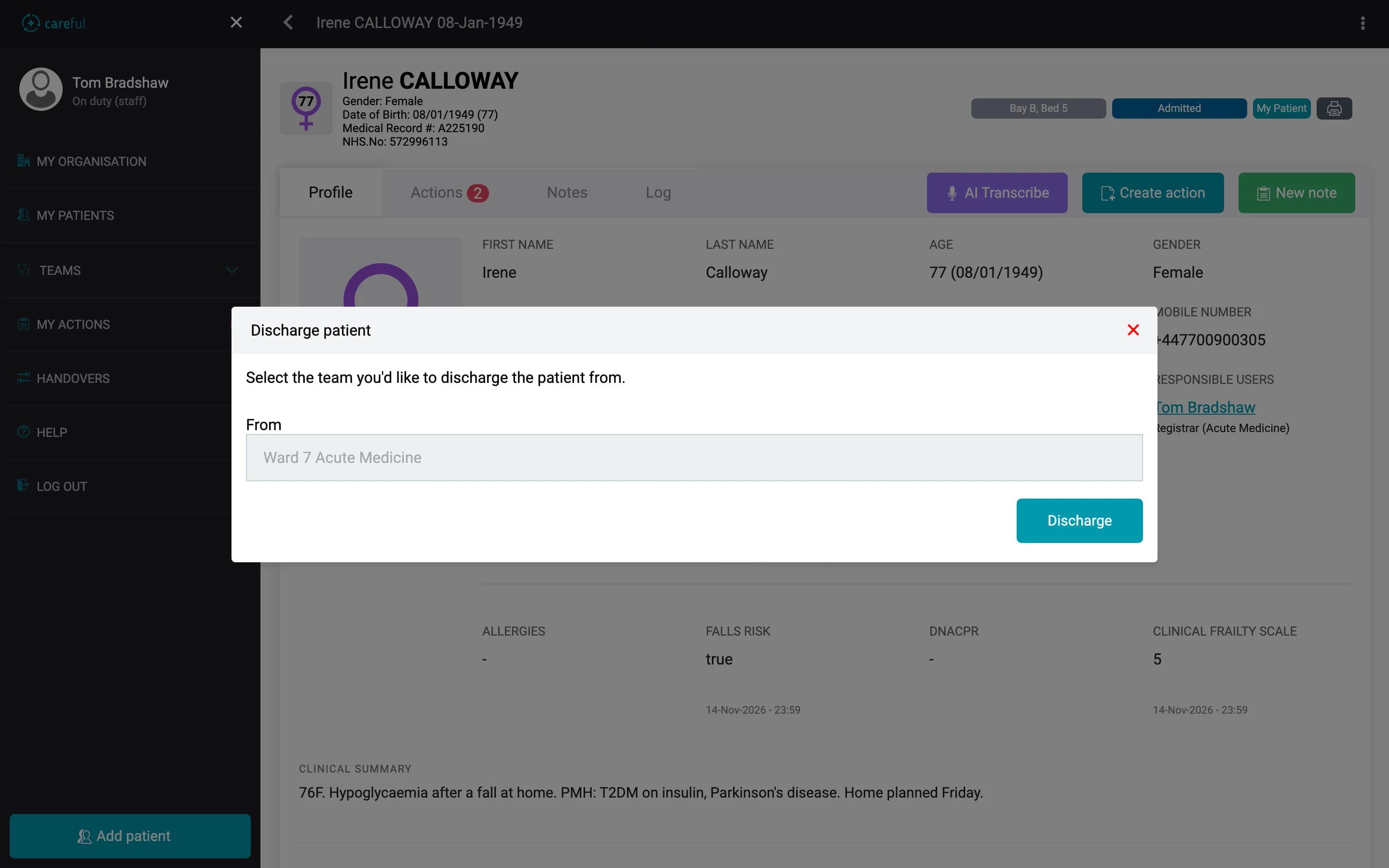 Discharge patient, with the team already filled in under From
Tip: Open actions assigned to colleagues in the patient's other teams do not stop the discharge. They stay open, with the same assignee.
Complete the actions that block a discharge
CAREFUL will not leave a job with someone outside the patient's teams. When a patient goes home, their open jobs are often done or no longer needed. You can complete them all at once, with one reason as their outcome.
- Select Discharge in Discharge patient. If actions stand in the way, CAREFUL lists them under Title, Assigned to and Due.
- Under Would you like to complete all outstanding actions?, type a reason if you want one, such as "Patient has gone home".
- Select Complete all. CAREFUL asks you to confirm.
- Select Confirm. CAREFUL completes each listed action with your reason as its outcome, then discharges the patient. To confirm: what staff still in another team see
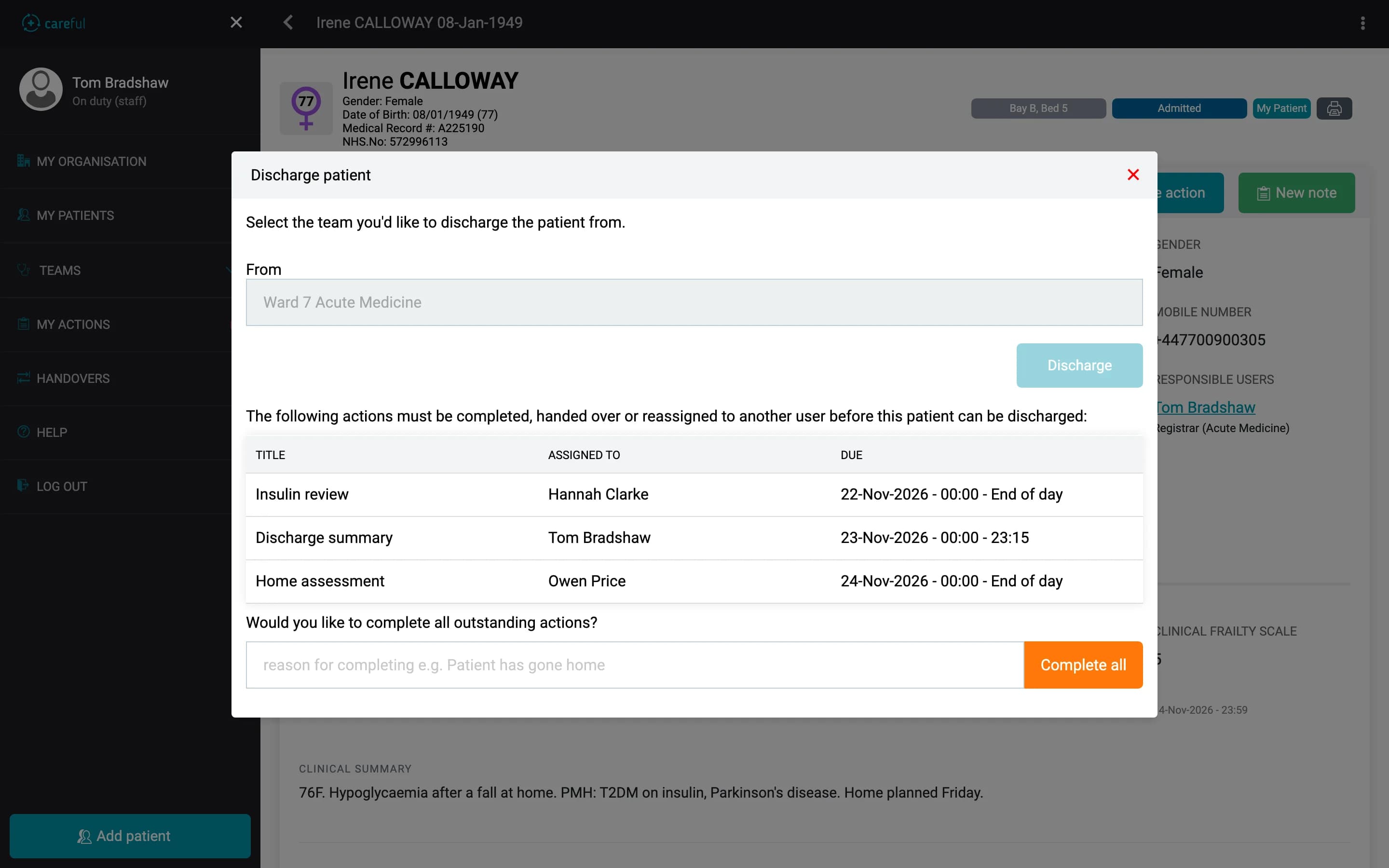 The open actions that stop a discharge, with a box for your reason and Complete all
Tip: Each action completed this way adds a note titled "Action Closed - " and the action's title. To keep an action open instead, close the window and reassign it to someone in another of the patient's teams, then discharge again.
Discharge a patient from their last team
When the last team caring for a patient discharges them, the patient leaves every team's list. Their record stays, with its notes, actions and log, ready if they come back.
- Open the patient profile and select Discharge from team.
- Select Discharge. If the patient has open actions, CAREFUL lists every one.
- If CAREFUL lists actions, select Complete all, then Confirm. CAREFUL completes them and discharges the patient.
- If there are no open actions, read the warning: members of the team will no longer be able to open the patient record.
- Select Yes. CAREFUL discharges the patient and sets their status to Inactive.
Tip: To bring the patient back, add them to a team again: see Readmit a discharged patient.
When a referral blocks a discharge
If your team has referred the patient to another team, the referral must be settled before your team can discharge them. The receiving team accepts or rejects it, or your team cancels it. Only a referral from the team you are discharging from blocks the discharge.
- Select Discharge in Discharge patient. CAREFUL says that the patient has pending referrals which prevent the discharge.
- Select Close.
- Wait for the receiving team to accept or reject the referral, or cancel it: see Cancel a referral your team sent.
- Discharge the patient again.