
Date of change records when a patient really reached a new status, if you update CAREFUL afterwards. How long the patient has had the status then counts from that time, not from when you selected Submit.
You can backdate a change for any patient in one of your teams. Administrators can do it for any patient record in the organisation. You cannot change the status on a read-only record, while your team has a referral for the patient that it has not yet accepted. Nobody can change the status of an Inactive patient.
Date of change is optional. Leave it empty and the change counts from the moment you select Submit. The time cannot be in the future. CAREFUL does not stop you choosing a time before the patient's current status began. If you do, the timeline shows the new status starting before the one it replaced. Check when the current status began first.
The time you enter is what the patient profile, patient lists and the status timeline show for the new status. The timeline still measures the previous status up to the moment you select Submit. That status then shows as lasting longer than it did. CAREFUL also judges its colour on that longer time.
The Status changed entry in the patient's Log shows when you selected Submit, not the time you entered. It names only the new status.
CAREFUL notifies the colleagues responsible for the patient who are on duty, at once, if they use the CAREFUL phone app. It does not notify you about your own change.
Backdate a status change
Backdate the change when the record has fallen behind the ward. A patient may have become medically fit during the night, or left for the discharge lounge while you were with another patient. A ward clerk catching up at the end of a shift can record each change at its real time.
- Open the patient profile.
- On the Profile tab, check the date and time under Status: when the current status began.
- Select Status. Update patient status for opens.
- In New status, select the status.
- Under Date of change (optional), enter or select the date and the time the change happened, in 24-hour time.
- Select Submit. If the time is in the future, CAREFUL shows This date and time must not be in the future and does not save.
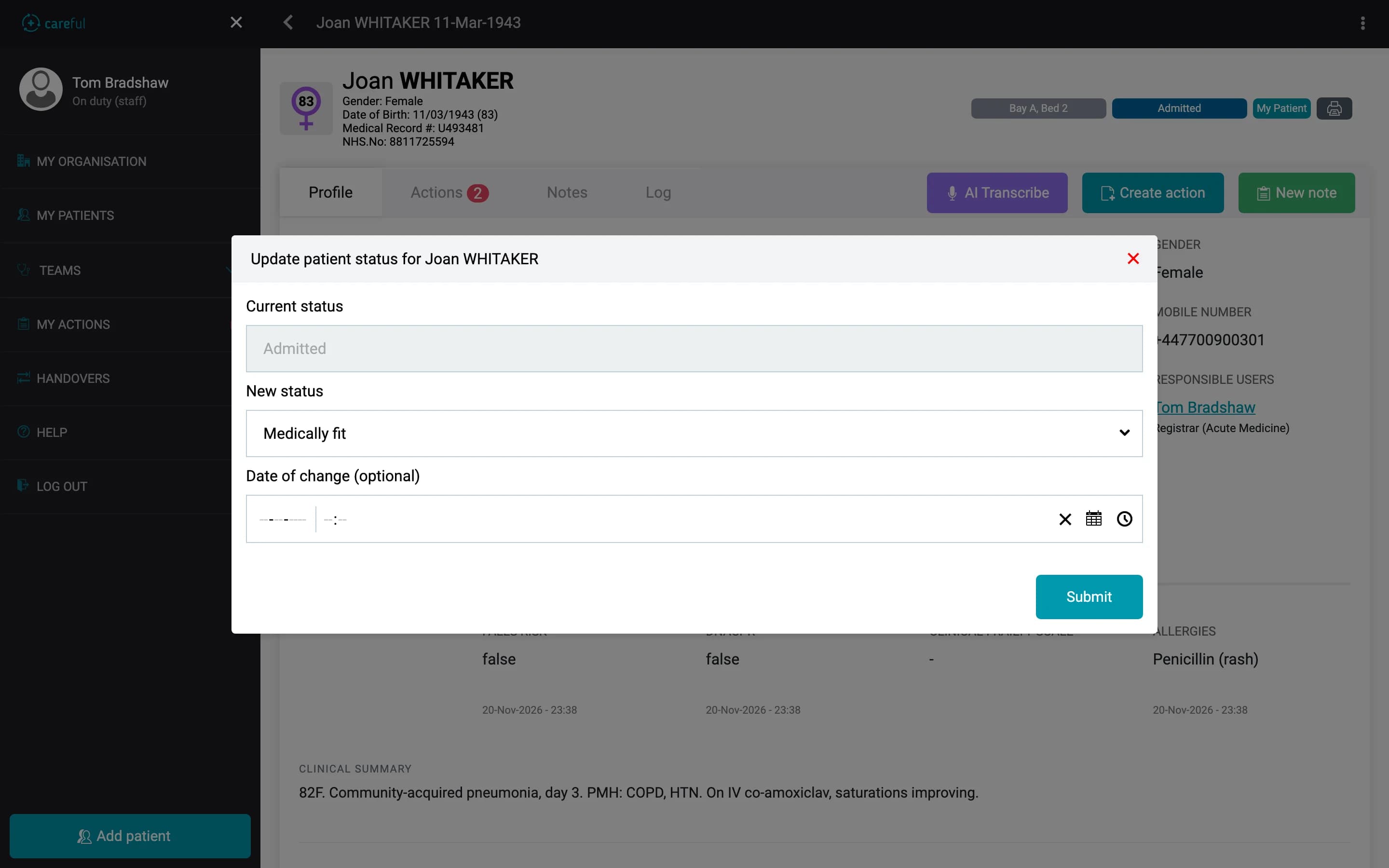 Update patient status with Medically fit chosen as the new status and Date of change left empty, beside its clear, calendar and clock buttons
Tip: The clock button beside Date of change fills in the date and time now. You can then change the time back to when the change happened.
Check when a change took effect and when it was entered
After a backdated change, the profile and the Log show different times. The profile shows when the patient reached the status. The Log shows when a colleague entered it, and who.
- Open the patient profile.
- On the Profile tab, read the date and time under Status: when the status took effect.
- Select Log.
- Find the Status changed entry. Its Date is when your colleague selected Submit, and User is who they were.
- Read To for the new status. To find the status before it, read the Status changed entry below it, if there is one.
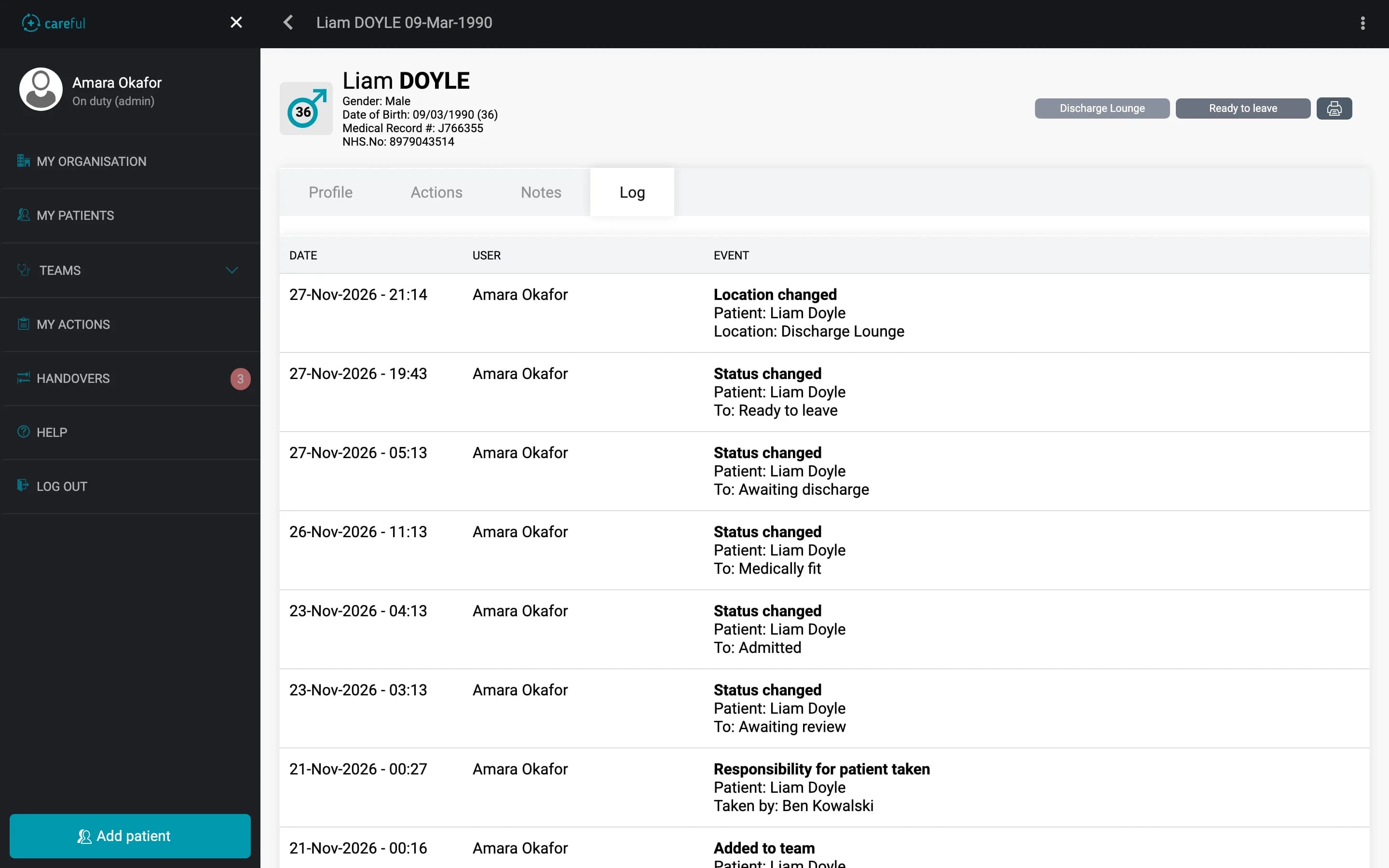 A patient's Log tab, newest first: a Location changed entry, then Status changed entries, each with when it was entered, who entered it and the new status
Tip: On a phone or in a narrow window, the log has no column headings. Each entry shows the date, then the name, then the event.