
My Patients, team patient lists and the organisation's patient list show how long each patient has had their current status. The Patients tab of My Organisation can also show each patient's status timeline: every status they have had, when each began and how long each lasted.
Everyone in your organisation can see the Patients tab and its timelines: staff, team owners and administrators. It lists every patient in the organisation, not only those in your teams. Selecting a patient opens their record only if you could open it anyway.
Time counts from when a colleague set the status. If they entered a Date of change, it counts from that time instead. The timeline still measures the status before it up to when they selected Submit. That status can then look longer than it was.
The timeline colours each earlier status against a target. Green means the patient moved on within 3 hours. Amber means more than 3 hours, up to 4. Red means more than 4 hours. Every status your administrators add gets these targets. No screen shows or changes them. Deceased and Inactive have no targets: they always show green.
The current status always shows green, however long the patient has had it. The timeline shows when it began, not how long it has lasted so far. Time when the patient had no status does not appear in the timeline.
See how long a patient has had their status
Check the time in status during a board round, a safety huddle or a handover, to see who has waited longest at their stage. A nurse can see which patients have been medically fit since yesterday. A therapist can see who has waited longest for a first assessment.
- Open My Patients, or a team's Patients tab.
- Under the patient's status, read how long ago it was set, such as "3 hours ago" or "2 days ago". From 28 days, CAREFUL counts in days, such as "35 days ago".
- Read the date and time below it, and updated by with the name of the colleague who set the status.
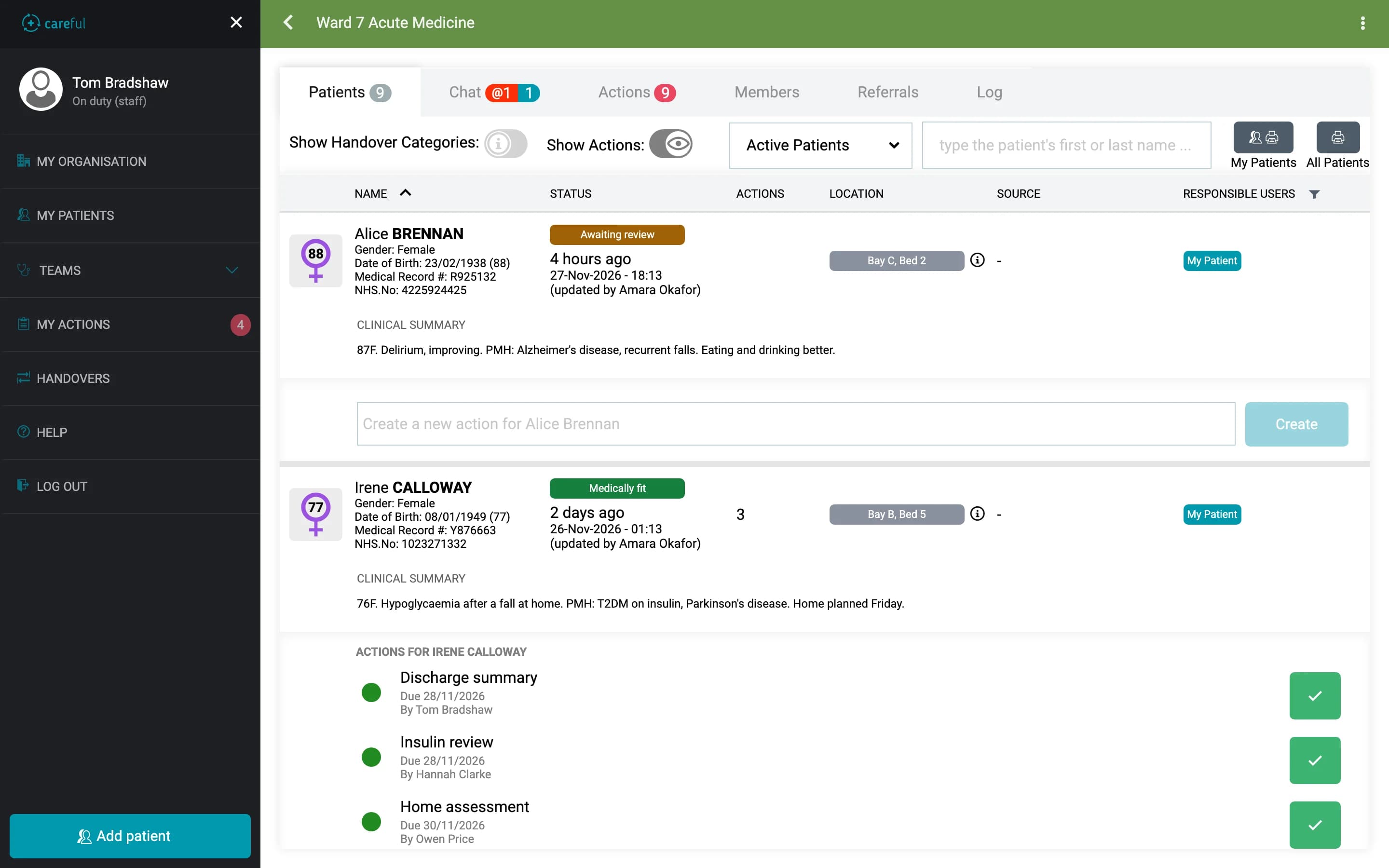 A ward team's patient list: each patient's status, how long ago it was set, when and by whom, and their location
Tip: The patient profile shows the same details under Status on the Profile tab. The Patients tab of My Organisation shows how long ago, under Current status.
Show each patient's status timeline
Use the timelines to see how long patients spent at each stage, and where they waited longest. A ward manager can see how long patients waited for transport. A discharge coordinator can see which stage held patients up this week.
- Select My Organisation in the menu on the left. On a phone, select My Organisation in the bar at the bottom of the screen. The page opens on the Patients tab.
- On a phone or in a narrow window, select the filter button at the top of the screen.
- Tick Show timelines. Each patient's row now shows their statuses, newest first: from left to right, or from top to bottom on a phone.
- Read each status: its name and the date and time it began. Earlier statuses also show how long they lasted, in capitals, such as "4 HOURS" or "2 DAYS".
- Select Inactive in the list of statuses to see the timelines of patients discharged from every team.
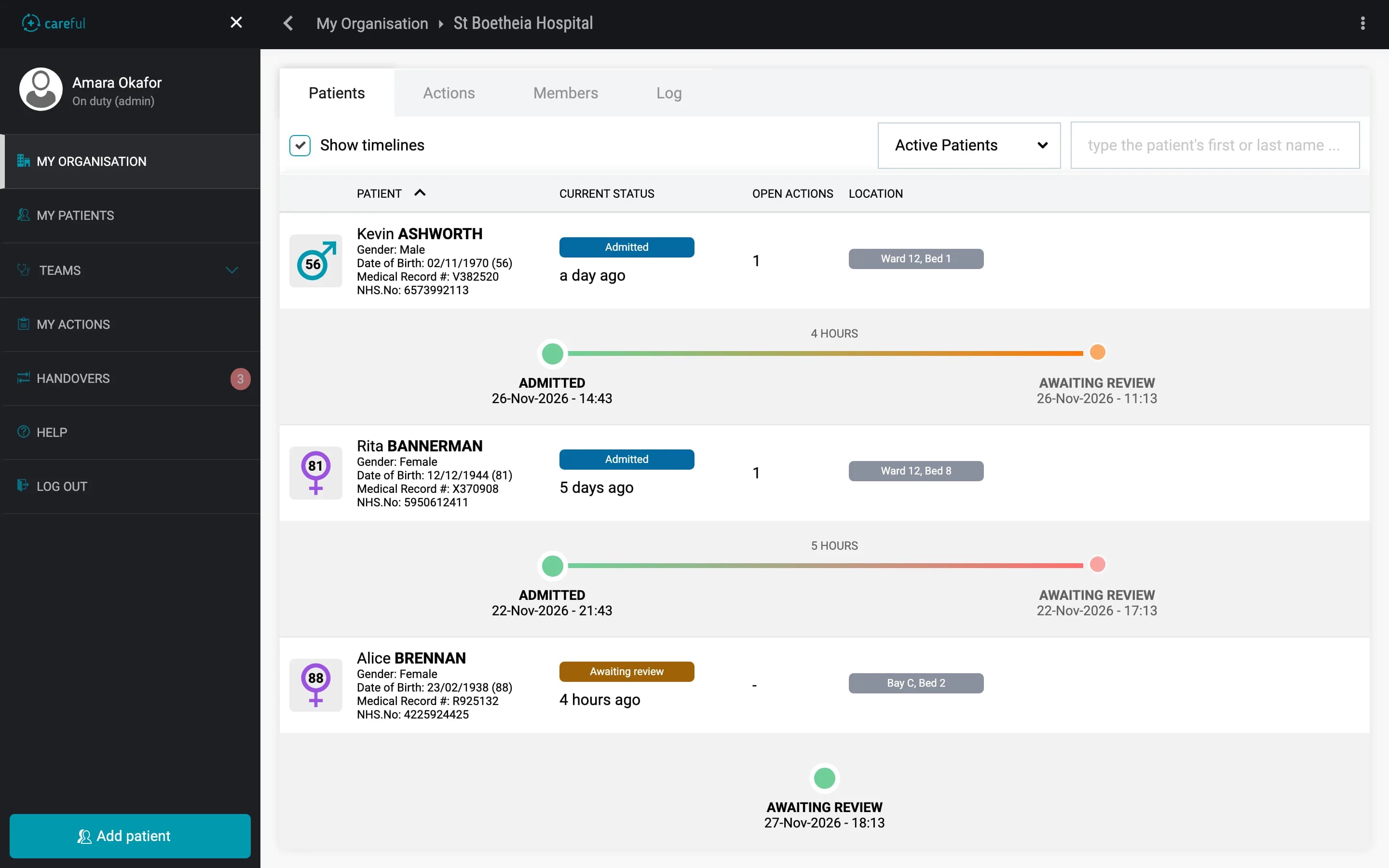 My Organisation's Patients tab with Show timelines ticked: each row starts with the current status, a green dot, then earlier statuses with when each began; Awaiting review lasted 4 HOURS (amber) for one patient and 5 HOURS (red) for another
Tip: CAREFUL does not remember Show timelines. Tick it again each time you open My Organisation.
Read the timeline colours
The colours show which stages took longer than the target. They mark only the statuses the patient has left. A patient who has been at one stage all week still shows green until they move on.
- On the Patients tab of My Organisation, tick Show timelines.
- Find the large, pulsing dot first in the row, or at the top on a phone. It marks the current status, and is always green.
- Look at the dot of each earlier status. Green means the patient moved on within 3 hours.
- Look for amber dots: the patient had the status for more than 3 hours, up to 4. CAREFUL rounds the length it shows: an amber status can read "4 HOURS".
- Look for red dots: the patient had the status for more than 4 hours.
Tip: Every status your administrators add has the same targets, 3 hours for amber and 4 for red, whatever the stage. So a stage that lasts days, such as awaiting a care package, shows red once the patient moves on.